New to NextCrew? Every screen has the same four parts. Learn them once, and you can find anything in a few clicks.
Summary
The menu on the left holds every area of NextCrew, with your Favorites at the top. The top bar shows where you are, the CrewPilot AI ticker, Support and your initials. The icons down the right edge open notifications, tasks and more without leaving the page. The middle is your work. What you see depends on the access your agency gave you. What goes wrong: looking for a page your access doesn't include. Ask your NextCrew admin.
Where things are
- Left menu: Favorites at the top, then each area. Click an area to open its pages.
- Hover over any menu item and click the star to add it to Favorites.
- Top bar: the page you're on, the CrewPilot AI ticker, Support for these guides, and your initials for your Profile.
- Right edge: Notifications, CrewPilot AI, Tasks, Add task and Channels.
- Home is your dashboard. Click ADD to put the numbers you check most on it.
- Click the arrow at the top left of the menu to hide it and give your work more room.
Every screen, four parts
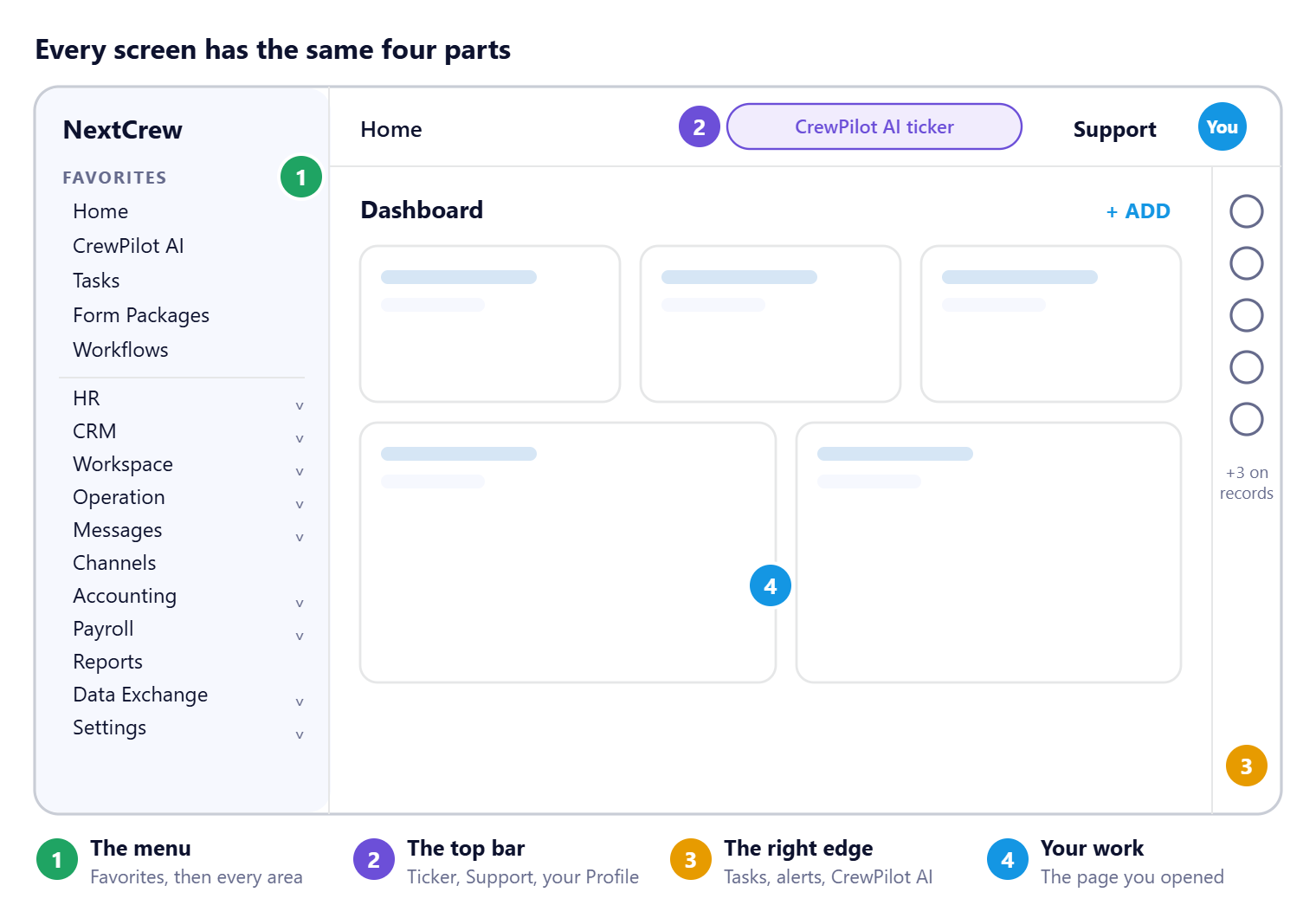
Learn these four parts once. Every page in NextCrew uses them, so a screen you have never opened still feels familiar.
That's the whole screen. Read on for what's in each area of the menu.
What's in the menu
| Menu item | What you'll find there |
|---|---|
| Home | Your own dashboard. See Find and Use Reports and Dashboards. |
| CrewPilot AI | Ask questions about NextCrew and your data. |
| Tasks | Your follow-ups. See Create and Track Tasks. |
| Form Packages | The forms you send, such as onboarding documents. |
| Workflows | Track who has completed each form. See Track Onboarding in Workflows. |
| HR | HR Overview, Crew Members and Sent Invitations. See Manage Your Crew: Start Here. |
| CRM | CRM Overview, Clients and Contacts. See Manage Clients: Start Here. |
| Workspace | Workspace Overview, Orders, Calendar and Job Board. See Fill and Schedule Jobs: Start Here. |
| Operation | Operation Overview, Daily Pulse and Timesheet. See Approve Timesheets: Start Here. |
| Messages | Inbox and Sent. The number shows unread messages. See Message Your Crew and Clients: Start Here. |
| Channels | Group conversations for a job or a team. |
| Accounting | Accounting Overview, Invoice Batches, Invoices and Payments. See Invoice Clients and Get Paid: Start Here. |
| Payroll | Payroll Overview. See Run Payroll: Start Here. |
| Reports | Every report, grouped into sections. |
| Data Exchange | Data Import. |
| Settings | App Marketplace, Code Tables, Company Profile and Site Configuration. Admins may see more. |
Each area's Overview page is a dashboard for that area. Add the widgets you need, the same way as on Home.
The top bar
| Item | What it does |
|---|---|
| Page name | Shows where you are. On a record, it shows the path back, such as Crew Members, then the person. |
| Search box | On a record, find another record of the same kind without going back to the list. |
| CrewPilot AI ticker | A strip of recent activity. Click it to open the event and its history. |
| Support | Opens these guides. |
| Your initials | Profile and Sign Out. |
The icons down the right edge
These open a side panel without leaving the page you're on. Hover over an icon to see its name.
| Icon | What it opens |
|---|---|
| Notifications | Your alerts. |
| CrewPilot AI | Ask a question in plain words. |
| Tasks | Your tasks. On a record, the tasks linked to it. |
| Add task | A new task. On a record, it's linked to that record for you. |
| Channels | Your group conversations. |
| Analytics, Feed and Apps | On records such as a Crew Member. Feed shows the changes made to the record. Apps opens partner apps, such as background checks. |
Questions people ask
A menu item is missing. Why?
Your access decides which areas you see. Ask your NextCrew admin.
How do I add a page to Favorites?
Hover over it in the menu and click the star. See Pin Your Most-Used Screens to Favorites.
Where is my Profile?
Click your initials at the top right, then Profile.
Where do I find help?
Click Support at the top right.
Other ways people ask this
- Where is everything in NextCrew?
- How do I use the menu?
- What are the icons on the right?
- How do I add favorites?
- Where is my profile?
- Where do I sign out?
Related guides
- How NextCrew Works: The Big Picture — how the whole business fits together
- Everyday Tools: Start Here — the tools every screen shares
- Pin Your Most-Used Screens to Favorites — Favorites
- Search, Filter and Sort Any List — working with lists
Was this article helpful?
That’s Great!
Thank you for your feedback
Sorry! We couldn't be helpful
Thank you for your feedback
Feedback sent
We appreciate your effort and will try to fix the article