Every hour your Crew work has to be paid and billed correctly. The timesheet is where both start, and where most payroll mistakes are made or avoided.
Summary
When a Crew Member clocks in and out in the app, NextCrew creates the timesheet for you: hours, break, pay code, and pay and bill rates. If you use client approval, the client checks it in their portal. Your team reviews it, fixes anything wrong and approves it. Approved timesheets are ready for payroll and invoicing, and NextCrew marks them Paid and Invoiced as they go. What goes wrong: approving in a rush, then finding the mistake after payroll has run.
How to do it
- Go to Operation › Timesheet.
- Pick the dates at the top, such as your last pay period.
- Open each timesheet with the arrow at the end of the row, and check the times, break, hours and rates.
- Fix anything wrong, or set it to Under Review while you look into it.
- Set it to Approved and click Update.
- Invoice and pay from your approved timesheets.
Pick the dates and open a timesheet
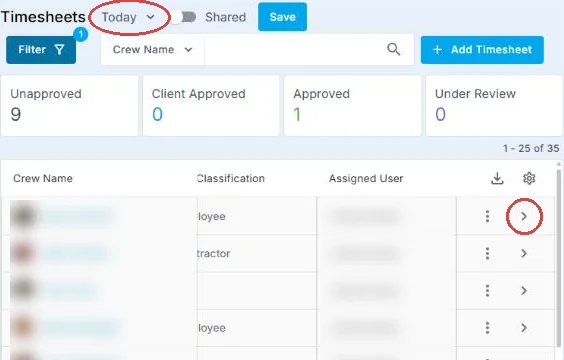
Choose the dates at the top (shown here as Today). The counts show how many timesheets are in each status. Open a timesheet with the arrow at the end of its row.
Set the status
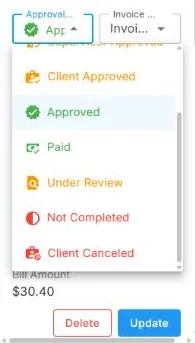
In the timesheet, open the Approval Status list, choose Approved (or Under Review while you look into something), then click Update.
That's a timesheet approved and ready to pay and bill. Read on for how the whole flow fits together, and the guide for each step.
On this page
The life of a timesheet
The bar along the top shows the stage. The badge on each step shows who does it. On a phone, swipe sideways to see every step.
| On the day | Check | Close out | ||||||||
STEP 1 Crew Clock in and out In the app, at the job site. The location is checked at clock-in and clock-out. | → | STEP 2 Automatic Timesheet created Hours, break, pay code, pay and bill rates fill in. It shows as Crew Approved. | → | STEP 3 Client Client checks it If you use client approval, they approve or decline it in the client portal. | → | STEP 4 You You review Fix anything wrong. Use Under Review while you look into something. | → | STEP 5 You You approve Crew and clients can no longer change it. | → | STEP 6 Automatic Paid and invoiced Exported for payroll, it's marked Paid. Put on an invoice, it's marked Invoiced. |
Crew · Automatic · Client · You
Crew clock in and NextCrew builds the timesheet. Your team checks it once, then approves.
On the day itself, watch clock-ins as they happen with Daily Pulse. For people who don't turn up, see Handle No-Shows & Backfill.
Why approving timesheets is faster in NextCrew
| Without NextCrew | In NextCrew |
|---|---|
| Paper sign-in sheets typed in after every event | Crew clock in and out in the app, and the timesheet builds itself. |
| Working out who was really on site | Clock-in and clock-out locations are on every timesheet. |
| Emailing clients a spreadsheet to sign off | Clients approve or decline in their own portal. |
| Working out overtime by hand | Overtime is calculated for you from the job's work state. |
| Retyping hours into payroll and invoices | Approved timesheets feed payroll and your invoice batch. |
See it through your Crew's eyes
Crew clock in and out in the app, add their breaks, and can check their hours after each job. Knowing what they see helps you answer "my hours are wrong" calls fast.
▶ Watch how Crew clock in, clock out and add breaks
- Send Crew Clock In, Clock Out and Add Breaks.
- For wrong hours: Check and Fix Your Timesheet.
- Clients approve with Approve or Decline Timesheets.
Guides for this stage
- Anatomy of a Timesheet: Every Status and Field.
- Review and Approve Timesheets.
- Add, Clone or Fix a Timesheet: missed clock-ins, reimbursements and bonuses.
- Overtime, Pay Codes and Overrides.
- Rate a Crew Member After a Job.
- See Today's Timesheets with Daily Pulse.
The calls you'll get
| Someone says | What to do |
|---|---|
| Crew: "My hours are wrong." | Open the timesheet and check the clock-in and clock-out times and break. Fix it before you approve. See Add, Clone or Fix a Timesheet. |
| Crew: "I forgot to clock out." | Enter the clock-out time on the timesheet, and add a note saying why. |
| Client: "These hours aren't right." | Set the timesheet to Under Review, check it with the client, fix it, then approve. |
| Payroll: "Why is this still Crew Approved?" | Nobody has approved it yet. Only approved timesheets should go to payroll. |
Other ways people ask this
- How do I approve timesheets in NextCrew?
- How does timesheet approval work?
- Where are my Crew's hours?
- How do timesheets get to payroll?
- Timesheet management for staffing agencies
Related guides
- How NextCrew Works: The Big Picture — from job to invoice
- Site Configuration: What Each Setting Does — timesheet settings, such as photos at clock-in
- Make a Crew Member the Supervisor on an Order — when a supervisor approves times on site
Was this article helpful?
That’s Great!
Thank you for your feedback
Sorry! We couldn't be helpful
Thank you for your feedback
Feedback sent
We appreciate your effort and will try to fix the article