Payroll is the one deadline Crew never forgive missing. The work is getting the hours right before they leave NextCrew.
Summary
NextCrew holds the hours, rates and pay codes. Your payroll company pays the Crew. In between, you approve the period, run a few checks in Reports, then run the payroll export report for your payroll company and import the file there. When timesheets are exported for payroll, NextCrew marks them Paid, so you can see what has already been through a pay run. What goes wrong: exporting before every timesheet is approved, so someone's hours miss the run.
How to do it
- Approve every timesheet for the pay period. See Review and Approve Timesheets.
- Run the checks in Get Timesheets Ready for Payroll.
- Go to Reports and run your payroll company's export for the pay period. See Export Payroll to Your Payroll Company.
- Download the file and import it into your payroll system.
- Run payroll there as usual.
Who does what at payroll time
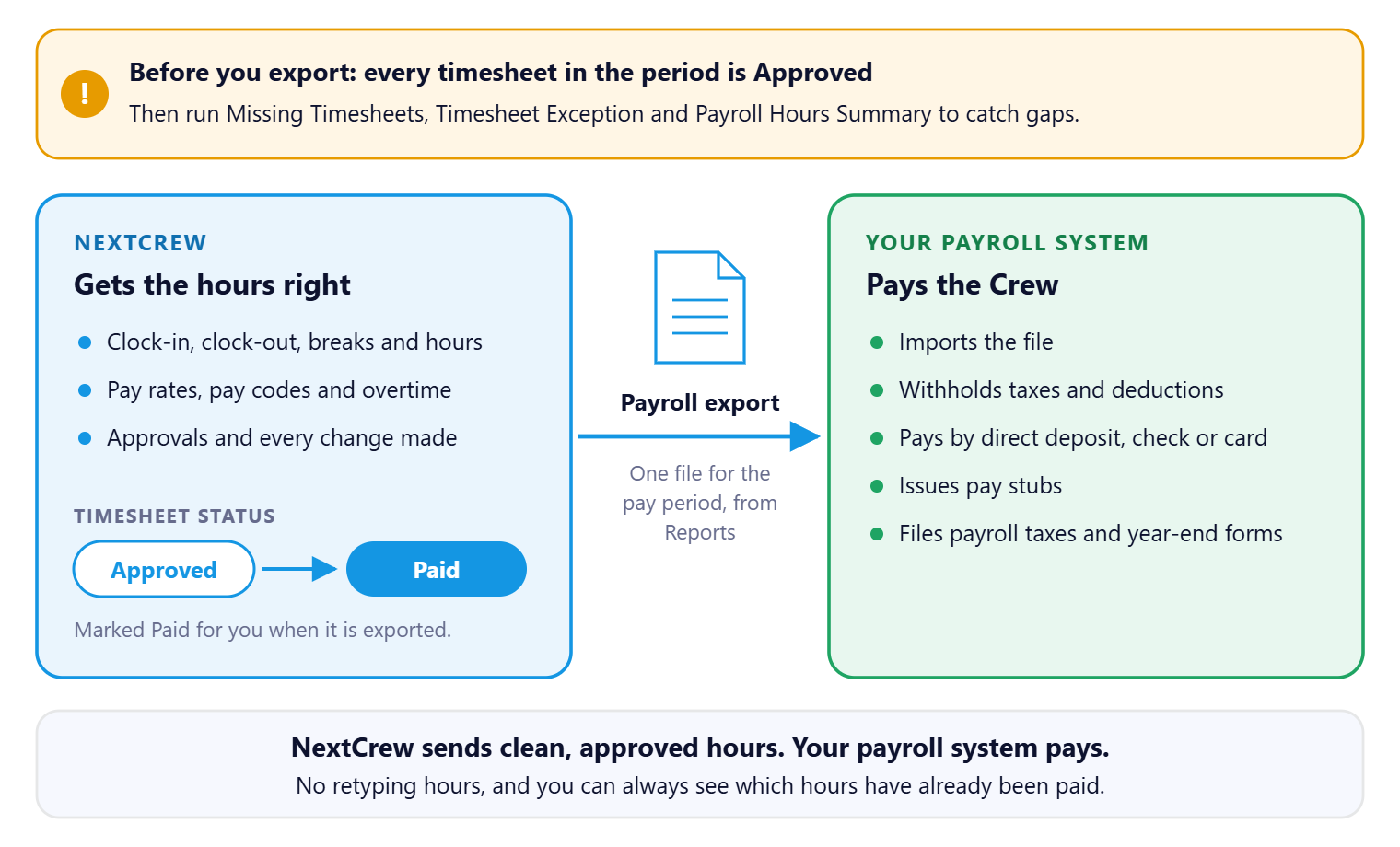
NextCrew gets the hours right; your payroll company pays. Approve the period, run the checks, and one export carries every hour across. Each exported timesheet is marked Paid, so you never have to wonder whether hours were already paid.
That's a pay period out the door. Read on for how it fits together, and the guide for each step.
On this page
From approved hours to paid Crew
The bar along the top shows the stage. The badge on each step shows who does it. On a phone, swipe sideways to see every step.
| Check | Export | Pay | ||||||||
STEP 1 You Approve the period Every timesheet for the pay period is Approved. Nothing left at Crew Approved. | → | STEP 2 You Run the checks Missing Timesheets, Timesheet Exception and Payroll Hours Summary catch gaps first. | → | STEP 3 You Run the payroll export The export report for your payroll company, for the pay period. | → | STEP 4 Automatic Marked Paid Exported timesheets are marked Paid. | → | STEP 5 You Import and pay Import the file into your payroll system and run payroll there. | → | STEP 6 Crew Crew get paid By direct deposit, or on a rapid! PayCard if your agency offers it. |
You · Automatic · Crew
Your team checks and exports the hours. Your payroll system pays the Crew.
What NextCrew does and what your payroll system does
| NextCrew | Your payroll system |
|---|---|
| Records clock-in and clock-out, breaks and hours | Withholds taxes and deductions |
| Applies pay rates, pay codes and overtime | Pays Crew by direct deposit, check or card |
| Holds the approvals and any changes | Files payroll taxes and year-end forms |
| Exports the period's hours and pay | Issues pay stubs |
NextCrew doesn't pay Crew or calculate taxes. It sends your payroll system clean, approved hours.
Why payroll is faster with NextCrew
| Without NextCrew | In NextCrew |
|---|---|
| Collecting paper timesheets or texts with hours | Crew clock in and out in the app, at the job site. |
| Retyping hours into the payroll system | One export file, imported in one go. |
| Working out overtime by hand | Overtime is calculated on the timesheet from the job's work state. |
| Not knowing which hours were already paid | Exported timesheets are marked Paid. |
| Finding a missing timesheet after payday | Missing Timesheets and Timesheet Exception reports catch it before the run. |
What your Crew see
Crew see their hours in the app. If they think their hours or pay are wrong, they contact your agency, not NextCrew. Send them My Hours or Pay Are Wrong: Who to Contact.
If you want to pay Crew who don't have a bank account, see Offer rapid! PayCard to Your Crew.
Guides for this stage
- Get Timesheets Ready for Payroll.
- Export Payroll to Your Payroll Company.
- Fix Pay After Payroll Has Run.
- Offer rapid! PayCard to Your Crew.
- Pay Setup: Employee, Contractor and Payroll Details.
The calls you'll get
| Someone says | What to do |
|---|---|
| Crew: "My hours are short." | Open their timesheets for the period and compare the clock-in and clock-out times. See Fix Pay After Payroll Has Run. |
| Crew: "I wasn't paid for Saturday." | Check whether the timesheet exists and is Approved. If it was missed, see Fix Pay After Payroll Has Run. |
| Payroll: "Is this period ready?" | Run the checks in Get Timesheets Ready for Payroll. |
| Accounting: "Did we already pay these hours?" | Check the timesheet's Approval Status. Paid means it was exported for payroll. |
Other ways people ask this
- How do I run payroll in NextCrew?
- How does payroll work?
- Does NextCrew do payroll?
- How do I pay my Crew?
- Staffing agency payroll process
Related guides
- Approve Timesheets: Start Here — what has to happen first
- Invoice Clients and Get Paid: Start Here — billing the same hours
Was this article helpful?
That’s Great!
Thank you for your feedback
Sorry! We couldn't be helpful
Thank you for your feedback
Feedback sent
We appreciate your effort and will try to fix the article