Monday morning, a client needs ten people by Wednesday. You need to know who is nearly ready and who is stuck, without calling round.
Summary
Workflows, in the left menu, lists every form you've sent, with one row per form for each person who must complete it. Choose a date range and see who has started, who has finished and how long each form took. Tick any number of forms to download them all as one zip file. What goes wrong: only looking at the Crew Member's rows and missing Admin rows waiting for your counter-signature.
How to do it
- Open Workflows from the left menu.
- Choose a date range.
- Look at each row's progress and the Completed date.
- Open any Admin rows that are waiting and counter-sign them. See Counter-Sign Onboarding Documents.
- To download, tick the forms you want and choose Download for a zip file, or open one form and click its download icon.
Every form, for every new hire, in one list
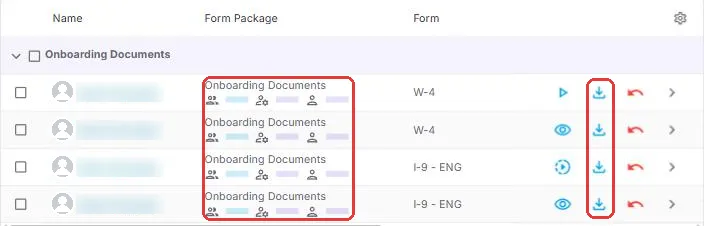
One row per form, for each person who must complete it. The bars under each package show how far along it is, so you can spot who is nearly ready without opening anything. Click the download icon to save one form, or tick the boxes and download many at once as one zip file.
That is your onboarding status in one place. Read on for what each part of the screen tells you.
On this page
Why this saves you time
Without one list, knowing who is ready means opening emails, folders and spreadsheets. Workflows puts every package, every form and every signature in one list. You can see who to call before a client asks.
What the Workflows list shows
| Column | What it tells you |
|---|---|
| Name | The person the form is for. |
| Form Package | The package the form belongs to. |
| Form | The form, such as the I-9 or W-4. |
| Role | Who must complete this row: the Crew Member, or an Admin for a counter-signature. |
| Created On | When the form was sent. |
| Started On | When they opened it. |
| Completed | When it was finished. |
Rows are grouped by form package. Under each package name, three small bars show progress: the whole package, the Admin part and the Crew Member part. Use Filter, Sort By and the search box to find a person or a package.
A form that needs your signature too has two rows: one for the Crew Member and one for the Admin role.
A form you've canceled shows a Canceled Form label.
Find the form that slows people down
Compare Started On with Completed. If one form always takes much longer than the rest, it's probably too long or unclear. Ask NextCrew support to simplify it. A shorter form gets people to work sooner.
What you can do from a row
| Icon | What it does |
|---|---|
| Eye | View the form. |
| ▶ (on an Admin row) | Start your part, such as a counter-signature. See Counter-Sign Onboarding Documents. |
| Click the row | Opens the form in a panel on the right, with its progress and a download icon. |
| Red reset arrow | Reset it so it can be completed again. See Reset, Resend or Cancel an Onboarding Form. |
Download documents for an audit
There are two ways to download, depending on how much you need.
| You need | Do this | You get |
|---|---|---|
| Documents for many people, such as for an audit | Choose the date range. Tick the box beside each form you want, or tick the package name to select every form in it. A bar shows how many forms are selected. Choose Download. | One zip file with every selected document. |
| One person's package | Click the form's row to open it. Click the download icon beside the person's name. | That package. |
Choose Deselect to clear your selection. Each completed document is also saved as a PDF on the Crew Member's Documents tab.
Gathering an audit file used to mean opening each person's folder one by one. Here it's one selection and one download.
Track each new hire's other to-dos with tasks
Documents are only part of onboarding. There's orientation, a uniform, a badge, a client site tour. Tasks keep each new hire's full checklist on their own record, where anyone on your team can see it.
| What needs doing | How it's tracked |
|---|---|
| Each onboarding document | NextCrew creates a task for the Crew Member for each document, and ticks it off when the document is done. Nothing to set up. |
| Your team's own steps, such as orientation or ordering a uniform | Open the Crew Member and click the Add Task icon on the right-side panel. The task is linked to them. Assign it to the recruiter who owns it, with a due date. |
| Something the new hire must do, such as bring their ID to orientation | Assign the task to the Crew Member. They see it when they sign in. |
- One new hire's checklist: open their record and click the Tasks icon on the right-side panel. Turn on Show Completed to see what's done.
- Everyone's: open Tasks in the menu and filter by Category, such as HR, or by Assigned To. Save it as a view for next time.
When a recruiter is out, anyone can open the new hire and see exactly what's left. Nothing is stuck in one person's inbox or on a sticky note.
See Create, Assign and Track Tasks for every task field and setting.
Other places to see onboarding
- The HR Statuses dashboard widget shows how many people are in Onboarding and Docs Signed.
- Filter HR › Crew Members on the HR Status Onboarding to see who hasn't finished.
- Reports › HR & Recruiting › Form Package Activity gives a report across all packages. See Find and Use Reports and Dashboards.
Questions people ask
Do I need to remind people myself?
No. NextCrew emails reminders on day 3, day 5 and day 7. Call people who still haven't finished after that.
Why does one form show twice for the same person?
One row is for the Crew Member and one is for the Admin role, because the form needs your signature too.
Other ways people ask this
- Who hasn't finished their onboarding?
- How do I see onboarding status?
- How long does onboarding take?
- How do I download all signed documents?
- Download onboarding documents as a zip file
- Where are completed I-9s?
- How do I track onboarding tasks for each new hire?
- Onboarding checklist per Crew Member
Related guides
- Onboard New Hires: Start Here — the whole onboarding path
- Counter-Sign Onboarding Documents — the Admin rows
- Build and Send Form Packages — tracking your own packages
Was this article helpful?
That’s Great!
Thank you for your feedback
Sorry! We couldn't be helpful
Thank you for your feedback
Feedback sent
We appreciate your effort and will try to fix the article