Someone needs the data in a spreadsheet. You can download any list as an Excel file, exactly as it looks on your screen.
Summary
The download icon at the top right of a list exports it to Excel. The file keeps your filters, the columns you chose and their order. So set up the list first, then export.
How to do it
- Open the list you need.
- Filter it and choose your columns. See Search, filter and sort any list.
- Click the download icon at the top right of the list, next to the gear.
- Open the Excel file from your downloads.
The download icon
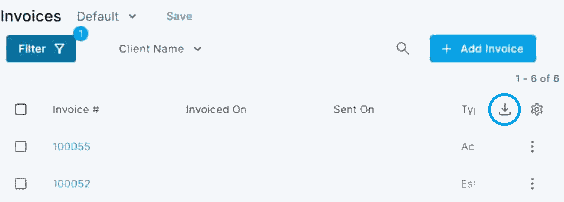
The download icon sits at the top right of the list, next to the gear.
That's the export. The notes below help when the file isn't what you expected.
On this page
Get the file right first time
- Filter first. The export holds only the rows your filters show.
- Pick columns first. Hidden columns are left out of the file.
- Save it as a view if you export the same thing often. Then it is one click to set up. See Save and share your own list views.
If something's not right
| What you see | Check this first | Who fixes it |
|---|---|---|
| The file is missing rows | The filters on the list. The export matches what the list shows. | You |
| The file is missing a column | The gear icon. Tick the column, then export again. | You |
| Nothing downloads | Your browser's downloads, and whether it blocked the file. | You |
| There's no download icon | Your role. What each role can see and do is set by your NextCrew admin. | Your NextCrew admin |
Other ways people ask this
- How do I download my Crew list?
- Can I export timesheets to Excel?
- How do I get a spreadsheet of my clients?
- Why is my export missing columns?
Related guides
- Search, filter and sort any list — getting the list right before you export
- Save and share your own list views — saving an export you run often
Was this article helpful?
That’s Great!
Thank you for your feedback
Sorry! We couldn't be helpful
Thank you for your feedback
Feedback sent
We appreciate your effort and will try to fix the article