The work is done and the hours are approved. Now the money: the sooner an accurate invoice reaches the client, the sooner you're paid.
Summary
Approved timesheets are ready to bill. In Accounting › Invoice Batches, one batch builds an invoice for every client in the date range, and each timesheet on it is marked Invoiced. Check each invoice, add expenses, discounts or sales tax, then email or print it. When the client pays, add the payment; once the balance reaches zero, the invoice is paid. What goes wrong: invoicing before every timesheet is approved, so hours are missed or billed late.
How to do it
- Make sure the period's timesheets are approved. See Review and Approve Timesheets.
- Go to Accounting › Invoice Batches and click Add Batch.
- Pick the dates, check the preview, and create the invoices.
- Open each invoice in Accounting › Invoices to check it, and add expenses, discounts or tax.
- Email or print it.
- When the client pays, open the invoice and use Add Payment.
From approved hours to paid invoices
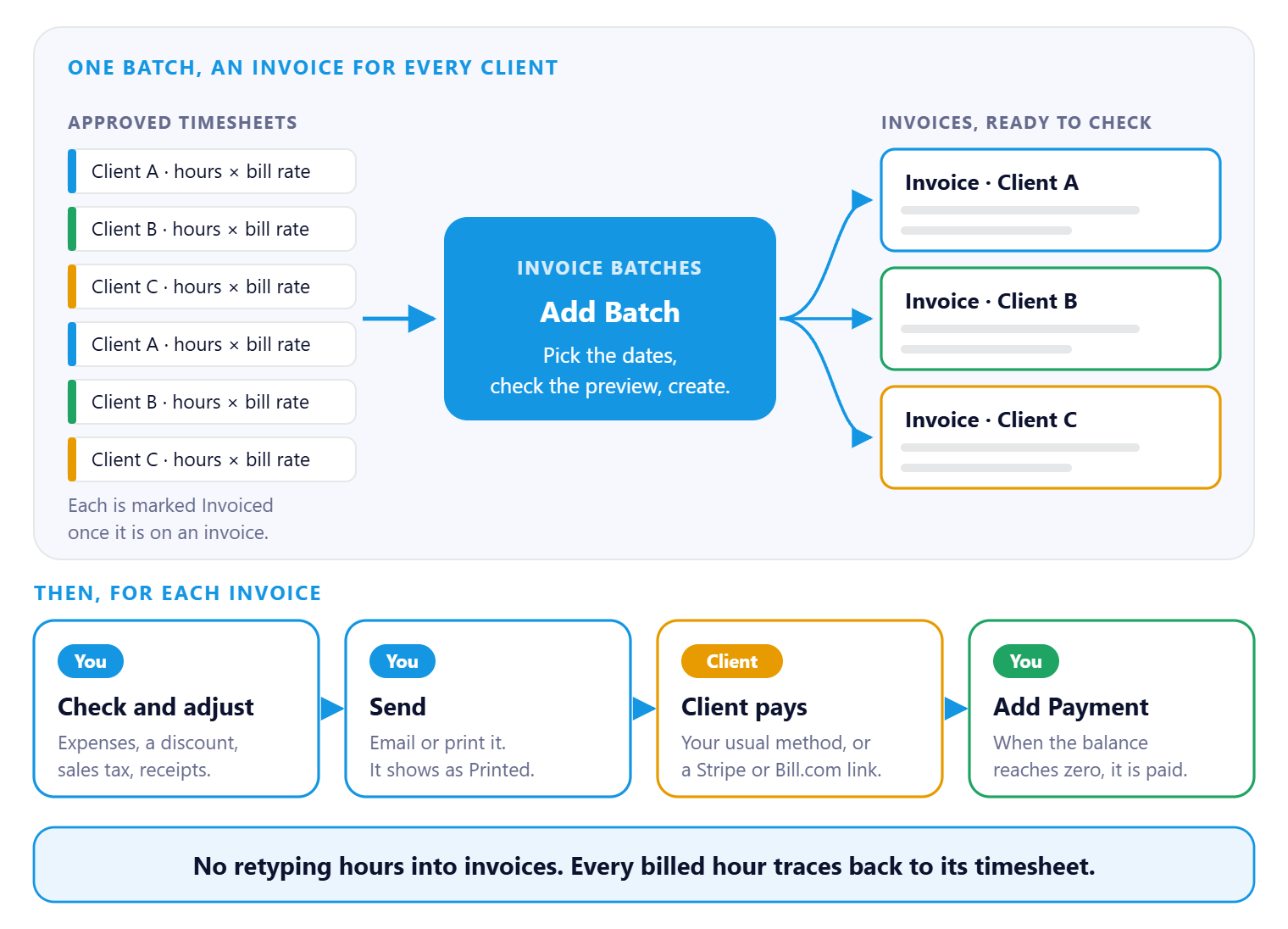
One batch builds an invoice for every client in the date range, straight from the approved timesheets. Then, for each invoice: check it, send it, and record the payment. Each timesheet shows Invoiced once it's billed, so you always know which hours have gone out.
That's a period billed and on its way to being paid. Read on for how it fits together, and the guide for each step.
On this page
From timesheet to payment
The bar along the top shows the stage. The badge on each step shows who does it. On a phone, swipe sideways to see every step.
| Bill | Send | Get paid | ||||||||
STEP 1 Automatic Approved timesheets Every approved timesheet is ready to bill, with its bill rate and hours. | → | STEP 2 You Create a batch Pick the dates and NextCrew builds an invoice for each client. | → | STEP 3 You Check and adjust Add expenses, a discount or sales tax, and attach receipts. | → | STEP 4 You Send Email or print it. It then shows as Printed. | → | STEP 5 Client Client pays By your usual method, or a Stripe or Bill.com link you include. | → | STEP 6 You Record the payment Add Payment. When the balance reaches zero, it's paid. |
Automatic · You · Client
Approved hours become invoices in one batch. Your team checks, sends and records payment.
Why invoicing is faster in NextCrew
| Without NextCrew | In NextCrew |
|---|---|
| Typing hours and rates into an invoice template | Invoices are built from approved timesheets, with their bill rates. |
| One invoice at a time | One batch creates an invoice for every client in the period. |
| Not knowing which hours were already billed | Each timesheet shows Invoiced once it's on an invoice. |
| Digging for timesheets when a client queries a bill | Timesheet details and attachments go with the invoice. |
| A spreadsheet of who owes what | Each invoice shows its balance, due date and how many days old it is. |
What your clients see
Clients can view and download their invoices in the client portal. Send them View Your Invoices.
Guides for this stage
- Create Invoices in a Batch.
- Anatomy of an Invoice: Every Section and What You Can Change.
- Send Invoices and Record Payments.
- Set Up Invoicing for a Client: Tax, Terms, Recipients and Roll-Ups.
- Export Invoices to QuickBooks.
- Delete or Correct an Invoice.
- Hours Missing From an Invoice? Find Out Why and Bill Them.
The calls you'll get
| Someone says | What to do |
|---|---|
| Client: "These hours don't match." | Open the invoice. Each line shows its timesheet number, so you can check the times together. |
| Client: "Can we pay online?" | Include a Stripe or Bill.com payment link. See Send Invoices and Record Payments. |
| Your team: "Did we bill last week's event?" | Filter the timesheets by date and check their Invoice Status. |
| Accounting: "Who still owes us?" | Sort Accounting › Invoices by Balance or Aging. |
Other ways people ask this
- How do I invoice clients in NextCrew?
- How does invoicing work?
- How do I bill a client for hours worked?
- Staffing agency invoicing
- How do I get paid faster?
Related guides
- Approve Timesheets: Start Here — what has to happen first
- How NextCrew Works: The Big Picture — from job to invoice
Was this article helpful?
That’s Great!
Thank you for your feedback
Sorry! We couldn't be helpful
Thank you for your feedback
Feedback sent
We appreciate your effort and will try to fix the article