Every payroll mistake is cheaper to fix the day before payroll than the day after.
Summary
Before you export, make sure the period is complete and correct. Every timesheet should be Approved, with none left at Crew Approved. Then run a few reports in Reports: Missing Timesheets, Timesheet Exception and Payroll Hours Summary, plus Pay and Bill Detail Report if you want to check margins. What goes wrong: a timesheet left at Under Review, so its hours sit out the run.
How to do it
- In Operation › Timesheet, set the date range to the pay period and check the Unapproved and Under Review chips. Both should be empty.
- Go to Reports and run Missing Timesheets for the period. Add any that are missing.
- Run Timesheet Exception and look into anything it flags.
- Run Payroll Hours Summary and check the totals look right.
- When everything checks out, run the payroll export.
The status chips
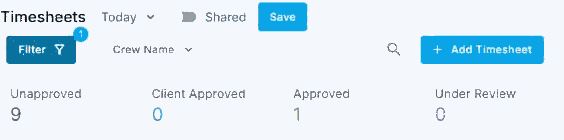
Set the date range to the pay period, then check the Unapproved and Under Review counts.
That's a clean period, ready to export. Read on for what each check catches.
On this page
The pre-payroll checklist
| Check | Where | What it catches |
|---|---|---|
| Every timesheet is Approved | Operation › Timesheet, Unapproved chip | Hours that would miss the run |
| Nothing left Under Review | Operation › Timesheet, Under Review chip | Hours you were still looking into |
| No missing timesheets | Missing Timesheets report | Crew who worked but have no timesheet |
| Exceptions reviewed | Timesheet Exception report | Timesheets that need a second look |
| Totals look right | Payroll Hours Summary report | Hours that are far off what you expected |
| Overtime expected | Overtime Projections report | Overtime you didn't plan for |
| Pay and bill line up | Pay and Bill Detail Report | A pay rate or bill rate set wrong |
Jobs changed after they started. If someone changed a job’s position or rates after it started, its timesheets still have the old rates. Fix them on each timesheet before you approve. See Fix the rate on a timesheet after the job changed.
Finding the reports
Go to Reports. The payroll reports are in the Timesheet & Payroll group, or type the name in the search box. Click the star to make a report a favorite, so it's at the top next time.
Other reports in the same group that help at payroll time: Timesheet Summary By Pay Period, Timesheet Hours By Employee and Pay Stub Report by Employee.
If a timesheet is missing
Add it by hand, or clone a similar one. See Add, Clone or Fix a Timesheet. Then approve it.
If the Crew Member was a no-show, set the timesheet to Not Completed rather than deleting it. See Handle No-Shows.
Overtime
Overtime is calculated on the timesheet from the job's work state. Check it before you export, not after. To stop it before it happens, see Prevent and Manage Overtime. See Overtime, Pay Codes and Overrides on a Timesheet.
Crew pay details
New Crew Members need their pay set up before their first payroll. See Pay Setup: Employee, Contractor and Payroll Details.
Questions people ask
Does Under Review get paid?
Not until you approve it. Use Under Review for hours you're still checking, and settle them before payroll.
Can I export before everything is approved?
You can, but anything not approved misses the run, and someone ends up short.
Where do I set the pay period?
On the client, under Configuration › Payment Settings: Week-Ending Day and Pay Period.
Other ways people ask this
- Payroll checklist
- How do I find missing timesheets?
- How do I check hours before payroll?
- Pre-payroll review
- How do I check overtime before payroll?
Related guides
- Review and Approve Timesheets — approving the period
- Export Payroll to Your Payroll Company — the next step
Was this article helpful?
That’s Great!
Thank you for your feedback
Sorry! We couldn't be helpful
Thank you for your feedback
Feedback sent
We appreciate your effort and will try to fix the article