Your Crew's hours are already in NextCrew. The export gets them into your payroll system without anyone retyping a number.
Summary
Payroll leaves NextCrew as a report. Each payroll company has its own export, set up in the format it expects, such as ADP, Paychex, UKG or Everee. Go to Reports, run your payroll company's export for the pay period, download the file and import it into your payroll system. When timesheets are exported for payroll, NextCrew marks them Paid, so you can see what has already been through a pay run. What goes wrong: running the export for the wrong dates, so a day is missed or paid twice.
How to do it
- Make sure the period is ready. See Get Timesheets Ready for Payroll.
- Go to Reports and search for your payroll company's export.
- Set the dates to the pay period and run it.
- Download the file.
- Import it into your payroll system and run payroll there.
Find your payroll export in seconds
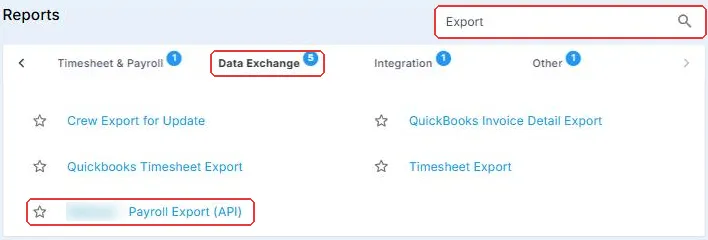
Type Export in the Reports search. Your payroll company's export sits under Data Exchange, named for that company. Run it for the pay period, download the file, and import it.
That's the period's hours in your payroll system. Read on for which export to use and what to check.
On this page
Which export to use
| If you pay through | Run this report |
|---|---|
| ADP | ADP Timesheet API Export |
| Everee | Everee Payroll Export for Contractors |
| Paychex, UKG or another payroll company | The export set up for your account |
| Anything else | Timesheet Export, then use your payroll system's import |
Don't see an export for your payroll company? Contact NextCrew and ask about one in that company's format.
What happens after you export
When timesheets are exported for payroll, NextCrew marks them Paid, so you can see what has already been through a pay run.
Paid timesheets can still be invoiced: a new invoice batch includes Approved and Paid timesheets.
Each export is a file you import. Changes made in NextCrew after you export don't reach your payroll system on their own.
Why export instead of retyping
| Without NextCrew | In NextCrew |
|---|---|
| Retyping hours, rates and overtime for every Crew Member | One file, in your payroll company's format. |
| Typos between approved hours and paid hours | The file comes from the approved timesheets. |
| Guessing which hours went into last week's run | Exported timesheets are marked Paid. |
Tips
- Use the same dates as your pay period, every time.
- Export once per period, after every timesheet is approved.
- Star the export in Reports so it's at the top next time.
- Keep the file you imported with that pay run, in case you need to check it later.
Questions people ask
Does NextCrew run payroll?
No. NextCrew exports the hours and pay. Your payroll company pays Crew and handles taxes.
Is it a live connection to my payroll company?
No. It's a report you run for each pay period.
Can I export the same period twice?
Yes, but check the dates and the Paid timesheets first, so nobody is paid twice.
Why is a timesheet missing from the export?
Check that it's Approved and inside the dates you picked.
Other ways people ask this
- How do I export payroll?
- How do I get hours into ADP?
- Paychex export
- UKG payroll file
- Does NextCrew integrate with my payroll company?
- Where is the payroll export?
Related guides
- Get Timesheets Ready for Payroll — before you export
- Fix Pay After Payroll Has Run — if something was wrong
Was this article helpful?
That’s Great!
Thank you for your feedback
Sorry! We couldn't be helpful
Thank you for your feedback
Feedback sent
We appreciate your effort and will try to fix the article