Get pay setup right once, on the record, and every timesheet after it pays correctly without anyone checking by hand.
Summary
The Payroll tab on a Crew Member record holds how they're paid: their Tax Classification (Employee, Contractor or Other), default rate, maximum hours per week, withholding and bank details. Crew add their own bank details in the app. What goes wrong: the wrong classification, which changes how overtime is worked out on every timesheet after it.
How to do it
- Open HR › Crew Members, click the name, and open the Payroll tab.
- Under Tax Information, click EDIT and check the Tax Classification and Default Rate. Click Update.
- Under Validation Settings, set Max Hours Per Week if this person has a limit.
- Check Withholding Information and Bank Information, and click ADD for anything missing.
The Payroll tab, set once
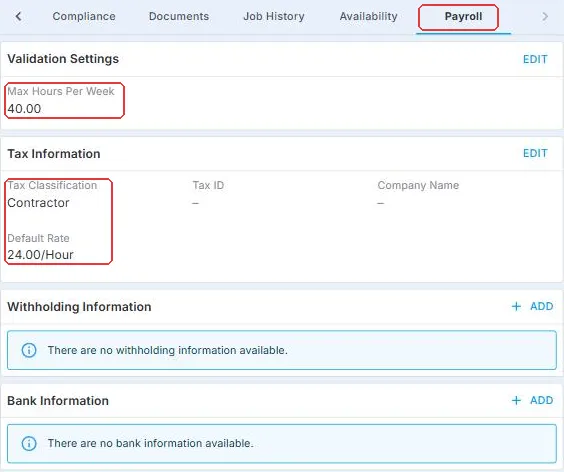
Set it here once and every timesheet after it follows. Max Hours Per Week is this person's weekly limit. Tax Classification decides how overtime is worked out, so check it before anything else, then the Default Rate under it.
That's pay set up once, for every timesheet. Read on for how classification changes overtime.
On this page
Why setting it up here saves time
| Without NextCrew | In NextCrew |
|---|---|
| Checking each timesheet for who gets overtime | Overtime follows the classification on the record. |
| Collecting bank details on paper | Crew add their own in the app. See Set Up How You Get Paid. |
What's on the Payroll tab
| Section | What it holds |
|---|---|
| Validation Settings | Max Hours Per Week: a weekly limit for this person. NextCrew won't book them past it. See Prevent and Manage Overtime. |
| Tax Information | Tax Classification (Employee, Contractor or Other) and Default Rate, with its unit, such as per hour. |
| Withholding Information | Their tax withholding details. |
| Bank Information | Where their pay goes. |
Employee or Contractor: what changes
| Classification | Overtime |
|---|---|
| Employee (the default) | Worked out automatically, using the overtime rules of the job's work state. For a remote job with no work state, NextCrew uses the person's primary work state. |
| Contractor | Not worked out automatically. Handle any extra pay under your own policy. |
Changing the classification affects pay from then on. Past payroll stays as it was.
⚠️ Watch out
Classifying someone as an employee or contractor is a legal and tax decision. Check with whoever advises you on employment law before you change it.
What Crew do in the app
Crew add and update how they get paid in the app, so your office doesn't have to type in bank details. Send them Set Up How You Get Paid.
If you run payroll elsewhere
If you pay through a payroll company such as ADP, Paychex or UKG, run its payroll export report and import the file there. See Export Payroll to Your Payroll Company. It isn't a live connection, so check the details match after each import.
Questions people ask
What's the default classification?
Employee.
Does changing someone to Contractor change past pay?
No. It affects pay from then on.
Where does the Default Rate come from?
Your team sets it here. The rates for each position are on the Position tab.
Can Crew update their bank details themselves?
Yes, in the app. See Set Up How You Get Paid.
Other ways people ask this
- How do I make someone a contractor?
- How do I change a Crew Member to 1099?
- Why isn't overtime calculating for someone?
- Where do I add a Crew Member's bank details?
- How do I set a maximum number of hours?
Related guides
- Set Positions and Rates for a Crew Member — rates for each position
- Anatomy of a Crew Member Record — every tab on the record
- Manage Your Crew: Start Here — the rest of life after hire
Was this article helpful?
That’s Great!
Thank you for your feedback
Sorry! We couldn't be helpful
Thank you for your feedback
Feedback sent
We appreciate your effort and will try to fix the article