Jobs are starting. You need to know who is on site, who is running late and who hasn't shown, without calling round.
Summary
Daily Pulse is today's timesheets, live. Counters across the top show late clock-ins, who is on site, late clock-outs and no-shows. Click a counter and the list filters to just those people. From the list you can message people, or clock someone in or out yourself. The thing that goes wrong most: a Crew Member is on site but couldn't clock in. They show as a no-show until someone clocks them in.
How to do it
- Go to Operation › Daily Pulse.
- Read the counters at the top: No Shows, Late Clock-In, On Site, Late Clock-Out.
- Click No Shows to list everyone who hasn't clocked in.
- Select them and choose Send Message to reach them all at once.
- If someone is on site but couldn't clock in, select them and choose Clock-In.
- Anyone still missing: call them, then find a replacement from the job's Invite screen.
Today at a glance, and one click to act
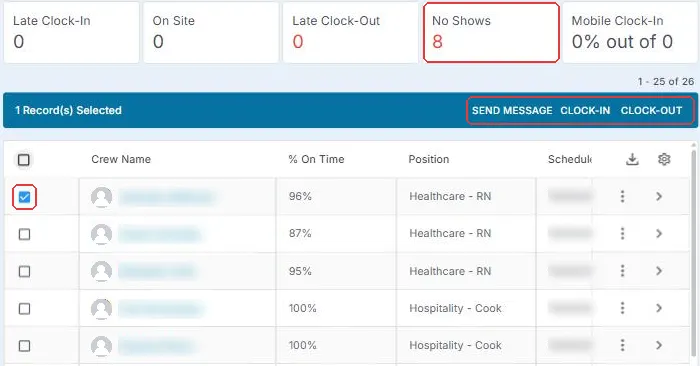
Every job today, live. The counters show at a glance who is late, who is on site and who hasn't shown, so you know where to look before the phone rings. Tick one person or several, and the bar at the top lets you Send Message, Clock-In or Clock-Out for all of them at once.
That is the start of the day checked. Everything below is for when the screen says one thing and the site says another.
On this page
What Daily Pulse shows
Daily Pulse lists every timesheet for today. It changes as Crew clock in and out.
| Counter | What it counts |
|---|---|
| No Shows | People who haven't clocked in once your no-show time has passed |
| Late Clock-In | People who clocked in after your late time |
| On Site | People who are clocked in and not yet clocked out |
| Late Clock-Out | People who clocked out after your late time |
| Mobile Clock-In | A percentage, shown with the number it is out of |
Click any counter to filter the list to those people. Click it again to see everyone.
The list shows each person's name, % On Time, position and scheduled start, end and hours. It also shows Assigned To, Clock-In Status, clock times, hours, Timesheet Status and offer tags.
When someone counts as late or a no-show
You set the minutes. Go to Settings › Site Configuration › Timesheet. Each change saves as soon as you leave the field. There is no Save button.
| Setting | What it controls |
|---|---|
| Elapsed Minutes for No-Shows | Minutes after the start time before someone counts as a no-show |
| Elapsed Minutes for Late Clock-In | Minutes after the start time before a clock-in counts as late |
| Elapsed Minutes for Early Clock-Out | Minutes before the end time that count as an early clock-out |
| Elapsed Minutes for Late Clock-Out | Minutes after the end time before a clock-out counts as late |
| Minutes Before Job Start to Remind to Clock-In | When the clock-in reminder goes to the Crew Member |
| Minutes After Job Ends to Remind to Clock-Out | When the clock-out reminder goes to the Crew Member |
| Before Job Starts in Which Crew is Allowed to Clock-In | How early a Crew Member can clock in |
| Geo-Fencing Radius | How close to the work location someone must be to clock in |
⚠️ Watch out
These are account settings. A change applies from the moment you leave the field, so agree the numbers with your team first.
Message everyone who hasn't shown
- Click No Shows.
- Tick the people you want to reach. You can tick them all.
- Choose Send Message and write one short message.
You can also message one person at a time from the same list.
Keep it short. Ask them to reply with where they are and when they'll arrive. Save that wording as a message template, so the whole team sends the same thing. See Create and Share Message Templates.
Messages by text need texting turned on for your account. That is the Twilio integration in the App Marketplace. See Turn On Text Messaging with Twilio.
Clock in someone who is on site
Sometimes a Crew Member is at work but the app wouldn't let them clock in. They text or call you. Until someone clocks them in, they count as a no-show.
Find them in the list, tick their row and choose Clock-In. At the end of the job, use Clock-Out the same way if they can't do it themselves.
You can clock in several people at once. That helps when a supervisor is checking in a whole event Crew at the door.
⚠️ Watch out
Check before you record anything against them. A no-show that turns out to be a clock-in problem should never become a violation, and violations can't be edited later.
The email 15 minutes after start
When a Crew Member hasn't shown, NextCrew emails the user assigned to the job. It goes 15 minutes after the start time, so the person who owns the job knows even if nobody is watching Daily Pulse.
Check that every job has someone assigned before they start.
Save a view for your morning check
Use Filter and the Crew Name search to narrow the list. Choose Save to keep it as a view. Next time, pick it from the view menu. It starts on Default.
Views work the same way across NextCrew. See Save and Share Your Own List Views.
Someone shows as a no-show but says they're working
Work down the checks in order. Stop at the first one that explains it.
| Check | If yes | If no |
|---|---|---|
| 1. Did they try to clock in on the app? | Go to check 2. | Ask them to clock in now. If they can't, clock them in yourself. |
| 2. Did they try inside the clock-in window? | Go to check 3. | Too early. The app only accepts a clock-in from the minutes set in Before Job Starts in Which Crew is Allowed to Clock-In. Ask them to try again. |
| 3. Are they at the address on the job? | The job's work location may be off, or the geo-fencing radius too tight for this site. Clock them in, then check the job's work location. | Send them the job address. Clock them in once they arrive. |
Still stuck? Clock them in so their time is recorded. Then contact support with three facts: their name, the job ID and the time they arrived.
Questions people ask
Can I change when someone counts as a no-show?
Yes. Go to Settings › Site Configuration › Timesheet and change Elapsed Minutes for No-Shows. It saves when you leave the field.
Does Daily Pulse show who acknowledged their job?
No. When a Crew Member acknowledges a job in the app, the job's offer list shows them as Acknowledged.
Can my client see who is on site?
Yes. Client users see each Crew Member's check-in status live in the client portal.
Related articles
- Turn On Text Messaging with Twilio — turning on texting so messages and reminders reach Crew by text
- Handle No-Shows & Backfill — backfilling a job and marking a no-show's timesheet Not Completed
- Send Job Reminders & Track Acknowledgment — the reminders that go out before a job starts
- Let Clients See Who's On Site — the live view your client sees
- Add, Clone or Fix a Timesheet — adding a timesheet when a clock-in was missed
- Create and Share Message Templates — saving the wording you send every morning
- Save and Share Your Own List Views — saving the filter you use for the morning check
Was this article helpful?
That’s Great!
Thank you for your feedback
Sorry! We couldn't be helpful
Thank you for your feedback
Feedback sent
We appreciate your effort and will try to fix the article