Every drop-down list your team picks from, such as HR statuses, license types and note categories, comes from a Code Table. Set them up to match how your agency works.
Summary
Code Tables live in Settings › Code Tables. Each table is one pick list. Change a table and the new values show up wherever that list is used. Getting them right early saves clean-up later, because reports, filters and messages all group records by these values. Only admins should change them, and only after agreeing the wording with the team.
Set them up in this order
- Add, change or delete a value. How every table works.
- Set up HR statuses and referral sources. Your hiring pipeline, stage by stage.
- Set up license and certification types. What Crew must hold, and whether it expires.
- Set up document categories. Where files go, and who can see them.
- Set up job statuses and offer sub-statuses. The reasons behind a filled, canceled or declined job.
- Set up your CRM lists. Lead sources, lead statuses, follow-ups and client types.
- Set up note and task categories. Keep notes and tasks sorted.
- Set up expense categories. Label the extra charges on your invoices.
- Set up workers' comp codes. Optional. Carry the right code from client to order to job.
Start with the first two. Come back to the others as each part of your team starts using NextCrew.
The Code Tables page
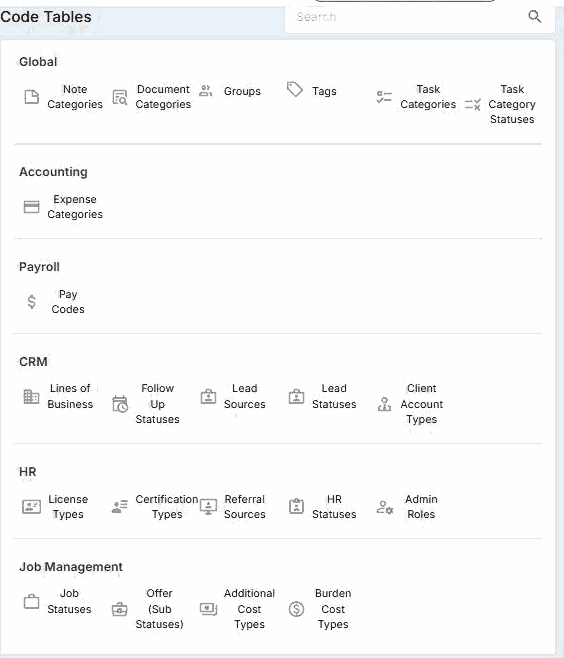
Settings › Code Tables groups every table by area. Click a table to see and edit its values.
Every table, and what it controls
| Table | What it controls |
|---|---|
| Note Categories | How notes are sorted on Crew, clients, jobs, timesheets and more |
| Document Categories | Where documents are filed, and who can see them |
| Groups | Sets of users, for messages, notifications and double-booking rules |
| Tags | The labels your team adds to Crew Members, clients and jobs |
| Task Categories and Task Category Statuses | How tasks are grouped, and the steps within each group |
| Expense Categories | The Expense Type list when you add an expense to a client invoice. See Set up expense categories |
| Pay Codes | The types of pay, such as regular pay and bonus |
| Lines of Business, Lead Sources, Lead Statuses, Follow Up Statuses, Client Account Types | Your CRM pick lists |
| License Types and Certification Types | The credentials Crew can add |
| Referral Sources and HR Statuses | Where candidates come from, and their stage in hiring |
| Admin Roles | Who handles what for a client, such as account manager or invoicing. Permissions can also be set by role. |
| Job Statuses and Offer (Sub Statuses) | Extra detail on jobs and offers |
| Additional Cost Types and Burden Cost Types | Extra costs on jobs, such as meals or insurance |
| Workers Comp Codes | Optional. The workers' comp code on clients, orders and jobs. Shows only when your agency turns it on. See Set up workers' comp codes |
Some settings you might expect here live elsewhere. Office locations, positions, holidays and admin users are under Settings › Company Profile.
Values that come with NextCrew
Some values were there before you started. They show System as the creator, or a globe icon next to the name. Globe values are shared NextCrew values and are locked, so you can't rename or delete them. Other parts of NextCrew rely on them.
Custom fields
Custom fields are extra fields you add to records, for details NextCrew doesn't track out of the box. NextCrew creates them for you, so nobody deletes one by mistake. To add one, contact NextCrew support and tell them which record it belongs on.
Was this article helpful?
That’s Great!
Thank you for your feedback
Sorry! We couldn't be helpful
Thank you for your feedback
Feedback sent
We appreciate your effort and will try to fix the article