Notes and tasks pile up fast. Categories keep them sorted, so your team can find the call log or the HR follow-up in seconds.
Summary
Note Categories are set for each type of record: Crew Member, client, job, offer, timesheet, task or invoice. Task Categories group tasks by area, such as HR or Payroll. Task Category Statuses add steps within a category, such as Interviewed or Hired under HR.
How to do it
- Go to Settings › Code Tables › Note Categories and click Add Record.
- Choose the type of record the category is for, then type the name and a description.
- Go to Task Categories to add a category for tasks.
- Go to Task Category Statuses to add steps, and pick the category each one belongs to.
The New Note Category form
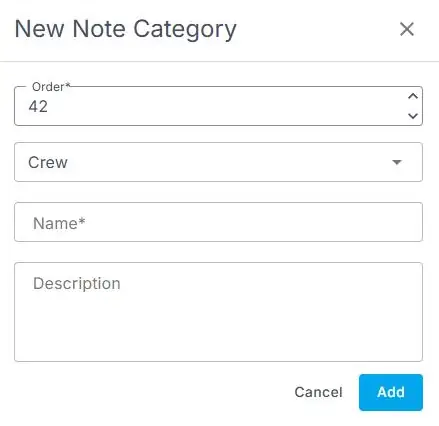
Settings › Code Tables › Note Categories › Add Record opens this form. The drop-down sets which kind of record the category is for, such as Crew.
That's your categories set up. Your team will see them next time they add a note or task.
On this page
Tips
- Keep each list short, so people pick the right one quickly.
- Use the description to say when to use the category.
- Categories such as No Show and Call Log work well alongside a shared note template. See Add notes to a record.
Other ways people ask this
- How do I add a note category?
- How do I add a task category?
- Why don't I see my note category on a client?
- What is a task category status?
Related guides
- Create and track tasks — using task categories
- Add, change or delete a Code Table value — how every table works
Was this article helpful?
That’s Great!
Thank you for your feedback
Sorry! We couldn't be helpful
Thank you for your feedback
Feedback sent
We appreciate your effort and will try to fix the article