Your team needs a new option in a drop-down, or an old one renamed. Every Code Table works the same way, so learn it once here.
Summary
Open Settings › Code Tables and pick the table. Add Record adds a value. Click the arrow at the end of a row to open it, change it and click Update. Order sets where the value sits in the drop-down. Before you rename or delete a value, check Associated Records when you open it. That number tells you how many records use it.
How to do it
- Go to Settings › Code Tables and click the table you need, such as Note Categories.
- To add a value, click Add Record. Fill in Name, and a Description if it helps.
- Set Order to choose where it appears in the drop-down. Lower numbers show first.
- Click Add.
- To change a value, click the arrow at the end of its row, make your change, and click Update.
Adding a value: Note Categories
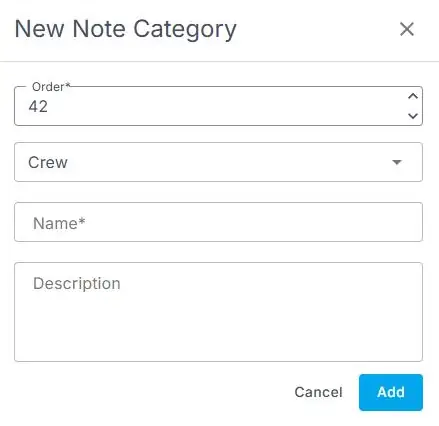
Each code table’s Add Record opens a form like this. Note Categories also ask which kind of record the note is for, such as Crew.
That's a value added. Read on before you rename or delete one.
On this page
Tables with extra settings
Most tables only ask for a name, a description and an order. Some have extra settings that change how NextCrew behaves. Each has its own guide:
- License and certification types: whether an expiration date or a file is required.
- Document categories: who can see documents in each category.
- HR statuses: which status new Crew Members start with.
- Offer sub-statuses: which offer stage each one belongs to.
Rename with care
Renaming a value changes it everywhere, including on records that already use it. That's usually what you want when you fix a typo. It's not what you want if the meaning changes. For a new meaning, add a new value instead.
Delete with care
Open the value and look at Associated Records. If it's more than 0, records still use it. Then choose Delete in the panel, or in the row menu (three dots).
⚠️ Watch out
Only delete values that nothing uses. Reports and saved views that filter on a value stop matching once it's gone. If you're not sure, leave it and move it to the bottom with Order.
Don't delete values created by System. Other parts of NextCrew may rely on them. Values with a globe icon are locked, so you can't rename or delete them.
If something's not right
| What you see | Check this first | Who fixes it |
|---|---|---|
| A new value doesn't show in the drop-down | Refresh the page you're working on. Then check you added it to the right table. | You |
| The drop-down is in the wrong order | The Order number on each value. | Your NextCrew admin |
| You can't see Code Tables in Settings | Your role. Code Tables are for admins. | Your NextCrew admin |
| Delete doesn't remove the value | Contact NextCrew support with the table and value name. | NextCrew support |
Other ways people ask this
- How do I add an option to a drop-down?
- How do I change the order of a list?
- How do I remove a status we don't use?
- Where do I edit the pick lists?
- Can I rename a category?
Related guides
- Lookup Tables (Code Tables): Start Here — what each table controls
Was this article helpful?
That’s Great!
Thank you for your feedback
Sorry! We couldn't be helpful
Thank you for your feedback
Feedback sent
We appreciate your effort and will try to fix the article