Resumes, passports, receipts, check-in photos. Document categories decide where each file goes and who can see it.
Summary
Each category has four switches. Visible To Crew shows the category to Crew Members in the app. Visible To Client lets clients see those documents. Visible on Public Profile is left over from an older feature and isn't used now, so you can leave it as it is. Timesheet Category makes the category available for documents on timesheets, such as expense receipts. Check the client switch carefully. It decides what your clients can open.
How to do it
- Go to Settings › Code Tables › Document Categories.
- Click Add Record and type the category name.
- Turn on Visible To Crew if Crew Members should see it in the app.
- Turn on Visible To Client only if clients should see these documents.
- Turn on Timesheet Category if it's for files on timesheets. Then click Add.
The New Document Category form
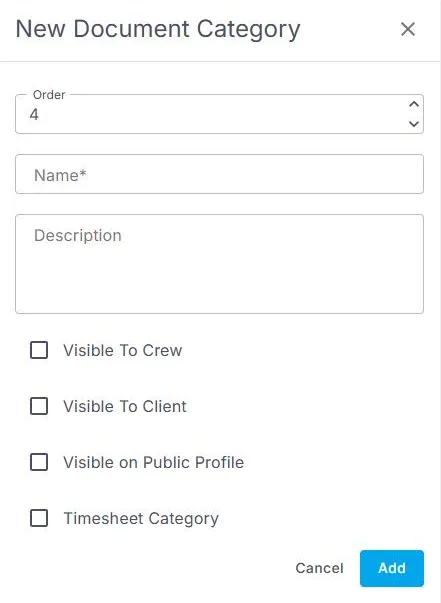
Settings › Code Tables › Document Categories › Add Record opens this form.
That's the category set up. Read on for the examples NextCrew starts you with.
On this page
The categories you start with
| Category | Crew | Client | Public profile | Timesheet |
|---|---|---|---|---|
| Résumé | Yes | Yes | Yes | No |
| CheckIn/Out Picture | No | Yes | No | Yes |
| Expense | Yes | No | No | Yes |
Résumé and CheckIn/Out Picture are created by System. Leave them in place.
Keep private documents private
⚠️ Watch out
Don't turn on Visible To Client for categories that hold IDs, tax forms or anything personal. Clients can open documents in a category that is visible to them.
Other ways people ask this
- How do I let clients see a Crew Member's resume?
- How do I hide a document from clients?
- How do I add a document type?
- Where do expense receipts get filed?
Related guides
- See a Crew Member's profile and documents — what clients see
- Add, change or delete a Code Table value — how every table works
Was this article helpful?
That’s Great!
Thank you for your feedback
Sorry! We couldn't be helpful
Thank you for your feedback
Feedback sent
We appreciate your effort and will try to fix the article