A job was canceled, but by whom? An offer is stuck, but why? These two lists capture the reason, so your reports can explain it.
Summary
Job Statuses add a reason to a job, such as Filled By Client or Last Minute Request. Use them instead of changing the number of positions, so the original request stays on record. Offer (Sub Statuses) add detail under an offer's main status. Each one belongs to one offer status, such as Interested or Confirmed, and has a Demeanor: success, pending or failed.
How to do it
- Go to Settings › Code Tables › Job Statuses and add the reasons your team needs.
- Go to Offer (Sub Statuses) and click Add Record.
- Type the name, such as Waiting on Document.
- Choose the Offer Status it belongs to.
- Choose its Demeanor, then click Add.
The New Offer Sub-Status form
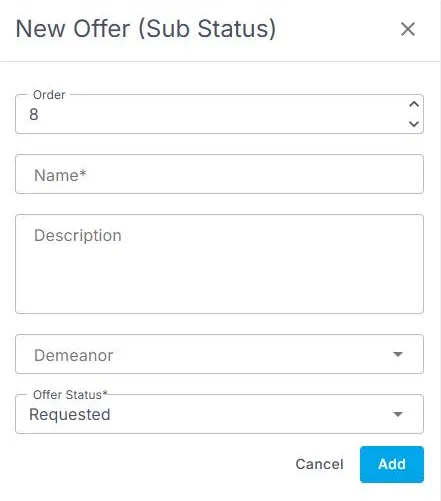
Settings › Code Tables › Offer (Sub Statuses) › Add Record opens this form. Offer Status is required.
When you would use this
Clients fill their own jobs: a Filled By Client status shows how often, and which clients.
Onboarding holds up jobs: a Waiting on Document sub-status under Interested shows who is stuck and why.
Client approval: a Pending - Client Response sub-status under Confirmed tracks offers waiting on the client.
That's both lists set up. Read on for how Demeanor works.
What Demeanor does
| Demeanor | Use it for |
|---|---|
| Success | The offer is moving forward, such as Approved by Client |
| Pending | Something is still needed, such as Waiting for Approval |
| Failed | The offer didn't work out, with the reason |
Other ways people ask this
- How do I record why a job was canceled?
- How do I add a reason to an offer?
- What is an offer sub-status?
- What does Demeanor mean?
Related guides
- Add, change or delete a Code Table value — how every table works
Was this article helpful?
That’s Great!
Thank you for your feedback
Sorry! We couldn't be helpful
Thank you for your feedback
Feedback sent
We appreciate your effort and will try to fix the article