Download the NextCrew for Managers app and sign in with the same username and password you use on the web. You can add a job, see who's confirmed and see who's on site, wherever you are.
What you can see and do depends on how your agency set up your access. If something here isn't on your screen, ask your agency.
Do this
| 1 | Download NextCrew for Managers for iPhone or Android. |
| 2 | Open it and sign in with your usual NextCrew username and password. You'll see your agency's name and logo. |
| 3 | To order staff, tap + at the lower right. New Order opens. ▶ Watch this step (2:47) |
| 4 | Type an Order Name. Your location is filled in; tap the pencil to change it. Add a Description if the Crew need to know anything. |
| 5 | Under Add Job, choose the Job Position and how many people you need, then set the Start Date, End Date and Break. Tick Use different Address if this job is somewhere else. |
| 6 | Tap Submit. Your agency gets the order straight away. |
| 7 | To see who's confirmed, tap Jobs at the bottom. Choose the dates at the top and switch between All, Open and Confirmed. The confirmed Crew are listed under each job. ▶ Watch this step (2:56) |
| 8 | To see who's on site, tap Activities. It shows each Crew Member as they clock in. |
What the app looks like
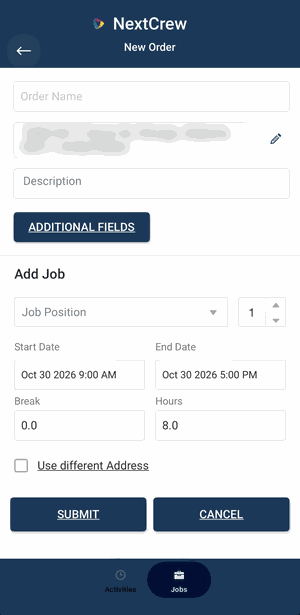
1. Tap + to open New Order. The location fills in; tap the pencil to change it.
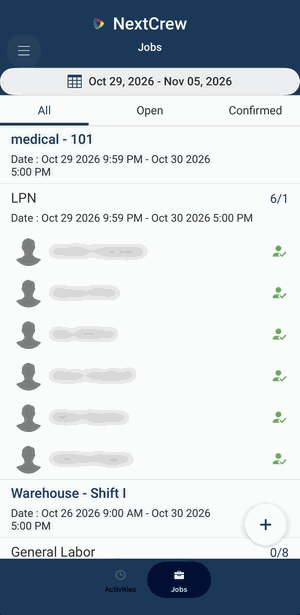
2. Jobs: pick the dates, then All, Open or Confirmed. Confirmed Crew are listed under each job.
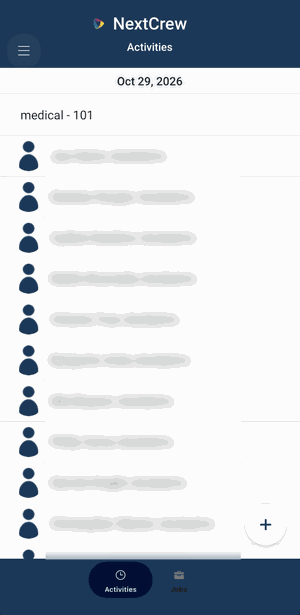
3. Activities: each Crew Member as they clock in.
▶ Watch it on the web and in the app (the app part starts at 2:43)
What you can do in the app, and what needs the web
In the app: add a job (+), see who's confirmed (Jobs), and see who's on site (Activities).
On the web: everything else, such as changing or cancelling a job, asking for specific Crew, approving timesheets and seeing invoices. See Change or cancel an order and Approve or decline timesheets.
Messages: you can't send messages in the app yet. Call or email your agency.
If this doesn't work
| What you see | What to do | Who fixes it |
|---|---|---|
| You can't sign in | Use the same username and password as on the web. See I can't sign in. | You |
| You don't see + at the lower right | Your agency hasn't given you permission to order. Ask them. | Your agency |
| A job you need isn't in the Jobs list | Check the dates at the top of the Jobs screen. | You |
| You need to change or cancel a job | You can't do that in the app. Do it on the web, or call your agency. See Change or cancel an order. | You or your agency |
| A job you added isn't filled yet | Your agency is working on it. See Check whether your jobs are filled. | Your agency |
| The app won't open | Update the app, restart your phone, or delete and reinstall it. | You |
Only your agency can
- Create your login.
- Let you place orders.
- Change or cancel a job for you.
- Tell the Crew about a change.
Call or email your contact at your staffing agency.
Other ways people ask this
- Is there an app for clients?
- Can I order staff from my phone?
- How do I add a job on my phone?
- Can I see who's on site from my phone?
- Can I cancel a job in the app?
- Where do I download NextCrew for Managers?
Related guides
- Place an order for staff
- Check whether your jobs are filled
- See who is coming and who is on site
- Change or cancel an order
Every agency's clients use the NextCrew for Managers app. Once you sign in, it shows your agency's name and logo.
Was this article helpful?
That’s Great!
Thank you for your feedback
Sorry! We couldn't be helpful
Thank you for your feedback
Feedback sent
We appreciate your effort and will try to fix the article