A client's rates go up on a set date, and your team is already booking jobs that fall after it. If those jobs carry today's rates, your Crew see the wrong pay and the client gets the wrong bill. Set the new rates up now, on the orders that need them.
Summary
Rates come from a rate configuration. Each client has a default one, and each order uses one, picked when the order is created. NextCrew doesn't switch rates on a date by itself, so you plan it: copy the configuration and enter the new rates now, use the copy on orders that start on or after the date, and switch the client's default on the day. Orders already created take the new rates when you refresh them from the order's ⋮ menu. What goes wrong: switching the client's default too early, so orders before the date get the new rates, or forgetting the jobs already booked for the new period.
How to do it
- In Settings › Company Profile › Rate Configurations, find the current one in the list, click ⋮ on its row and choose Clone. The copy keeps every position and rate.
- Name the copy for the date it starts, such as Client name – new rates from [start date], and enter the new pay and bill rates.
- Leave the client's default alone. On each order that starts on or after the date, pick the new one in the order's Rate Configuration.
- For orders already created for the new period, change each order's rate configuration and refresh its jobs. See Update the Rates on an Order.
- Create a task, due on the date, to switch the client's default.
- On the day, switch the client's default and rename the old configuration DO NOT USE.
Clone is on the list
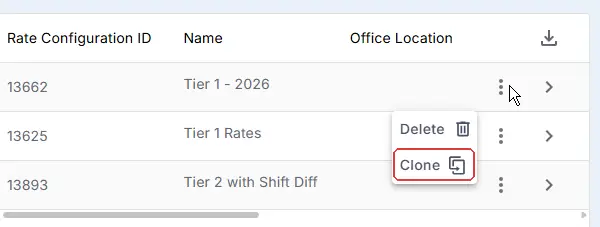
Settings › Company Profile › Rate Configurations. Clone is in the ⋮ menu on each row of this list. You won't find it inside a configuration.
That's the increase planned. Read on for jobs on both sides of the date, recurring orders, and what your Crew see.
On this page
Name it so nobody picks the wrong one
Your team picks a rate configuration from a list by its name, so the name has to say when it applies.
| Configuration | Name it like this |
|---|---|
| The new rates | Client name – new rates from [start date] |
| The old rates, once the new ones are in use | DO NOT USE – Client name – old rates until [end date] |
You can't switch a configuration off, so rename the old one. You can also delete it: rates already on jobs, offers and timesheets stay as they are.
Orders already created for the new period
A new rate configuration doesn't reach orders that already exist. For each order that starts on or after the date, change its rate configuration and refresh its jobs. Update the Rates on an Order shows you how.
An order with jobs on both sides of the date
Keep the jobs before the date where they are. Move every job that starts on or after the date to an order that uses the new rates, then refresh that order. See Move a Job to Another Order.
Recurring orders
A recurring order makes each new order with the rate configuration it has now. It won't pick up the client's new default on its own. Before the date, change the rate configuration on the recurring order itself, then refresh it.
What your Crew see
A Crew Member sees the rate on their job, or the rate on their own offer if someone changed it there. That's the rate their timesheet uses. So if the new rates are on the job before someone accepts it, they see the new rate when they accept.
Why planning it in NextCrew saves you
| Without a plan | In NextCrew |
|---|---|
| Someone remembers on the day and changes every rate by hand | The new configuration is ready weeks early, and a task reminds you on the day |
| Jobs booked before the date for work after it carry the old rates | Orders for the new period use the new rates from the start |
| Rates fixed on the invoice after the client queries it | The job, the offer and the timesheet already agree |
If something isn't working
| What you see | Check this first | Who fixes it |
|---|---|---|
| A new order still has the old rates | The order's Rate Configuration. Pick the new one, then refresh. | You |
| You refreshed, but one person's rate didn't change | Their offer is Rate Locked. Untick it, then refresh again, or edit their rate. | You |
| Orders before the date show the new rates | The client's default was switched too early. Put it back, and fix the orders created since. | You |
| A repeat order made new orders at the old rates | Recurring orders keep their configuration. Change it on the recurring order. | You |
Questions people ask
Can NextCrew raise our rates automatically every year by itself?
No. Plan each increase this way, and create a task for the same date each year so it's never missed.
Can we enter new rates now for a future date?
Yes, in a second rate configuration. Use it now on orders that start on or after the date, and switch the client's default on the day.
What if only the bill rate goes up?
Same steps. Clone the configuration and change just the bill rates.
Does a new rate configuration change jobs already created?
Not until you refresh the order. Timesheets already created keep their rates; change those on the timesheet. See Fix the rate on a timesheet. Then its jobs and offers take the new rates, except offers that are Rate Locked. See Update the Rates on an Order.
Other ways people ask this
- How do I set up a rate increase for a future date?
- Can I enter new rates with a future effective date?
- Our contract rates go up every year.
- Will Crew see the old or new pay rate on a job after the increase?
- How do I update rates on orders I already created?
Related guides
- Set Up Rate Configurations for a Client — building a configuration
- Update the Rates on an Order — orders already created
- Create an Order and Its Jobs — where an order picks its rates
- Move a Job to Another Order — jobs on both sides of the date
- Pay One Crew Member a Different Rate — when one person's rate differs
- Create and Track Tasks — the reminder for the date
Was this article helpful?
That’s Great!
Thank you for your feedback
Sorry! We couldn't be helpful
Thank you for your feedback
Feedback sent
We appreciate your effort and will try to fix the article