A job ended up on the wrong order, or it needs to sit under a different one, such as an order with a client's new rates. Don't delete it and build it again. Move it.
Summary
Every job sits under an order, and the order holds the client, the location and the rate configuration. Move To puts one job under a different order. You pick the order from a list. Use it when a job was added to the wrong order, or when jobs after a rate change need to sit under an order with the new rates. What goes wrong: moving a job and not checking its pay and bill rates afterward.
How to do it
- Open the job you want to move.
- Click ⋮ at the top right of the job, then Move To.
- In Move Jobs, search for the order or pick it from the list.
- Click Move.
- Open the order you moved it to, and check the job's rates and its Crew.
Move To is in the job's menu
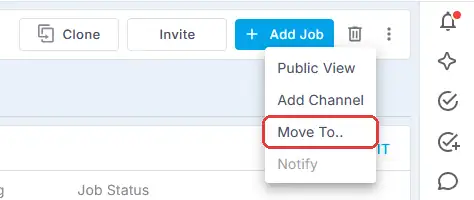
Open the job and click ⋮ at the top right. Move To is in the menu.
Pick the order, then Move
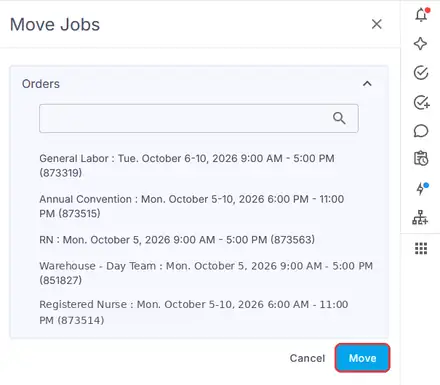
Each order shows its name, dates and number. Search if the list is long, pick the order and click Move.
That's the job moved. Read on for what to check afterward.
On this page
What to check after a move
- Rates. Check the job's pay rate and bill rate. If they should follow the new order's rate configuration, choose ⋮ › Refresh Rates On All Jobs on that order. See Update the Rates on an Order.
- Crew. Open the job's offers and check everyone you expect is there.
- The old order. Check it still has the jobs it should.
When you'd move a job
| What happened | Move it to |
|---|---|
| Someone added the job to the wrong order | The order it belongs to |
| A client's rates go up on a set date, and the order has jobs on both sides of it | An order that uses the new rate configuration, for every job on or after the date |
Why it's quicker in NextCrew
| Without NextCrew | In NextCrew |
|---|---|
| Delete the job and build it again under the right order | Move To puts it under the right order in a few clicks |
| Jobs after a rate change stuck under an order with the old rates | Move them to the order with the new rates, then refresh |
If something isn't working
| What you see | Check this first | Who fixes it |
|---|---|---|
| The order isn't in the list | Search by the order's name or number. | You |
| The rates look wrong after the move | Refresh the rate configuration on the order, or edit the job's rates. | You |
Questions people ask
Is moving the same as cloning?
No. Clone makes a copy. Move To puts the same job under another order.
Can I move a job back?
Yes, the same way: ⋮ › Move To, and pick the original order.
Other ways people ask this
- How do I move a job to a different order?
- I put a job on the wrong order.
- Can I change which order a job is under?
- How do I split an order at a rate change?
Related guides
- Create an Order and Its Jobs — how orders and jobs fit together
- Anatomy of a Job — every setting on a job
- Update the Rates on an Order — refreshing the rates after a move
- Plan a Rate Increase — new rates from a set date
- Clone an Order or Make It Repeat — copying an order instead
Was this article helpful?
That’s Great!
Thank you for your feedback
Sorry! We couldn't be helpful
Thank you for your feedback
Feedback sent
We appreciate your effort and will try to fix the article