Orders, rates, invoices and portal logins all hang off the client record. Five minutes spent setting it up properly saves hours of clean-up later.
Summary
Go to CRM › Clients and click Add Client. Type the name exactly as it should read on an invoice. Then set the dropdowns that make your client list useful: Client Status, Account Type, Lead Source and Follow-Up Status. Add addresses and contacts the same day. What goes wrong: creating the same company twice under different spellings. Client records can't be merged, so search first.
How to do it
- Search CRM › Clients for part of the name first, such as "Mercy", to make sure the client isn't already there.
- Click Add Client and type the Client Name as it should appear on invoices.
- Choose the Office Location, and the Line of Business and Department if you use them.
- Set Client Status, Account Type, Lead Source and Follow-Up Status.
- Check the Account Manager is the one person who owns this client, and pick a Rate Configuration. No rates set up yet? Leave it blank for now and see Set Up Rate Configurations for a Client.
- Click Add. Then open the client and add its addresses and contacts.
Search first, then add
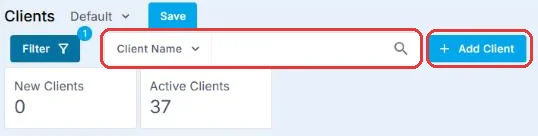
Type part of the name in the search box first. One client record keeps that client's orders, timesheets and invoices together, and two records for the same company can't be merged later. If nothing comes up, click + Add Client.
The Add Client form
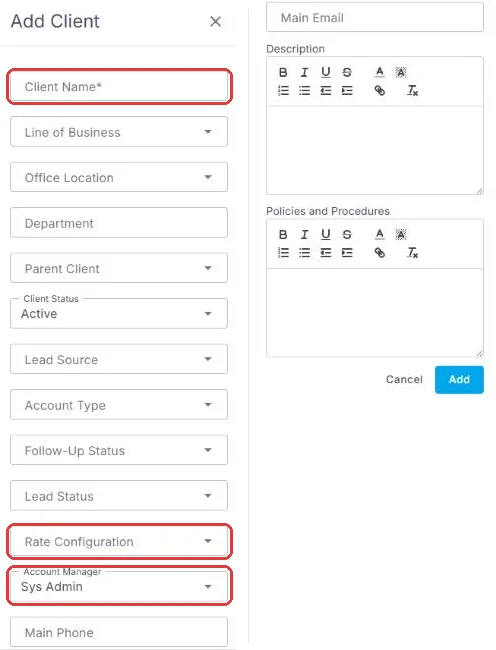
Only Client Name is required, so this takes a minute. Type it the way it should read on invoices. Pick a Rate Configuration and every new order for this client picks up its pay and bill rates automatically, so nobody has to type a rate again. No rates set up yet? Leave it blank and attach it later. See Set Up Rate Configurations for a Client. Check the Account Manager is the one person who owns the client, then click Add.
That's the client created. Read on for what to add next, and what your Crew can see.
On this page
The fields that matter most
| Field | What it answers | Why it matters |
|---|---|---|
| Client Status | Are we working with them? | Most list views filter on it first. Inactive clients keep their history. |
| Account Type | What kind of organization is this? | Groups and reports. Also separates prospects from won clients. |
| Lead Source | How did they find us? | The only way to know where your clients come from a year from now. |
| Follow-Up Status | What do we owe them next? | Puts the client on someone's list. Without it, they never come up. |
| Account Manager | Who owns this client? | One named person. Shared ownership usually means nobody owns it. |
These lists come from your Code Tables, so you can change the choices. Set them up before you add hundreds of clients. See Set Up Your CRM Lists.
What to add next
| Add this | When | Where |
|---|---|---|
| Addresses | Same day | Overview › Addresses › ADD. Mark the default bill and work address. |
| Contacts | Same day | Overview › Contacts. Orders, approvals and invoices go to people. See Add and Manage Client Contacts. |
| A note and a follow-up task | Same day | What was agreed, and the next step with a date. See Add Notes to a Record and Create and Track Tasks. |
| Rates | Before the first order | See Set Up Rate Configurations for a Client. |
| Invoice settings | Before the first invoice | See Set Up Invoicing for a Client. |
| Portal access | If they'll order or approve time themselves | See Give Clients Access to the Client Portal. |
Show who handles what: Assigned Roles
The Account Manager owns the client. Assigned Roles, on the Overview, shows everyone else who works the account and what they handle, such as HR or invoicing. Click ADD, pick the person and their role, and add one row per person. The roles come from Admin Roles in Code Tables.
What your Crew can see
⚠️ Watch out
Policies and Procedures are shown to Crew when they apply for this client's jobs. Use it for site rules: parking, uniform, where to report. Keep margins, complaints and anything private in Notes, which Crew never see.
If the same client is in twice
Client records can't be merged. Orders, timesheets and invoices stay on the record they were created on. Keep the record with the most history. Recreate contacts, documents and notes on it. Rename the other one, such as "Mercy General: DO NOT USE", set it to Inactive, and add a note on the one you keep saying where the old history is.
Why set it up this way
| A rushed client record | A complete one |
|---|---|
| A list you can only scroll. | Lists you can filter by status, type and source. |
| Nobody knows who owns the account. | One Account Manager, and Assigned Roles for the rest. |
| Orders and invoices with nowhere to go. | Contacts and addresses ready before the first order. |
If something isn't working
| What you see | Check this first | Who fixes it |
|---|---|---|
| No Add Client button | Your permissions for clients. See Permissions. | Your NextCrew admin |
| A dropdown doesn't have the choice you need | The list in Code Tables. An admin adds it once and everyone gets it. | Your NextCrew admin |
| The same company is in twice | See If the same client is in twice, above. | You |
Questions people ask
Can a client have more than one contact?
Yes. Often the person who orders, the one who approves time and the one who pays are three different people.
Can a client have more than one site?
Yes. Add each site under Addresses. Sites that are billed separately are better set up as parent and child clients. See Set Up Parent and Child Clients.
Can I delete a client?
Set it to Inactive instead. Its history stays, and it drops out of your active lists.
Other ways people ask this
- How do I add a new client?
- How do I create a customer account?
- Where do I add a client's address?
- How do I merge duplicate clients?
- What do Crew see on a client?
Related guides
- Manage Clients: Start Here — everything about clients
- Add and Manage Client Contacts — the people on the account
- Set Up Rate Configurations for a Client — rates before the first order
Was this article helpful?
That’s Great!
Thank you for your feedback
Sorry! We couldn't be helpful
Thank you for your feedback
Feedback sent
We appreciate your effort and will try to fix the article