Orders, approvals and invoices go to people, not companies. Keep the right people on file and you never chase a dead email address on payday.
Summary
Add contacts from the client's Overview (Contacts › ADD) or from CRM › Contacts › Add Contact. Only First Name, Last Name and Email are required. Tick Primary for the person who should get orders and invoices, set a Follow-Up Status, and add a note about who they are. What goes wrong: every contact getting a portal login without anyone deciding they should. Check whether your agency creates logins automatically.
How to do it
- Open the client in CRM › Clients and, under Contacts, click ADD. The client is filled in for you.
- Fill in First Name, Last Name and Email, plus their Title and phone.
- Tick Primary only for the person who should receive orders and invoices.
- Set their Follow-Up Status.
- Save, then add a note saying who they are and what they care about.
- Check the User Account section and decide whether they need a portal login.
The Contacts section
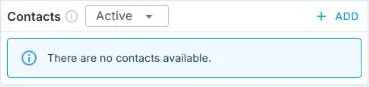
On the client record, scroll to Contacts and click + ADD.
The Add Contact form
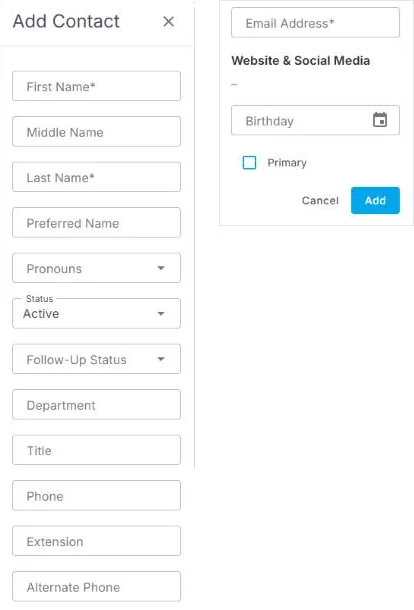
Fill in First Name, Last Name and Email Address, plus their Title and phone. Set the Follow-Up Status, tick Primary only for the person who should receive orders and invoices, then click Add.
That's the contact on file. Read on for logins, follow-ups and getting the list out.
On this page
Primary contact
The Primary contact is the one who goes on the client's orders and invoices. Often that's not the person who calls the work in. Tick it for one person. If everyone is primary, nobody is.
Who gets a login
A contact's login is in the User Account section of their record, with the username, password, and Locked and Disabled switches.
Your agency may create a login for every new contact automatically. That's the Automatically Create Client User from Client Contact setting in Site Configuration › CRM. Give logins only to people who'll order, approve time or view invoices themselves. See Give Clients Access to the Client Portal.
⚠️ Watch out
A contact on a parent client can see jobs and timesheets for every child client under it. To limit someone to one site, add them to that child client. See Set Up Parent and Child Clients.
Follow-ups and notes
Follow-Up Status puts the contact on your follow-up list, such as Scheduled Follow-up or Sent Proposal. The choices are yours to change in Set Up Your CRM Lists.
Use notes for what you'd want to know before the next call: who they report to, what they care about, what went wrong last time. Save the notes you write often as templates. See Add Notes to a Record and Use Note Templates.
Work from a list, and get it out
- In CRM › Contacts, filter by client, status or follow-up status, then click Save to keep the view. See Save and Share Your Own List Views.
- Click Export to download the list as you see it: your filters, columns and order.
- Or run the Client Contact List report for the standard set of fields. See Find and Use Reports and Dashboards.
Why keep contacts current
| Out-of-date contacts | Current contacts |
|---|---|
| Invoices go to someone who left. | The Primary contact gets them. |
| Nobody knows what was agreed with whom. | Notes on each person, dated. |
| Follow-ups depend on someone remembering. | Follow-Up Status puts them on a list. |
If something isn't working
| What you see | Check this first | Who fixes it |
|---|---|---|
| A new contact isn't in the Contacts list | A filter or saved view hiding them. Clear the filters. | You |
| A contact can't sign in | User Account: is it Locked or Disabled, and is the email right? | You |
| Contacts got logins you didn't want | The Automatically Create Client User setting. Disable the logins you don't want. | Your NextCrew admin |
Questions people ask
Can a contact belong to more than one client?
Add them to the parent client if they look after the whole group.
Should I delete a contact who left?
Set their Status to Inactive and disable their login. Their notes and history stay.
Can I message a contact from NextCrew?
Yes. Open the contact and click Add Message.
Other ways people ask this
- How do I add a client contact?
- Who gets the invoices?
- How do I give a client contact a login?
- How do I export client contacts?
- How do I set a primary contact?
Related guides
- Add a New Client — the client record
- Give Clients Access to the Client Portal — logins for contacts
- Manage Clients: Start Here — everything about clients
Was this article helpful?
That’s Great!
Thank you for your feedback
Sorry! We couldn't be helpful
Thank you for your feedback
Feedback sent
We appreciate your effort and will try to fix the article