It's past the start time and someone hasn't shown. This guide gets the job covered and the record right.
Summary
Handle a no-show in three moves. First, reach the person and rule out a clock-in problem. Second, backfill: invite a replacement from the job. Third, record it the same way every time, so the No-Show Report and the Crew Member's record are right. What goes wrong: recording a violation against someone who was on site all along. Violations can't be edited afterward.
How to do it
- On Daily Pulse, click No Shows and message everyone listed.
- Clock in anyone who is on site but couldn't clock in.
- For anyone you can't reach, open the job and choose Invite.
- Filter for Crew who are available and have worked for this client. Choose Request or Confirm. It's saved straight away.
- Tell the client who is coming instead.
- After the job, mark the missing Crew Member's timesheet Not Completed.
- Add a violation on their profile, with the client selected.
Find a replacement in minutes
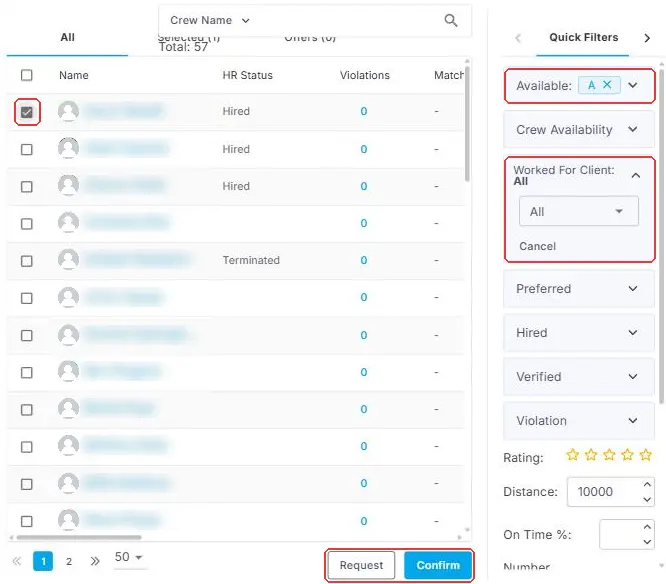
The Invite screen lists your Crew, and the Quick Filters narrow it to the right people: Available for who is free, and Worked For Client for people who already know the site. Tick who you want, then Request (they get an offer to accept) or Confirm (they're booked straight in). They get a notice either way.
That is the job covered and the case on record. Everything below is for when a replacement is hard to find or the record needs care.
On this page
Reach them first
Start on Daily Pulse. Click No Shows, tick everyone listed and choose Send Message. See See Today's Timesheets with Daily Pulse.
The user assigned to the job also gets an email 15 minutes after the start time. So the person who owns the job knows, even if they're not on Daily Pulse.
Give them a few minutes to reply. Call anyone who doesn't.
Rule out a false no-show
Some no-shows aren't. The Crew Member is on site, but the app wouldn't let them clock in. Usually they text or call to say so.
Tick their row on Daily Pulse and choose Clock-In. Do not record anything against them.
⚠️ Watch out
Rule this out before you add a violation. Violations can't be edited, and only an administrator with delete permission can remove one.
Find a replacement from the job
- Go to Workspace › Orders and open the order.
- Open the Jobs tab, then the job.
- Choose Invite at the top of the job.
The Invite screen lists your Crew with their HR status, violations, rating, distance and availability. Use the filters on the right to narrow it down.
| Filter | Use it to |
|---|---|
| Available | Show only people free for this job |
| Worked For Client | Favor people who already know the site |
| Preferred | Start with the people marked as preferred |
| Violation | Leave out people with recorded violations |
| On Time % | Favor people with a strong on-time record |
| Distance | Keep to people who can get there in time |
Tick the people you want. Request sends them an offer they must accept. Confirm books them straight in. They get a notice either way.
Posting a new job to cover the gap instead? The Add Job form has a Notify Now box. If you don't see it, an admin can turn on Enable Notify Now Checkbox on Post Job Page in Settings › Site Configuration › Jobs.
Keep a short list of Crew each client already knows. When you're short at the start of a job, that list saves the most time.
Tell the client
Your client sees each Crew Member's check-in status live in the client portal. See Let Clients See Who's On Site.
Tell them anyway. Send the contact the replacement's name and when they'll arrive. A client who hears it from you first trusts the next update.
Record it the same way every time
Two records, every time. Together they feed the No-Show Report and the Crew Member's own record.
Mark the timesheet Not Completed
Go to Operation › Timesheet and open the missing Crew Member's timesheet. Set its status to Not Completed.
⚠️ Watch out
Don't delete the timesheet. It's tempting, but a deleted timesheet takes the no-show record with it. Not Completed keeps the record.
Add a violation
- Open the Crew Member's profile.
- In the panel on the right, choose Add Violation.
- Pick the Violation Category and the Client.
- Write what happened in plain facts: the job, the start time and how you tried to reach them.
The date is stamped for you.
⚠️ Watch out
Violations can't be edited. Only an administrator with delete permission can delete one. Write it once, and write facts.
A violation is linked to the Crew Member and the client, not to a job. That's why the description should name the job and the date.
Optional: tag the offer
Offer sub-statuses are labels your team sets up to track what happened to an offer. For example, that someone was requested, or that you sent them a form.
Create them in Settings › Code Tables › Offer (Sub Statuses). For no-shows, add one such as No Show under the Canceled offer status.
Nothing sets a sub-status for you. Your team picks it on the offer. Once it's set, it shows in the No-Show Report.
Where the record shows up
| Where | What you see |
|---|---|
| Crew Member's profile | The violation count on their stat card, and a red alert icon beside their name |
| Confirming them on a job | A warning that they have a violation |
| Reports › Workforce Operation & Stats › No-Show Report | No-shows across Crew and clients, for your weekly review |
| Reports › HR & Recruiting › Violation Report | Violations across Crew and clients |
Back it with a written policy
Recording works best when everyone knows the rule. Write down what counts as a no-show, how to call off, and what happens next. Have every Crew Member sign it at onboarding.
To have Crew sign it during onboarding, add it to a form package. See Build and Send Form Packages.
Questions people ask
Should every no-show become a violation?
That's your policy's call. Whatever you decide, do it the same way every time. Then the record is fair and the report is right.
Can I undo a violation?
It can't be edited. An administrator with delete permission can delete it.
They turned up late after I'd backfilled. Now what?
That's your policy's call too. If they work, clock them in so their time is recorded. Don't mark the timesheet Not Completed.
I don't see Notify Now on the job form.
An admin can turn it on: Settings › Site Configuration › Jobs › Enable Notify Now Checkbox on Post Job Page.
Other ways people ask this
- A Crew Member didn't show up what do I do?
- How do I record a no show?
- How do I find a replacement for a shift?
- Backfill a shift fast?
- Mark timesheet not completed?
- Add a violation for no call no show?
- Can I undo a violation?
- Notify now checkbox missing?
- Where do no shows show up on a Crew profile?
- Backfill from the invite screen?
Related articles
- See Today's Timesheets with Daily Pulse — finding the no-shows and clocking in anyone on site
- Let Clients See Who's On Site — what your client sees while you backfill
- Track Preferred and Not Allowed Crew for a Client — keeping the client's preferred list current
Was this article helpful?
That’s Great!
Thank you for your feedback
Sorry! We couldn't be helpful
Thank you for your feedback
Feedback sent
We appreciate your effort and will try to fix the article