How to Track Preferred and Not Preferred (DNR) Crew for a Client

Modified on Tue, 22 Sep at 10:35 PM

Clients form opinions about your Crew. Some workers they want back every time; others they would rather not see again. Crew preferences are where those opinions live so that they survive the account manager who took the call.

Set them on the client record and NextCrew acts on them when jobs go out. Allowed Crew become part of that client's pool. Not Allowed Crew stop seeing that client's open jobs.

Teams often call the second one DNR — do not return. The screen says Not Allowed.

Summary

Clients form opinions about your Crew. Some workers they want back every time; others they would rather not see again. Crew preferences are where that gets recorded against the client.

It lives on the client’s Crew Preference tab. You add the person, mark them Allowed or Not Allowed, set a client-agreed rate if there is one, and write down why.

Not Allowed hides jobs, it does not block assignment. The setting filters what the Crew member sees. Somebody inside your agency can still put that person on that client’s job, by three ordinary routes.

It applies to future jobs only. If they are already assigned or confirmed on that client’s shifts they stay on them. Nothing is canceled, nobody is notified, and no list will tell you.

How to do it

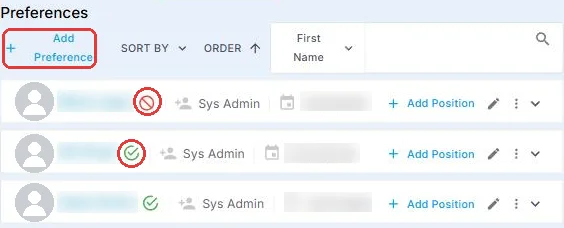
1Go to Clients, select the client, and open the Crew Preference tab.

2Click Add Crew and search on something distinctive — the wrong name on a Not Allowed list is a quiet, expensive mistake.

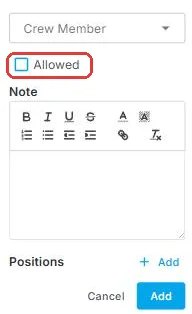
3Mark them Allowed or Not Allowed.

4Set a custom rate if the client has agreed one. Allowed Crew only.

5Add a note recording exactly what the client said, and when.

6If they are already on upcoming shifts for that client, handle those separately. The setting will not.

▶ Watch a Crew preference being set

That is the preference recorded. Everything below is about what this setting does and does not do — worth reading once, before you rely on it.


Who this applies to

  • Account managers — you hear the feedback, usually informally, and you are the one who has to remember it otherwise.
  • Schedulers and coordinators — you feel the benefit. A preference list is the difference between offering a shift and offering it to the right person.
  • Administrators — role permissions and note categories are yours.

What it actually does

MarkingEffect
AllowedThe Crew member becomes part of that client’s pool. Clients using the self-service portal can confirm them directly. You can also attach a custom pay rate for that person at that client.
Not AllowedThat client’s open jobs stop appearing in the list that Crew member sees, so they do not apply for them.

Preferences are stored per client. The same Crew member can be Allowed at one client and Not Allowed at another, and neither affects the other.

Not Allowed hides jobs. It does not block assignment. The setting filters what the Crew member sees — it is not a lock on the record. Somebody inside your agency can still put that person on that client's job, through any of three ordinary routes. See the three ways round it below. Treat Not Allowed as a strong default, not a guarantee.

The three ways round it

Any of these will put a Not Allowed Crew member on that client's job. None of them is a bug, and none of them warns you.

  1. Switching the crew list from Available to All. The filter that hides them is on the list, and it can be turned off.
  2. Adding them by name in the calendar view. Open the job on the calendar and type the person in.
  3. Assigning from the Crew member's own record. Open the worker, assign them the job from there.
This is why the note in Step 5 matters more than the marking does. A coordinator covering a last-minute gap at 6am will use whichever route is fastest. If the record says Not Allowed — site manager asked 12 Mar, repeated lateness, they stop. If it says nothing, they carry on, because from their side the person is simply available.

It does not touch jobs they are already on

Marking someone Not Allowed applies to future jobs only. If they are already assigned or confirmed on that client's shifts, they stay on them. Nothing is canceled, nobody is notified, and no list will tell you.

So when a client asks you not to send someone again, that is two jobs of work, not one:

  1. Mark them Not Allowed on the client, so no future job reaches them.
  2. Check what they are already booked on for that client, and remove and backfill anything you are not willing to let run.

Skipping the second step is how a client who has just asked you to stop sending someone watches that person walk in the following Tuesday. The marking was set correctly and it made no difference.


Steps

Step 1: Open the client’s Crew Preference tab

Go to Clients, select the client, and open the Crew Preference tab.

Step 2: Add the Crew member

Click Add Crew and search for them. Search on something distinctive — adding the wrong person to a Not Allowed list is a quiet, expensive mistake.

Step 3: Mark them Allowed or Not Allowed

Choose Allowed or Not Allowed.

Step 4: Set a custom rate, if the client has agreed one

Optional, and only for Allowed Crew. Some clients will pay more for a specific person — someone who knows their site, holds a certification, or has simply been there two years.

This is set here, on the preference, not in the client's rate configuration. The rate table handles rates by position; this handles one named person at one client. See Configure Client Rate Tables for everything else.

Step 5: Write down why

Add a note recording what the client said and when. This is the step that gets skipped and the one that matters most later.

“Client didn't want him back” is worth nothing in eight months. “Site manager called 12 Mar — arrived 40 minutes late twice in one week, asked us not to send him again” tells the next person what happened, whether it is still relevant, and whether it was ever fair.

Then save. See Notes & Note Templates and Code Table Guide for Note Categories.


Before you mark someone Not Allowed

NextCrew does not decide which requests you honor. The client asks, your agency decides, and the software records what you decided. Whether a particular request is one you act on is a judgment for the client relationship and your own policy — it is not something this screen can or should settle for you.

What the software can do is make sure the decision is written down well enough to stand up later. That is worth two minutes, because a Not Allowed marking removes work from a person quietly and for as long as nobody revisits it.

  • Record what the client actually said, and when. Step 5. A marking with no reason attached cannot be reviewed, explained or reversed with any confidence — and in a year nobody will remember.
  • Name who asked. “The client” is not a person. The site manager who rang on a Tuesday is.
  • Follow your own policy where you have one. If your agency has a position on which requests it acts on, that governs. This guide documents the setting, not the decision.
  • Review the list from time to time. A marking set two years ago by someone who has left, with no note on it, is not information. It is a worker who quietly stopped getting shifts and nobody can say why.
The note is the part that lasts. The marking changes what one screen shows. The note is what lets the next person — reviewing the list, covering a shift, or being asked about it — understand the decision and decide whether it still holds.

If it's not working

A Not Allowed Crew member ended up on the job

Symptom. Someone marked Not Allowed turned up on that client's shift, or appears assigned to one.

Start with how they got there, not with the marking. In most cases the marking is set correctly and somebody went round it without realizing.

  1. Were they assigned by a person? Check the three routes above — the crew list switched to All, added by name in the calendar, or assigned from their own record. This is the usual answer, and the marking is not at fault.
  2. Were they already on it before the marking was set? Not Allowed applies to future jobs only. Anything they were already booked on stays.
  3. Is the marking on the right client? Preferences are per client. A marking on the parent does not cover a child site, and vice versa.
  4. Is it on the right person? Two Crew members with similar names is the common version of this one.
If it was route 1, 2 or 3, nothing is broken and there is nothing to fix in settings. The fix is a note on the record that tells the next person why, and a word with whoever staffed it. A marking with no explanation attached will get overridden again next week by somebody doing their job.

Allowed Crew are not coming up first

Symptom. You built an Allowed pool and jobs still go out to everyone.

Check: that the Crew member is Active and available; that they hold whatever the job requires, since a preference does not override a qualification; and that the job's own privacy setting is not doing something different. A preference makes someone part of a client's pool — it does not override how the job itself was set up to distribute.

The client changed their mind

Open the Crew Preference tab, change or remove the entry, and add a note saying who reversed it and when. A marking that appears and disappears with no history behind it is how the same argument gets had twice.


How to know it's complete

  • ✅ The Crew member appears on the right client's list, under the right marking.
  • ✅ A note records what the client said and when — not just that they said something.
  • ✅ Any custom rate is set, and it is the rate that was actually agreed.
  • ✅ For a Not Allowed marking: somebody other than you could read the note and understand the decision.
  • ✅ For a Not Allowed marking: you have checked what they are already booked on for that client, and dealt with it.

Related articles


FAQ

Q: Do we have to act on every Not Allowed request a client makes?

A: That is your agency's call, not NextCrew's. The client asks, you decide, and the system records the outcome. If your agency has a policy on which requests it acts on, that policy governs.

Q: Will a Not Allowed Crew member see jobs for that client?

A: No. That client's open jobs stop appearing in the list they see, so they do not apply for them.

Q: Does Not Allowed stop us assigning them by mistake?

A: No. It hides jobs from the Crew member; it does not lock the record. Somebody can still assign them by switching the crew list to All, by adding them in the calendar view, or from the Crew member's own record. Treat it as a strong default, not a guarantee.

Q: What about jobs they are already booked on?

A: They stay on them. The marking applies to future jobs only. If a client has asked you not to send someone again, check what that person is already assigned to for that client and deal with it separately.

Q: Can the same person be Allowed for one client and Not Allowed for another?

A: Yes. Preferences are stored per client and do not affect each other, or the Crew member's standing anywhere else.

Q: Does a Not Allowed marking affect their work with our other clients?

A: No. It applies to that one client only.

Q: What happens if the client changes their mind?

A: Update the Crew Preference tab to change or remove the entry, and add a note recording the reversal.

Q: Can I set a special rate for an Allowed Crew member?

A: Yes, when you add them. That rate applies to that person at that client, separately from the client's rate configuration.

Q: Does the Crew member know they have been marked Not Allowed?

A: They are not notified. The jobs simply stop appearing for them, which is also why the note in Step 5 matters — it is the only record of why.

Was this article helpful?

That’s Great!

Thank you for your feedback

Sorry! We couldn't be helpful

Thank you for your feedback

Let us know how can we improve this article!

Select at least one of the reasons
CAPTCHA verification is required.

Feedback sent

We appreciate your effort and will try to fix the article