Know who's onsite, right now — without making a single call
❖ Goal
Help you see who is onsite in real time, understand how crew clock in and out, and handle issues like late arrivals and no-shows before they become problems.
❖ Overview
Operations is where the rubber meets the road. Knowing who showed up, who clocked in on time, and who is missing from a site is critical to delivering great service and accurate billing. NextCrew gives you a live dashboard of every shift, every location, and every clock-in — right from your screen.
❖ Typical Challenges
- Not knowing if crew actually showed up until a client calls to complain.
- Chasing crew for manual clock-in records that never match actual hours.
- Scrambling to fill no-shows without a clear view of who is available nearby.
✅ How to Do It in NextCrew
a) How to view who's onsite
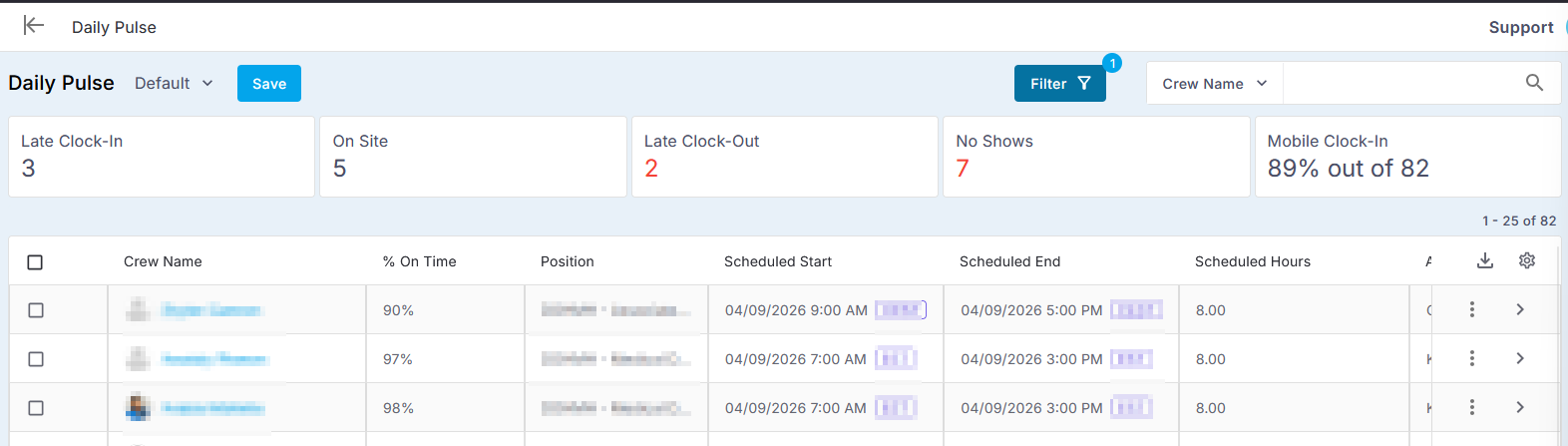
Go to Operation → Daily Pulse for a live overview of who is currently clocked in at each client location. You can filter by site, job, or client, and see check-in times, photos, and GPS locations in real time.
b) How crew clock in and out
Crew have three clock-in options — all syncing automatically to timesheets: (1) Mobile app: Crew tap Clock-In from the app home screen; GPS and photo capture are recorded. (2) Kiosk: A tablet set up on-site; crew clock in from an approved IP address. (3) Supervisor entry: A manager can manually add or adjust clock-in/out times.
c) How to handle late arrivals and no-shows in real time
Monitor Daily Pulse at shift start time. If someone has not clocked in, you can immediately message them directly from the screen, update their timesheet status, or go back to Workspace to invite a replacement.
To View real-time no-show stats, navigate to Daily Pulse screen under Operation menu and view stats on top.
⚡ Automation & AI — What Happens Automatically
- Clock-in/out data from mobile and kiosk automatically populates timesheets — no manual entry for standard shifts.
- GPS and photo capture are automatically logged for each clock event — giving clients audit-ready proof of attendance.
- Overtime is automatically calculated based on your configured rules as hours accumulate throughout the day and timesheet is approved.
❖ Integrations
- Clock-in data feeds directly into Timesheets, Payroll, and Invoicing — hours captured on-site become billable and payable with no re-entry.
- Kiosk integrates with any internet-capable device — no proprietary hardware required.
❖ Best Practice Guide
- Check Daily Pulse 15 minutes after every shift starts — catching a no-show early gives you time to backfill without impacting the client.
- Make sure crew have the mobile app downloaded before their first shift — send them the download link during onboarding.
- Ask Crew to enable GPS on their phone — location data protects you in any billing dispute.
❖ Measure Your Success — Key Reports & Dashboards
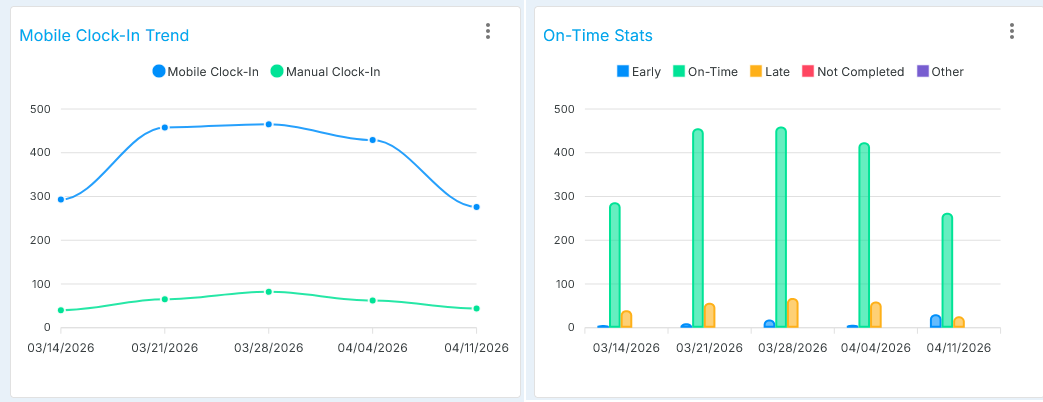
- On-time clock-in rate per site and per client.
- No-show rate per week/month.
- Percentage of timesheets auto-populated from mobile/kiosk vs manually entered.
➡️ Next Best Actions
- After shifts complete, move to Timesheets to review and approve hours before payroll cutoff.
- If you notice a high no-show rate from a specific crew member, add a note to their HR profile.
- Share the Daily Pulse view with clients who want real-time visibility into their workforce.
➤ FAQ
Q: What if crew forget to clock out?
A: Go to Operation → Timesheet, click on the missing end time, and manually enter the correct clock-out time before approval.
Q: Can clients see who clocked in from their portal?
A: Yes — clients with portal access can view clock-in/out records and approve timesheets directly.
Q: Can I use both mobile app and kiosk for the same site?
A: Yes — both methods work simultaneously and all data syncs to the same timesheet.
➤ Call to Action
PRIMARY ACTION: Log in and check your Daily Pulse now. |
Advanced Setup: Setting Up Kiosk Time Clock in 2.0
✅ Before You Move On — Confidence Check |
Can you honestly check all three boxes? If not, re-read the relevant section before moving to the next topic. |
☐ I know where to find the Daily Pulse and I can see clock-in status by site, job, or client. |
☐ I can explain the three ways crew clock in (mobile app, kiosk, supervisor entry) and when I would use each one. |
☐ I know the steps to take within Daily Pulse when a crew member has not clocked in 15 minutes after their shift started. |
Was this article helpful?
That’s Great!
Thank you for your feedback
Sorry! We couldn't be helpful
Thank you for your feedback
Feedback sent
We appreciate your effort and will try to fix the article