A reminder the Crew Member confirms is the cheapest way to stop a no-show. This guide checks the reminders are running, then shows what to do about anyone who hasn't confirmed.
Summary
NextCrew sends job reminders for you. A Crew Member gets a notice when a job is assigned. They get a reminder 24 hours before, a clock-in reminder 5 minutes before the start and a clock-out reminder 5 minutes before the end. When Crew confirm a job in the app, they can acknowledge it, and the job's offer list shows them as Acknowledged. Your part is the follow-up: see who hasn't acknowledged, and reach them the day before. What goes wrong: texts never go out because texting was never turned on.
How to do it
- For texts, turn on the Twilio integration in the App Marketplace. You do this once.
- Check the clock-in and clock-out reminder minutes in Settings › Site Configuration › Timesheet.
- Confirm Crew on the job as usual. The assignment notice goes out on its own.
- The day before, open the job's Offers list and check who has acknowledged.
- Message anyone who hasn't, and ask for a reply.
- Save your reminder wording as a message template.
Clock-in and clock-out reminders
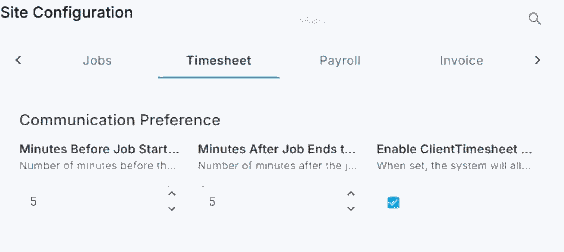
Settings › Site Configuration › Timesheet. The first two boxes are Minutes Before Job Start to Remind to Clock-In and Minutes After Job Ends to Remind to Clock-Out.
That is the reminder chain running. Everything below is for when a Crew Member says a reminder never arrived.
On this page
The reminders NextCrew sends
| Reminder | When it goes | What the Crew Member does | Can you change the timing? |
|---|---|---|---|
| Assignment notice | When a Crew Member is requested, and again when confirmed | Reads it | No |
| 24-hour reminder | 24 hours before the start | Reads it | No |
| Clock-in reminder | 5 minutes before the start, unless you change it | Clocks in | Yes: Minutes Before Job Start to Remind to Clock-In |
| Clock-out reminder | 5 minutes before the end, unless you change it | Clocks out | Yes: Minutes After Job Ends to Remind to Clock-Out. Despite the name, it counts back from the end |
The clock-in and clock-out minutes live in Settings › Site Configuration › Timesheet. They save as soon as you leave the field.
Reminders go by email and app notification. They go by text too once texting is set up. NextCrew leaves texting off unless you ask, so you don't pay for texts when email and app notifications do the job.
Turn on texting
Reminders by text need the Twilio integration. Texting is off until your account turns it on.
- Open your own Twilio account and buy one phone number. NextCrew supports one number.
- Register that number for business texting (10DLC) with Twilio. Your agency does this, and pays Twilio directly.
- In NextCrew, go to Settings › App Marketplace and open Twilio.
- Enter your Twilio Account SID and Auth Token.
Turn on Listen for Reply and replies land on the Crew Member's profile.
The full steps are in Turn On Text Messaging with Twilio. There may be a monthly NextCrew subscription for the integration.
Check who has acknowledged
- Go to Workspace › Orders and open the order.
- Open the Jobs tab, then the job.
- Choose the Offers tab. Anyone who acknowledged the job in the app shows as Acknowledged.
The offer list is the only place acknowledgments show. They are not on Daily Pulse and not in a report. Check the list the day before for every job, starting with the earliest.
Acknowledging happens in the app, when the Crew Member confirms the job. The reminders don't ask for a reply yet.
Follow up on anyone who hasn't
Send a short message that asks for a reply. For example:
Hi [first name], you're booked at [client] tomorrow at [start time]. Please reply YES to confirm, or call us if anything has changed.
You can write it now and schedule it for later. See Scheduling Messages in NextCrew.
No reply by the end of the day? Call them. If you still can't reach them, line up a backup. See Handle No-Shows & Backfill.
Save your wording as a template
Write the follow-up once and save it as a message template. Everyone on the team then sends the same words. See Communication & Messages.
Keep three templates: the day-before follow-up, the morning check, and the 'we need you to reply' nudge.
A Crew Member says a reminder never arrived
| Check | If yes | If no |
|---|---|---|
| 1. Were they confirmed on the job? | Go to check 2. | No job was assigned, so no reminder went. Confirm them, then message them. |
| 2. Is texting on for your account? | Go to check 3. | Texts can't go until Twilio is turned on. See Turn on texting above. |
| 3. Is their phone number right on their profile? | Contact support with the three facts below. | Correct the number, then message them. |
Contact support with three facts: the Crew Member's name, the job ID and the start time.
Questions people ask
Can I change when the 24-hour reminder goes out?
No. The timing is the same for every account. You can change the clock-in and clock-out reminder minutes.
Can I see an acknowledgment rate across all my jobs?
Not today. Acknowledgments show on each job's offer list only.
Can I send my own extra reminder?
Yes. Send a message from Messages, or schedule one. See Scheduling Messages in NextCrew.
Can Crew acknowledge from the reminder itself?
Not today. They acknowledge the job in the app. The reminders are notices only.
Other ways people ask this
- A Crew Member says they never got a reminder?
- How do I know if Crew confirmed their shift?
- Where do I see acknowledgments?
- Can I change when the 24 hour reminder goes out?
- Change clock in reminder time?
- Texts not sending to Crew?
- Send my own reminder the day before?
Related articles
- See Today's Timesheets with Daily Pulse — watching the start time once the reminders have gone
- Handle No-Shows & Backfill — when someone doesn't confirm and doesn't show
- Turn On Text Messaging with Twilio — turning on Twilio for texts
- Communication & Messages — message templates
- Scheduling Messages in NextCrew — writing a reminder now and sending it later
Was this article helpful?
That’s Great!
Thank you for your feedback
Sorry! We couldn't be helpful
Thank you for your feedback
Feedback sent
We appreciate your effort and will try to fix the article