A client rings to say one of your Crew turned up an hour late, walked off a site, or was rude to a supervisor. What you do in the next ten minutes decides whether that is a recorded fact you can act on, or a thing somebody vaguely remembers when it happens again.
Summary
A client rings to say one of your Crew turned up an hour late, walked off a site, or was rude to a supervisor. What you do in the next ten minutes decides whether the coordinator who confirms that person in eight months knows anything about it.
The record is a violation, and it lives on the Crew member rather than on the client, because it is the person’s history that has to travel with them. Associating the client is what makes it useful beyond one worker.
A poor review does not become a violation on its own. It sits on the profile, pulls the cumulative rating down, and does nothing else. If it matters next time, somebody has to record it.
You cannot edit a violation once it is saved, and you cannot delete it yourself. That makes five minutes of care the cheapest part of this.
How to do it
1Get the facts before you open anything: what happened, when, which shift, and who at the client reported it.
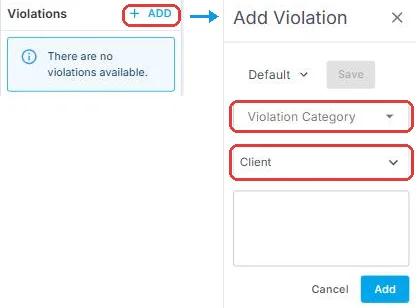
2Open the Crew member’s detail page and choose Add Violation in the right-hand panel.
3Pick the Violation Category.
4Select the client in the Client dropdown. Without it you have a note about a person, not a record you can report on.
5Write what actually happened — in the reporter’s words where you have them, naming who reported it.
6Decide what follows: a Not Allowed mark at that client, a conversation, or nothing.
That is the incident on record. Everything below covers where it shows up afterwards, and how permanent it is — read it when you need it, not to record one.
ON THIS PAGE
Who this applies to
- Account managers and coordinators — you take the call. You are also the person who decides whether it gets written down or handled over the phone and forgotten.
- Whoever manages that Crew member — the record lands on their worker, and post-shift reviews are emailed to them.
- Administrators — violation categories are yours to configure. Write-up templates on the violation form are not: those are set per person, by each person.
How an incident reaches you
Three routes, and only one of them is something you go and look for.
| Route | What happens | What you have to do |
|---|---|---|
| The client contacts you — a call, an email, a word at the end of a site visit | Nothing automatic. It exists only in the conversation. | Everything. This is the most common route and the one most likely to go unrecorded. |
| The client rates the shift | An email goes to the Crew member’s manager. It also lands on the Crew profile as a review note, and feeds their cumulative rating. | Read it, and decide whether it is worth more than a note. A poor review is not a violation until somebody makes it one. |
| Your own team saw it — a coordinator on site, a supervisor, another Crew member | Nothing automatic. | Same as the first route. Second-hand accounts need more care over the facts, not less. |
Steps
Step 1: Get the facts before you record anything
You cannot edit a violation once it is saved, and you cannot delete it yourself. That makes five minutes of care the cheapest part of this. Before you open anything, know:
- What happened, and when. The date and the shift, not “last week sometime”.
- Who says so. A named person at the client, not “the client”.
- Whether you have heard the Crew member's side. You do not always need it before recording, but you should know whether you have it.
Step 2: Open the Crew member and add a violation
Open the Crew Detail page for that person. In the right-hand side panel, select Add Violation.
The record lives on the Crew member, not on the client. That is deliberate — it is the person's history that has to travel with them across every client they work for.
The form is short. Three things to fill in, and one thing that is not there:
| On the form | What it is |
|---|---|
| Violation Category | A dropdown. Configurable, so yours may differ from the defaults. |
| Client | A dropdown. Which client this happened at. |
| The text box | Unlabeled, and where the account of what happened goes. |
| Template selector | Top left, showing Default. Picks a ready-made write-up format. The Save button beside it overwrites that template — it is not how you save the violation. |
| The date | Not a field — NextCrew stamps the record with the date you created it. |
Step 3: Pick the category
Open the Violation Category dropdown and choose one. Categories are configurable, so yours may differ. The suggested set is Attendance, Attitude, Performance and Safety.
Pick the one that describes what happened, not how serious it was. Severity belongs in what you write, not in the category — and consistent categories are what makes a pattern visible later.
If none of them fits what keeps happening in your business, add one. See Code Tables HQ.
Step 4: Associate the client
Open the Client dropdown and select the client this happened at.
This is the step that makes the record useful beyond the individual worker. Without it you have a note about a person. With it you have a record of something that happened at a place. That is what you need when the same client rings again, or when you are deciding whether to send this person back there.
Step 5: Write what actually happened
The account of what happened goes in the text box. Three things belong in it:
- What was reported — in their words where you have them.
- Who reported it — a named person at the client, not “the client”.
- Which shift, and the date if it was not today. The record carries the date you created it, which covers you when you write up the same day and misleads slightly when you do not.
The Default dropdown at the top left selects a template — a ready-made write-up format, so you are not starting from a blank box every time. Templates are personal to your login. Setting one up changes what you see, not what your colleagues see, so each person who records violations sets up their own.
To record the violation, use the form’s own save or submit control, not the one beside the template dropdown.
Step 6: Decide what follows
Recording the violation is not the whole job. Depending on what happened, some of these follow:
| If | Then | Where |
|---|---|---|
| The client asked not to have them back | Mark the Crew member Not Allowed at that client, and check what they are already booked on for that client | The client’s Crew Preference tab. See Allowed and Not Allowed Crew |
| The client needs an answer | A note on the client record saying what you told them, and a task if you owe them a follow-up | See Notes & Note Templates and Task Management |
| This is part of a pattern | The discipline pathway — warnings, and what happens if it continues | That is HR, not CRM. See the related articles below |
| A shift now needs backfilling | Fill the gap first. The record can wait an hour; the client’s Tuesday cannot | Your normal fill process |
What a violation does afterwards
This is the part that makes it worth recording rather than remembering. Once a violation is on file, it shows up in four places without anyone going looking for it.
1. A warning when someone confirms them for a shift
When a coordinator goes to confirm that Crew member for a job, NextCrew flags that they have violations on record.
2. A red alert icon on the Crew member
Open the Crew member and a small red alert icon sits beside their name and position. It is the fastest signal there is — you know there is something on file before you have clicked anything.
The red alert icon next to the Crew member’s position.
3. A violation count on the stat card
Hover over the Crew member’s name anywhere it appears and the Crew Stats card opens. Violation Count is one of the lines on it, alongside upcoming jobs, reviews and on-time percentage.
This is the one to teach your coordinators. It means you can see the count from a job screen or a list, without leaving what you were doing.
Violation Count on the Crew Stats hover card.
4. The Violation Report
For anything beyond one person, run the Violation Report. The icon and the stat card answer “does this person have something on file”. The report answers the questions that matter at a management level:
- Which Crew members have the most violations.
- Which clients are generating them.
- Whether a category — attendance, safety — is trending across your whole crew rather than sitting with one person.
One thing none of the four do: show the Crew member or the client. Violations are internal, and visibility is limited to your management team.
Violations are close to permanent
This is the point of the whole record, so it is worth being exact about it.
| Can it be changed? | |
|---|---|
| Editing a violation | No. Once it is saved, the text stands as written. |
| Deleting a violation | Only an administrator with the delete permission can remove one. Most users cannot, and there is no delete on the form itself. |
So a violation is not literally unremovable — but the door is deliberately narrow, and it is not yours. Write every one as though it is final, because for you it is.
When deletion is the right call
- It was recorded against the wrong Crew member.
- It is a duplicate of one already on file.
- It was recorded in error — the incident did not happen, or happened to someone else.
When it is not
- The Crew member disputes it. A disagreement is not an error, and the answer to it is a second record giving their account, not the removal of the first.
- Time has passed and it feels harsh. The record exists precisely to outlast the mood of the moment.
- It is inconvenient — someone wants to place this person and the warning is in the way.
The practical rule does not change: get it right the first time. Step 1 exists for this reason.
The client side of the same incident
The violation records what the Crew member did. It does not record what you did about it, and the client will ask.
So put a note on the client record too, covering what they reported, what you told them, and what you changed. Two records for one event is not duplication — one is the worker's history and one is the account's.
If it's not working
I can't see Add Violation
Symptom. You are on the Crew Detail page and the option is not in the side panel.
Check: that you are on the Crew Detail page rather than the list, and looking at the right-hand side panel. Then check your role — violations are limited to management, so not every user can add one. An administrator grants it. See Admin guides to managing company permissions.
A bad review sat there for weeks
Symptom. A client left a poor post-shift review and nobody acted on it until the same thing happened again.
Cause. The review emails the Crew member's manager and lands on the profile. Nothing chases it, and nothing turns it into a violation.
Fix. Make reading them somebody's job on a named day. A weekly pass over new reviews takes minutes, and it is the only thing standing between a one-off complaint and a pattern nobody spotted.
I recorded it against the wrong person
This is why Step 1 matters. You cannot edit it and you cannot delete it — only an administrator with the delete permission can, and that is exactly the situation it is for.
What to do: record a correcting violation against the right person immediately, and speak to an administrator about the wrong one. Then check whether the mistake has already done damage — if the wrong person has been passed over for a shift because of a confirmation warning, that needs fixing too.
How to know it's complete
- ✅ The violation is on the right Crew member, with the right category.
- ✅ The client is associated to it.
- ✅ The write-up says what was reported and who reported it — not your verdict on it. If it was not written up the same day, the text says when it actually happened.
- ✅ If the client asked not to have them back: they are marked Not Allowed at that client, and anything they were already booked on there has been dealt with.
- ✅ There is a note on the client record saying what you told them.
- ✅ If you owe the client a follow-up, there is a dated task for it.
Related articles
- Improve Accountability and Tracking with Violation Management — the violation record itself, its categories and templates
- Allowed and Not Allowed Crew — stopping a Crew member being offered that client’s jobs, and what that does and does not do
- How to Add a New Client — the client record, and why Notes and Policies are not the same field
- Unlocking Team Knowledge: Notes & Note Templates — writing the client-side note so it is still useful later
- Code Table Guide for Note Categories — adding an incident category
- Overview: Task Management — the follow-up you owe the client
- Add & Maintain Client Contacts — the person who reported it
- Crew Member List Screen Guide — finding the right Crew member before you record anything
- Admin guides to managing company permissions — who can add a violation
FAQ
Q: Do I have to enter the date?
A: No. The record is stamped with the date you created it. That is accurate as long as you write it up promptly — if you are recording something from a week ago, put the real date in the text so the two do not disagree.
Q: Can I share my violation write-up template with the rest of the team?
A: No. Templates on the violation form are personal to your login — setting one up changes what you see, not what anyone else sees. If you want a house format, agree the wording and have each person set the same one up.
Q: How do I know whether someone already has a violation?
A: Three ways without running anything: a red alert icon shows on the Crew member, the Violation Count appears on the Crew Stats card when you hover their name, and a warning comes up when somebody tries to confirm them for a job.
Q: How do I see violations across everyone, not one person at a time?
A: Run the Violation Report. That is the one to use for patterns — which clients generate the most incidents, and whether a category is trending across your crew rather than sitting with one worker.
Q: Does the Crew member see the violation?
A: No. Violations are internal and visible to your management team only. Neither the Crew member nor the client sees them.
Q: Does a bad client review create a violation automatically?
A: No. The review emails the Crew member's manager, appears on their profile as a review note, and affects their cumulative rating. Turning it into a violation is a deliberate decision somebody has to make.
Q: Can I edit a violation after saving it?
A: No. Once saved, the text stands as written. There is no edit.
Q: Can a violation be deleted?
A: Only by an administrator who has the delete permission — there is no delete on the form, and most users cannot remove one. It is meant for a genuine error such as the wrong Crew member or a duplicate, not for a record somebody finds inconvenient.
Q: Where does the client get recorded — on the violation or on the client?
A: Both, and they do different jobs. The client is associated to the violation so the incident is tied to a place. A note on the client record captures what you told them and what you changed.
Q: Do I have to mark them Not Allowed every time?
A: No. That is a separate decision, and it is the client's and your agency's to make. An incident does not automatically mean somebody never works there again.
Q: What if the incident was the client's fault, not the Crew member's?
A: Then this is not the guide. A problem with the client — site safety, a supervisor, refusing to sign timesheets — is a different process with a different owner. Do not record a violation against a worker for it.
Q: Someone else's Crew member had the incident. Can I still record it?
A: Yes, if your role allows it. The record goes on the worker regardless of who manages them, and their manager is the one who needs to know — tell them.
Was this article helpful?
That’s Great!
Thank you for your feedback
Sorry! We couldn't be helpful
Thank you for your feedback
Feedback sent
We appreciate your effort and will try to fix the article