Clients have opinions about your Crew. Record them on the client, with the reason, so they outlast the person who took the call.
Summary
Open the client's Crew Preference tab and click Add Preference. Pick the Crew Member, tick Allowed for someone the client wants, or leave it clear for Not Allowed (many teams call this DNR, do not return). Add a note saying what the client said and when. Not Allowed stops that client's open jobs showing to the Crew Member. It applies to future jobs only, and it doesn't stop your own team booking them. What goes wrong: marking someone Not Allowed and forgetting the jobs they're already booked on.
How to do it
- Open the client in CRM › Clients and go to the Crew Preference tab.
- Click Add Preference and choose the Crew Member. Check it's the right person.
- Tick Allowed for someone the client wants. Leave it clear for Not Allowed.
- In Note, write what the client said, who said it and when.
- For an Allowed Crew Member, use Positions › Add for a position and rate the client agreed for this person.
- Click Add. For Not Allowed, then check their upcoming jobs at this client.
The Crew Preference tab
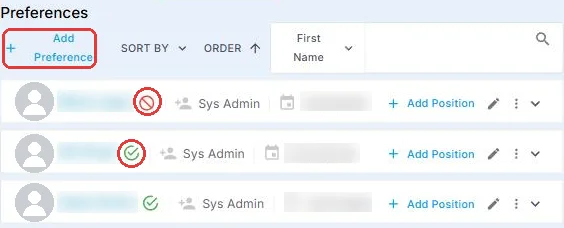
Every preference for this client lives on its Crew Preference tab, so the client's wishes don't depend on who took the call. A red no-entry sign means Not Allowed: this client's open jobs stop showing to that Crew Member. A green check means Allowed. Click Add Preference to record a new one.
The Add Preference form
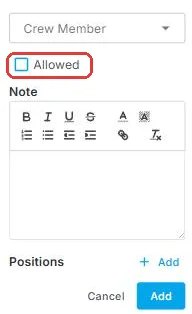
Pick the Crew Member. Tick Allowed for someone the client wants, or leave it clear for Not Allowed. In Note, write what the client said, who said it and when. For an Allowed Crew Member, Positions › Add sets a position and rate the client agreed for them. Then click Add.
That's the preference recorded. Read on for exactly what it does, and doesn't do.
On this page
What each marking does
| Marking | Effect |
|---|---|
| Allowed | The Crew Member joins this client's pool. Client users can confirm them directly, and you can give them their own rate at this client. |
| Not Allowed | This client's open jobs stop showing to the Crew Member, so they don't apply. |
Preferences belong to one client. Someone can be Allowed at one client and Not Allowed at another.
What Not Allowed doesn't do
⚠️ Watch out
Not Allowed hides jobs from the Crew Member. It doesn't stop your team booking them. Someone can still book them by showing All Crew instead of Available, by adding them on the calendar, or from the Crew Member's own record. The note is what tells them to stop.
It also applies to future jobs only. Jobs they're already booked on stay, nobody is told, and nothing is canceled. When a client asks you not to send someone again, mark them Not Allowed, then check and change their upcoming bookings at that client.
Write down why
"Client didn't want him back" means nothing in eight months. "Site manager called 12 March: late twice in one week, asked us not to send him again" tells the next person what happened and whether it still applies. Your agency decides which requests to act on; NextCrew records the decision. Review the list from time to time.
Make clients pick from their preferred Crew
On the client's Configuration tab, Client Access has Force Client Crew Preference settings. Use them to limit what client users can choose from. See Give Clients Access to the Client Portal.
Why record preferences
| In someone's head | On the client |
|---|---|
| The account manager leaves, and so does the knowledge. | Every scheduler sees it. |
| A Crew Member the client refused shows up again. | Their open jobs are hidden from that person. |
| Nobody remembers why. | A dated note says what was asked, and by whom. |
If something isn't working
| What you see | Check this first | Who fixes it |
|---|---|---|
| A Not Allowed Crew Member ended up on the job | Were they booked before the marking, or added by name? Remove and backfill. | You |
| Allowed Crew aren't the ones being picked | Allowed adds them to the pool. Invite or confirm them on the job. | You |
| The client changed their mind | Edit the preference, and add a note saying when and why. | You |
Questions people ask
Is Not Allowed the same as DNR?
Yes. The screen says Not Allowed.
Does the Crew Member know they're Not Allowed?
They simply stop seeing that client's open jobs.
Can a client set preferences themselves?
Client users can rate Crew after a job. Recording Not Allowed is done by your team.
Other ways people ask this
- How do I mark someone DNR?
- How do I stop a worker going back to a client?
- How do I add preferred Crew for a client?
- Why did a DNR worker get booked?
- How do I give one worker a special rate at a client?
Related guides
- Choose Who Hears About a Job — privacy and who gets notified
- Record a Client Incident — when something goes wrong on site
- Record Violations and Spot Problems Early — the Crew Member's side
Was this article helpful?
That’s Great!
Thank you for your feedback
Sorry! We couldn't be helpful
Thank you for your feedback
Feedback sent
We appreciate your effort and will try to fix the article