A client needs two forklift drivers by 6 a.m. The time you spend finding them is time the job sits open.
Summary
Everyone you've hired or recruited is on one list, at HR › Crew Members. The quick search looks up one thing at a time: name, phone, position, tag, location, resume skills and more. Hover over a name to see their track record before you pick them. Save the lists you use every day as templates, and share them with your team. What goes wrong: searching by name when you should be searching by position or tag.
How to do it
- Open HR › Crew Members.
- Click the field beside the search box (it says Name) and choose what to search by, such as Position or Tag.
- Type what you're looking for and press Enter.
- Hover over a name to see their Crew Stats: upcoming jobs, reviews, violations, on-time percentage and last day worked.
- Click the name to open their record, or the arrow on the right for a quick look.
- Save a list you'll use again: pick + Save As Template in the view menu at the top.
The search-by menu
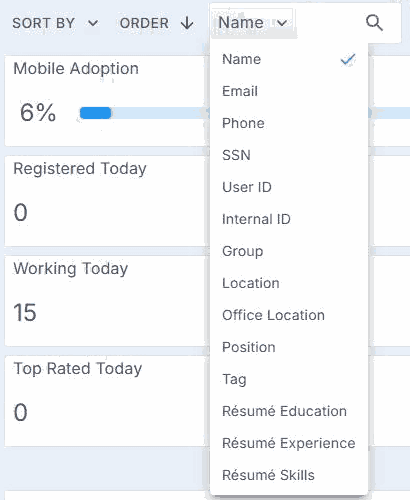
On HR › Crew Members, click Name beside the search box to choose what to search by.
That's the right person found in seconds. Read on for every way to search, and the lists worth saving.
On this page
Why it's faster in NextCrew
| Without NextCrew | In NextCrew |
|---|---|
| Scrolling a spreadsheet for someone who's done the job before | Search by position, tag or resume skills. |
| Asking around the office who's reliable | Hover over a name for their on-time percentage, reviews and violations. |
| Rebuilding the same filtered list every morning | Save it as a template, and share it with your team. |
| Not knowing who's out working right now | The Working Today count sits at the top of the list. |
Search by the right thing
The quick search looks in one field at a time. Pick the field first, from the dropdown beside the search box:
| Search by | Use it when |
|---|---|
| Name, Email, Phone | You know who you're looking for, or someone is on the phone. |
| User ID, Internal ID, SSN | You're matching a record to payroll or another system. |
| Position | You need everyone who can work a job, such as RN or Bartender. |
| Tag, Group | You've labeled people, such as "forklift certified" or "weekend team". See Tags and Groups. |
| Location, Office Location | You need people near a site, or managed by one office. |
| Résumé Skills, Experience, Education | The skill isn't a position or tag yet. See Find Candidates by Skill. |
If you search by position and someone is missing, check their Position tab. Crew are only found, and offered jobs, by the positions on their record.
Check someone at a glance
- Hover over a name to see their Crew Stats: upcoming jobs, total jobs confirmed, reviews, violation count, on-time percentage and last day worked.
- Click the arrow at the end of a row for a quick look without leaving the list.
- Click the name to open the full record. See Anatomy of a Crew Member Record.
The tiles at the top show Working Today, Registered Today, Top Rated Today and Mobile Adoption, the share of your Crew using the app.
Pick a layout
The three icons beside the search box switch between layouts. Use a compact layout to scan many people at once, and a detailed one when you're choosing between a few.
Save the lists you use every day
- Set the search, filter and sort you want.
- Open the view menu at the top of the list and click + Save As Template.
- Turn on Shared if the rest of your team should see it, and click Save.
Good templates to start with: new candidates, Docs Signed, each position you staff, and each office. See Save and Share Your Own List Views.
When you need it on paper
In Reports, the Crew Member section has a Crew Members Roster and a Crew Members Skills report, for a full list to share or print.
The calls you'll get
| Someone says | What to do |
|---|---|
| Client: "Can we have the same people as last time?" | Open the order from last time and check who worked it, then search for them by name. |
| Your team: "Who can work as a bartender this weekend?" | Search by Position, then check each person's availability and Crew Stats. |
| Crew on the phone: "It's me, from last month." | Search by Phone. It's quicker than spelling a name. |
| Your team: "I can't find someone." | Check which field you're searching by, in the dropdown beside the search box. |
Other ways people ask this
- How do I search for a Crew Member?
- How do I find everyone with a certain position?
- How do I see who is working today?
- How do I save a filtered list of Crew?
- Where is the Crew roster?
Related guides
- Set Positions and Rates for a Crew Member — why positions decide who you find
- Save and Share Your Own List Views — templates in detail
- Manage Your Crew: Start Here — the rest of life after hire
Was this article helpful?
That’s Great!
Thank you for your feedback
Sorry! We couldn't be helpful
Thank you for your feedback
Feedback sent
We appreciate your effort and will try to fix the article