Your recruiters don't need to see bill rates. Your branch in Ohio shouldn't see Texas Crew. Permissions let you set that once, for everyone it applies to.
Summary
Permissions live in Settings › Permissions. There are two kinds. The Role, Group and User tabs control records and fields: who can Read, Write or is Denied things like pay rates or SSNs, and for which office. The System tab controls screens, menus and actions, starting from Global Permissions, with overrides for a role, office, group or person. By default only the master admin can open Permissions. What goes wrong: changing a Global switch to fix one person, which changes it for everyone.
How to do it
- Sign in as the master admin and go to Settings › Permissions.
- To protect a field or record, open the Role, Group or User tab and use the Add New row at the top.
- Pick who it's for, the Record Type (such as SSN or Bill Rate), the Office Location if it applies, and the level: Read, Write or Deny. Click Add.
- To change a screen or action for some people, open System and the tab for the scope you want, such as Role Permissions.
- Pick the permission from Available Permissions, the role (or office, group or person), set Allow, and click Add.
- Sign in as a test user, or ask the person, to check they see what you expect.
The Permissions page
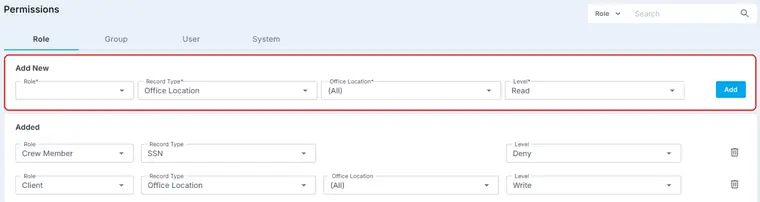
Pick the role, the record type, the office and the level, then click Add. Every rule you add shows underneath, where you can change it or remove it.
That's a permission set. Read on for which setting wins when they disagree.
On this page
Which setting wins
NextCrew checks settings in this order: Global, Role, Location, Group, then User. The more specific one wins. So a setting for one person overrides their group, and a group overrides a role.
Set the usual case in Global, and use the narrower scopes only for the exceptions. See Set Up Groups for group permissions.
Fields you can protect
| Field | Why agencies protect it |
|---|---|
| Pay Rate and Bill Rate | Keep rates and margins to the people who set them. |
| Rate Markup | Your margin on each job. |
| SSN and Birthdate | Personal data. With Read, the SSN shows partly masked. |
| Office Location | Who can see or move records between offices. |
| Workers Comp Code | Who can change the code on clients, orders and jobs. See Set Up Workers' Comp Codes. |
| User Rating, Crew Review | Who sees and changes ratings and reviews. |
| Assignment Status, Order, Job, User Internal ID | Who can change bookings and records. |
Read shows it, Write lets them change it, and Deny hides it.
Keep each office to its own records
For a multi-office agency, give each role access to its own office only. On the Role tab, deny the role access for All office locations, then add a second rule that gives the same role access for its own office. Each person's office is set on their user record. See Add an Office User and Add Your Office Locations.
Switches agencies often change
| Switch (System › Global Permissions) | What it does |
|---|---|
| Allow Admin to Manage Permissions | Lets admins other than the master admin open Permissions. |
| Allow Job Over-Booking | Lets you book more Crew than a job's positions. |
| Admins Can Modify Actual Hours for Jobs | Lets admins change calculated hours on jobs. |
| Workers Comp Code, Rate Markup, Auto-Confirm | Turn these parts of NextCrew on or off for your agency. |
| Client Can Confirm Crew Member for Job | Lets client users book Crew themselves. |
⚠️ Watch out
A Global switch changes it for everyone. To change it for some people, add an override on the Role, Location, Group or User tab instead.
Find out why someone can't see something
Turn on Allow Viewing Permission Hierarchy for yourself. A Permission Hierarchy icon then appears in the tray on the right, and shows which permission applies to the screen you're on. It's faster than guessing.
Why set permissions this way
| Without permissions | With permissions |
|---|---|
| Everyone sees pay and bill rates. | Rates show only to the people who need them. |
| Every office sees every Crew Member. | Each office works with its own records. |
| One person's exception changes it for the whole team. | Overrides apply only where you set them. |
If something isn't working
| What you see | Check this first | Who fixes it |
|---|---|---|
| You can't see Permissions in Settings | Only the master admin can, unless Allow Admin to Manage Permissions is on. | Your master admin |
| Someone still sees a field you denied | A more specific setting, such as one on their group or user, allows it. | Your master admin |
| A menu item opens to a blank or blocked page | The menu is allowed but the page behind it isn't. Allow both. | Your master admin |
| You're not sure which rule applies | Use the Permission Hierarchy icon on that screen. | Your master admin |
Questions people ask
Can I hide pay rates from recruiters?
Yes. Add a Deny or Read rule for Pay Rate on their role.
Do permission changes apply straight away?
Yes, the next time the person opens the screen. Ask them to refresh.
Can a client user's access be changed here too?
Yes. Client permissions, such as confirming Crew, are switches under System.
Other ways people ask this
- How do I hide bill rates from some users?
- How do I restrict users to one branch?
- Why can't my recruiter see a screen?
- How do I let another admin manage permissions?
- How do I hide SSNs?
Related guides
- Users and Permissions: Start Here — your office team
- Add an Office User — office, roles and groups
- Set Up Groups — group permissions
- Is Your Agency Secure? A 2-Minute Security Checklist: two-step sign-in, passwords and who sees what
Was this article helpful?
That’s Great!
Thank you for your feedback
Sorry! We couldn't be helpful
Thank you for your feedback
Feedback sent
We appreciate your effort and will try to fix the article