Giving a client their own login changes how you work with them. They place their own orders instead of phoning them in. They approve timesheets on Monday morning instead of you chasing a signature on Thursday. They stop asking who's turning up tomorrow, because they can see it.
Setting it up takes about a minute. Deciding who gets one, and what they can do once they're in, is the part worth slowing down for.
Summary
Giving a client their own login changes how you work with them. They place their own orders instead of phoning them in, and they approve their own timesheets on Monday morning.
Access belongs to a person, not to a company, so it starts with a contact record. Creating the account is one button, and NextCrew emails the client the portal link and their credentials automatically.
Check your configuration first. Some systems create a user account for every contact you add, which means people may already have access you did not grant.
A client approval is not the final approval. When a client approves a timesheet it becomes Client Approved, which is a different status from Approved. Your own approval still has to happen, and clients who do not know that are surprised later.
How to do it
1Go to CRM > Clients and open the company.
2Find the person in Contacts, or add them.
3Decide whether they actually need a login. The people who book the staff and approve the hours do; most others do not.
4On their contact record, open User Account and click Create User Account.
5Check what they will be able to see, before they log in.
6Tell them the email is coming, which inbox it is going to, and that their approval is not the last step.
▶ Watch a client login being created
That is them in. Everything below covers what they can do once they are, and what is worth checking before they get there.
ON THIS PAGE
Who this applies to
- Account managers — you know which people at the client should have a login and which shouldn't.
- Administrators — you control what a client user is allowed to do, which is set once and applies to all of them.
Before you start — check how your system is set
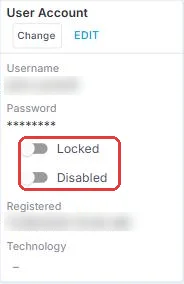
Find out which way yours works before you do anything else. Open any client contact and look at the User Account section on the right of their record.
- It offers Create User Account → accounts are created by hand. Follow the steps below.
- An account already exists and you never made one → yours creates them automatically. The steps below are already done for you, and you should read Check what they'll be able to see carefully.
Ask your administrator if you want that behavior changed.
Steps
Step 1: Open the client record
Go to CRM > Clients and open the company you're setting access up for.
Step 2: Find the person, or add them
Access belongs to a person, not to a company. So you need a contact record first.
If they're already in the system, open their contact record. If they're not, add them from the Contacts panel on the client's Overview tab.
Full detail: Managing and Adding Client Contacts.
Step 3: Decide whether this person actually needs a login
Not everyone should have one. Ask what they'd do with it.
| The person | Give them a login? |
|---|---|
| Books the staff each week | Yes. This is the one that saves you the most phone calls |
| Approves the hours | Yes. Approval in the system beats chasing a signature |
| Pays the invoices | Yes, if they want to pull their own paperwork |
| Signed the contract, never touches the day-to-day | Probably not. Easy to add whenever they ask |
| You email them twice a year | No. You can switch access off later, but an unused login is clutter either way |
Step 4: Create the user account
On the contact's record, find the User Account section on the right-hand side. Click Create User Account.
That's it. NextCrew emails the client automatically, and the email carries:
- A link to the portal login page
- Instructions for setting their password
The portal address is your own — {yourcompany}.nextcrew.app — so it's worth knowing it yourself when a client rings asking where to log in.
If this isn't working → The client never got the welcome email
Step 5: Tell them what to expect
A login nobody explains is a login nobody uses. Thirty seconds on a call beats the account sitting untouched for six months.
Tell them three things. The email is coming, and which inbox it's going to. What they can do once they're in. And who to call when it doesn't work — which is you, not NextCrew.
What your client can do once they're in
More than most agencies realize. This is the list worth reading before the conversation where you offer it to them.
| They can | What that means for you |
|---|---|
| Place their own orders from the calendar | The order arrives already typed, by the person who knows what they need |
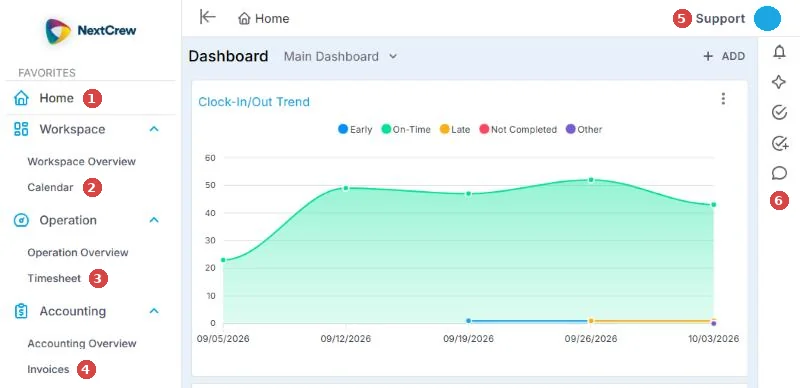
| See their jobs on a calendar, color-coded by fill state | Orange unfilled, blue partly filled, green filled. Stops the "are we covered?" calls |
| Pull a staff list for a job, as PDF or Excel | The site knows who's coming without asking you |
| Approve or decline timesheets, singly or in bulk | The big one. See the note below about what approval does |
| Export timesheets filtered by date, crew or position | They reconcile their own invoice instead of querying yours |
| View, download and approve invoices | Fewer "can you resend it" emails |
| Rate the Crew after a job, 1–5 stars with comments | Feeds who gets offered their work next time |
| Invite or confirm Crew onto their own jobs | Permission-controlled. Decide before you switch it on |
| Build dashboards on their home page | Fill ratio, clock-in trends, today's attendance |
| Raise a support ticket from the SUPPORT menu | Comes to you first — you are their support, not NextCrew |
Check what they'll be able to see
A client login is a view into your system. Most of what it shows is exactly what you'd want them to see. A few things are worth a decision rather than a surprise.
Each of these is controlled by permissions, set once and applied to every client user. Go through them before you hand out the first login, not after a client mentions something you didn't expect them to know.
| Worth checking | Why |
|---|---|
| Pay rate | Pay rate and bill rate can both appear on the job form. The difference between them is your margin |
| Crew licenses and documents | A dashboard widget can surface credentials and documents. Fine for a hospital that needs them; think about it elsewhere |
| Editing clock-in and clock-out times | A client with this can change recorded hours, not just approve or decline them |
| Confirming Crew directly | Confirming is different from requesting. One books the person; the other asks you to |
| Changing job privacy | Decides who a job is visible to, including publishing it publicly |
| Restricting them to preferred Crew | You can limit a client user to the Crew they've already approved, rather than your whole pool |
Where these live: Admin guides to managing company permissions. Field-level controls are in Manage Functional-Level Permissions.
Giving one person access to every site
If a client is set up as a head office with sites underneath it, where you create the contact decides what they see.
- Created at the head office → they see jobs and timesheets for every site underneath.
- Created at one site → they see that site only.
So the group's finance manager goes at the head office. The person running one location goes at their own site — they have no reason to see another site's costs.
There is no middle setting. Someone who covers three sites out of six gets the whole group or one of them, and that's a conversation rather than a configuration.
Managing the account afterwards
Everything you need after the account exists is on the User Account panel of the contact record.
| On the panel | What it's for |
|---|---|
| Change | Changes their username and password. Useful when a client is locked out and can't work the reset email |
| Disabled | Turns the login off. Use it when someone leaves the client — the contact, the notes and the history all stay |
| Locked | A temporary hold rather than a permanent end |
| Registered | The date and time they set the account up. Blank means they never did — the welcome email is still sitting unread |
| Technology | Whether they've installed the mobile app, and whether it's Android or iOS. Blank means they're on the web |
If it's not working
The client never got the welcome email
Also asked as: my client didn't get their login · the welcome email never arrived · client can't log in for the first time
Check 1 — Is the email address right?
Open the contact and read it character by character. This is the most common cause by a distance.
- It's wrong → correct it, then resend from the contact's User Account section. Fixed.
- It's right → Check 2.
Check 2 — Have they looked in spam?
Ask them to check junk and, on Gmail, the Promotions and Updates tabs.
- It's there → have them use the link, and add your sending domain to their safe senders. Fixed.
- Not there either → Check 3.
Check 3 — Can they get in without it?
The account exists whether or not the email landed. Send them to your portal address and have them use Forgot Password.
- The reset email arrives → they're in, and you've learned the account was fine. Fixed.
- Nothing arrives from either → your sending domain is probably the problem, not this client. Check domain authentication, then escalate with the contact name, the client name and the email address.
They can see the wrong things
Also asked as: my client can see another company's jobs · client sees too much · they're missing one of their locations · can clients see our pay rates · I set the contact up under the wrong client · the account is on the wrong child client · how do I move a contact to another client
Check 1 — Which client is the contact attached to?
That one field decides everything they can see. A contact on a head office sees every site underneath it.
- They're on the wrong client — the head office instead of a site, or the wrong site entirely → move them. See the note below. Fixed.
- They're on the right client → Check 2.
- Don't delete them and start again. Open the contact and click Move at the top right of their record, then pick the client they should be under. Their login moves with them — same account, same password. Deleting and recreating loses their notes and history, and hands them a second set of credentials to be confused by.
Check 2 — Is this about a field rather than a company?
If they can see something you'd rather they didn't — a rate, a document, a credential — that's permissions, not the contact record.
- It's a field or a screen → an administrator changes it in Settings > Permissions. It applies to all client users, not just this one. Fixed.
- They can genuinely see another company's work → Escalate immediately with both client names, the contact name, and a screenshot. Clients should only ever see their own account.
They can't do something they should be able to
Also asked as: my client can't place an order · the button isn't there for them · client can't approve timesheets · they say the option is missing · it works on my screen but not theirs · client can't do it on their phone
Check 1 — Is it a permission?
Most missing buttons in a client portal are switched off rather than broken. Ordering, confirming Crew, changing job privacy and timesheet approval are all controlled this way.
- It's off → an administrator turns it on in Settings > Permissions. Remember it applies to every client user. Fixed.
- It's on → Check 2.
Check 2 — Are they on the mobile app?
The Managers app does less than the web portal by design. Look at Technology on their User Account panel — if it says Android or iOS, ask which one they were using.
- They were on the phone → have them try the same thing in a browser. Ordering and the fuller calendar live there. Fixed.
- They were on the web → Check 3.
Check 3 — Are they looking at the right kind of record?
Some actions only appear in certain states. A staff list, for example, only exists once a job is partly or fully filled.
- The job isn't in the right state yet → that's the answer, and it isn't a fault. Fixed.
- Right state, permission on, still missing → Escalate with the client name, the contact name, what they're trying to do, and a screenshot of what they see.
How to know it's complete
- ✅ The contact has a user account, and the email address on it is right
- ✅ The client has logged in at least once — Registered on their User Account panel is filled in
- ✅ They're attached to the right client — the site, or the head office, whichever you intended
- ✅ You've checked the six items in Check what they'll be able to see
- ✅ They know their approval isn't the final one
- ✅ They know to call you, not NextCrew
Best practices
Set the permissions once, before the first login goes out. They apply to every client user you'll ever create. Deciding them properly on day one is a ten-minute job; retrofitting them after forty clients are live is not.
Give access to the person who does the work, not the person with the title. The coordinator who books staff every Tuesday will use it daily. The VP who signed the contract will never log in.
Walk them through it once, live. Five minutes on a screen share is the difference between a portal they use and a portal they forget about.
One login per person, never a shared one. With a shared login you can't tell who approved what. And only one session can be active at a time, so two people on the same login keep signing each other out.
Related articles
- Managing and Adding Client Contacts — creating the contact record this access hangs off
- How to Add a New Client in NextCrew — if the company isn't in the system yet
- Admin guides to managing company permissions — what a client user is allowed to do
- Manage Functional-Level Permissions — hiding specific fields, including rates
- User Guide for Domain Authentication — when your emails aren't reaching clients at all
- How to Configure Client Rate Tables — the rates behind the jobs your client orders
- A Staffing Agency's Guide to Pitching Client Self-Service — how to sell this to a client who isn't sure they want it
FAQ
Q: Can clients see jobs for other companies?
A: No. A client user sees only what's associated with their own client account. The one exception is a contact created at a head office, who sees every site underneath it — and that's deliberate.
Q: What if the client doesn't receive the welcome email?
A: Check the address for typos first, then have them look in spam. If neither works they can still get in with Forgot Password on the login page — the account exists regardless of whether the email arrived. See the first tree above.
Q: How do clients reset a forgotten password?
A: Forgot Password on the portal login page. They don't need you for it.
Q: Is there a limit on how many client accounts I can create?
A: No.
Q: Can I customize the welcome email?
A: Not currently. It's generated automatically.
Q: How do I give one person access to all of a client's sites?
A: Create them as a contact at the head office rather than at one site. See Giving one person access to every site.
Q: Does approving a timesheet in the portal finish it?
A: No. It becomes Client Approved. An administrator still approves it on your side before the hours lock.
Q: I created the account under the wrong client. Do I delete it?
A: No. Open the contact, click Move at the top right, and choose the right client. Their login goes with them, so they keep the same account and password. Deleting and recreating loses the notes and history on that contact.
Q: Can two people share one client login?
A: They shouldn't. Only one session can be active at a time, so they'll sign each other out — and you lose any record of who approved what.
Q: My client has a problem with the portal. Do they contact NextCrew?
A: No, they contact you. NextCrew supports your team; you support your clients.
Was this article helpful?
That’s Great!
Thank you for your feedback
Sorry! We couldn't be helpful
Thank you for your feedback
Feedback sent
We appreciate your effort and will try to fix the article