A client asks you to email everyone you requested for their job, or to send it to them again. You don't have to find each Crew Member. Send it from the order.
Summary
Open the order, go to the Offers tab and click Add Message. The message goes to everyone in the list. Click Requested, Interested, Confirmed or Canceled to send it to just that group, or tick the rows of the people you want. To send it again, repeat the steps.
How to do it
- Go to Workspace › Orders and open the order.
- Click the Offers tab. You see every Crew Member offered a job on this order, grouped by position.
- To reach one group only, click its count: Requested, Interested, Confirmed or Canceled. The list shows just those people.
- To reach only some people, tick their rows. If you tick no one, the message goes to everyone in the list.
- Click Add Message. The recipients box shows how many people it's going to.
- Pick a template or type the Subject and message. Under Notify by, tick Email, SMS or Push.
- Click Send, or Schedule to send it later.
Where to find it
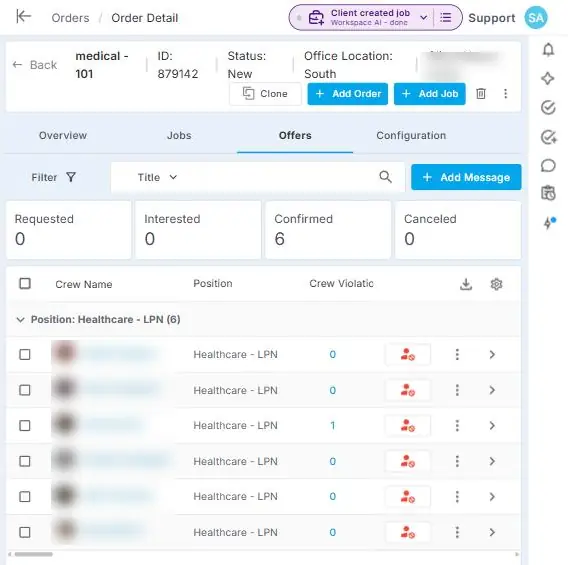
The order's Offers tab. Click a count to show only that group, then click Add Message.
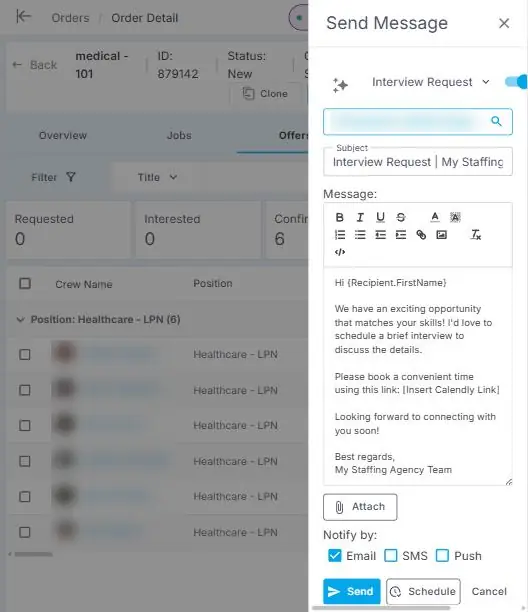
The Send Message panel. Check the recipients box before you send.
That's everyone on the job told, in one message. Read on for picking the right people and sending it again.
Pick who gets it
| To message | Do this |
|---|---|
| Everyone on the order | Click Add Message with nothing ticked and no count selected. |
| Everyone requested | Click the Requested count, then Add Message. |
| Everyone confirmed | Click the Confirmed count, then Add Message. |
| One job on an order with several | Click Filter, choose the job under Job ID or Position, then click Apply Filters. |
| A few people | Tick their rows, then Add Message. |
To add or remove someone after you click Add Message, click the recipients box. Tick or untick people, then click Done.
Clicking a count turns on a filter, and it stays on. When you're done, click Filter › Clear All › Apply Filters to see everyone again.
Send it again
Open the order's Offers tab and send a new message the same way. To skip retyping it, save it as a template the first time. See Create and share message templates.
Everything you send is listed under Messages › Sent.
Before you send
- The panel can open with a template already filled in. Check the subject and message before you click Send.
- Each person gets their own copy, so replies come to you, not to everyone.
- Put {Recipient.FirstName} in the message to greet each person by name.
- Texts only go out if texting is set up for your agency. See Send a message to Crew, clients or your team.
If something's not right
| What you see | Check this first | Who fixes it |
|---|---|---|
| The recipients box says 0 Recipients | Whether the list is empty. A count you clicked may have no one in it. Clear the filter. | You |
| Some people are missing from the list | Whether Filter shows a number. Clear All, then Apply Filters. | You |
| Someone didn't get the message | See If something's not right in Send a Message. | You |
Other ways people ask this
- How do I email everyone requested on a job?
- How do I message all the Crew on an order?
- How do I resend a job email to the Crew?
- How do I text everyone confirmed for an event?
- Can I message just the people who haven't confirmed?
Related guides
- Offer statuses: from Requested to Confirmed: what each count means
- Send a message to Crew, clients or your team: messages to anyone, not just one order
- Create and share message templates: saving a message to send again
- Send job reminders and track acknowledgment: the reminders NextCrew sends on its own
- Channels: when you want a group conversation instead
Was this article helpful?
That’s Great!
Thank you for your feedback
Sorry! We couldn't be helpful
Thank you for your feedback
Feedback sent
We appreciate your effort and will try to fix the article