The numbers you check every day can be waiting on your Home screen when you sign in. This page shows every widget NextCrew offers, who it's for, and what you see when you click it.
Summary
A widget is one number, chart or list on your Home screen or on an area's Overview. You pick the ones that matter to your job, so a recruiter's Home screen and a payroll clerk's can look completely different. Every widget updates itself as your team works, so nobody builds a spreadsheet to see how the week is going. Click the number on a card, or a bar or slice on a chart, and NextCrew opens the Crew Members, jobs, offers, timesheets or clients behind it, ready for you to act on. What goes wrong: the list looks different from the number you expected. The widget's date range and office decide what's counted, so check those first.
How to do it
- Go to Home, or to an area's Overview, and choose ADD.
- Choose Statistic for one number, or a chart or list under Chart/List.
- Choose the Source, using the names on this page, and give the widget a title.
- Set its time period, and pick an office if you only want one.
- Choose ADD. The widget appears on your dashboard.
- Click a number, bar or slice whenever you want the records behind it.
▶ Watch how dashboards work (2 minutes)
That's your dashboard built. Everything below is for when you're choosing which widgets to add, or want to know exactly what one counts.
On this page
Three kinds of widget
Count or Rate Unapproved Timesheets 12 One number Good for anything you check every day. Click the number to see the records behind it. | Trend or by... Fill Ratio Trend A chart Shows change over time, or how something splits. Click a bar or slice for that part only. | List Birthday List The records themselves Names, jobs or dates, right on your Home screen. Nothing to click through to: it is already the list. |
The end of a widget's name tells you which kind it is. Illustration only; your numbers will differ.
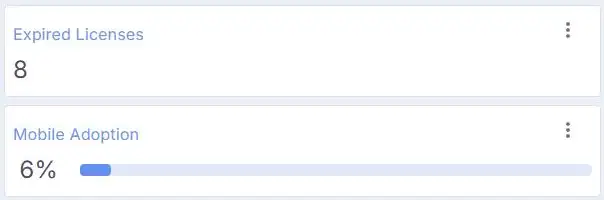
Two Count and Rate widgets on a Home screen. Each one opens its list when you click it.
Click any number to see who's behind it
Every Count, Rate and chart widget opens the records behind it. You don't need a report to find out which Crew Members didn't show up, or which timesheets still need approving: click the number.
No Shows 3 CLICK | → | No Shows Detail
|
Click the number and the list opens underneath, using the same date range and office as the card. Illustration only.
From adding a widget to acting on it. On a phone, swipe sideways to see every step.
| Set up once | Every day | |||||||
STEP 1 You Add a widget On Home or an area's Overview, choose ADD and pick a source. | → | STEP 2 Automatic It stays current The number updates as your team works. Nobody builds a report. | → | STEP 3 You Glance Check your numbers when you sign in. | → | STEP 4 You Click a number Open the records behind it. | → | STEP 5 You Act Call the Crew Member, chase the timesheet, fill the job. |
You · Automatic
Set it up once. After that, the numbers come to you.
- The list follows the widget's date range and office, so it matches the number.
- On a chart, the list shows only the period and series you clicked, such as one pay period's Approved timesheets.
- You only see Crew Members, jobs and clients in the offices you have access to.
Start with these: widgets by role
Recruiter or HR
| Scheduler or staffing manager
| Payroll and billing
| Owner or branch manager
|
These are starting points. Add, remove and rearrange widgets any time; your dashboard is yours, and changing it doesn't affect anyone else's.
Add a widget
Choose ADD at the top right of Home or of an area's Overview (HR, Workspace, Operation or CRM). First you pick the kind of widget:
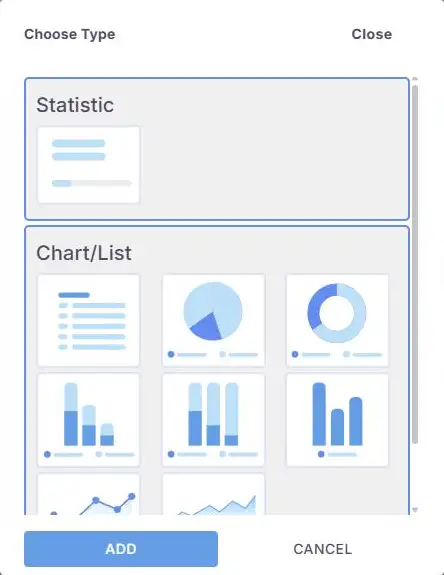
The Choose Type window. Statistic is one number. Under Chart/List, pick a list, pie, donut, bar, line or area chart. Then choose ADD and pick the Source.
A widget's title is yours to set. If a source is renamed later, widgets already on your dashboard keep the title you gave them.
HR and recruiting
| Widget | What it shows | Click it to see |
|---|---|---|
| HR Statuses (chart) | How many Crew Members are at each HR Status, such as Application Submitted, Missing DOCS or Hired | The Crew Members at the status you clicked |
| New Crew Registrations (count) | Crew Members who signed up in the period | Each new Crew Member |
| New User Registration Trend (chart) | Sign-ups by pay period | The Crew Members who signed up in that period |
| Referral Sources (chart) | Where your Crew Members heard about you | The Crew Members from that source |
| Time to Hire (chart) | Average days a Crew Member spends at each HR Status | The Crew Members behind that average |
| Workforce by Position (chart) | Your Crew Members by position | The Crew Members in that position |
| Employee vs. Contractor Breakdown (chart) | Crew Members by tax classification | The Crew Members in that classification |
| Workforce Engagement (chart) | How many people were active in NextCrew in each pay period | Each person, their role, last sign-in and device |
| Mobile Adoption Rate (rate) | The share of Crew Members using the NextCrew app | Each Crew Member and the device they last used |
| Mobile Adoption by Device (chart) | Crew Members by the device they last used | The Crew Members on that device |
| Average Hours Per Crew (chart) | Approved hours per Crew Member, by pay period | Each Crew Member's hours for that period |
| Top Rated Jobs Count (count) | Jobs rated 4 or higher in the period | Each rated job, with the Crew Member and rating |
| Newest Crew Members (list) | Your latest sign-ups | |
| Most Active Crew (list) | Crew Members with the most confirmed jobs in the period | |
| Crew Not Working Recently (list) | Up to 100 Crew Members who haven't worked in the period, so you can offer them work | |
| Birthday List (list) | Crew Members with a birthday in the period | |
| First Day on the Job (list) | Crew Members starting their first job | |
| Background Check Status (list) | Background check results for your Crew Members |
See Track Your Recruiting Pipeline for how recruiters use these.
Credentials
| Widget | What it shows | Click it to see |
|---|---|---|
| Expired Licenses Count (count) | Licenses that have expired | Each expired license, with the Crew Member and expiry date |
| Expired Licenses List (list) | Licenses that have expired or expire in the period, and whether the Crew Member has jobs coming up | |
| Expired Certifications Count (count) | Certifications that have expired | Each expired certification |
| Expired Certifications List (list) | Certifications expiring in the period |
See Chase Expiring Credentials Before They Cost You a Job for what to do next.
Jobs and orders
| Widget | What it shows | Click it to see |
|---|---|---|
| All Orders (count) | Orders running in the period | Each order, with positions and confirmed |
| Open Job Orders (count), Filled Job Orders (count), Canceled Job Orders (count) | Orders still needing Crew, fully filled, or canceled | Each order in that state |
| Open Jobs (count), Filled Jobs (count), Canceled Jobs (count) | Jobs still needing Crew, fully filled, or canceled | Each job, with positions, confirmed and open |
| Jobs Created (count) | Jobs starting in the period | Each job |
| Positions Requested (count) | Positions ordered for jobs starting in the period | Each job and its positions |
| Unfilled Positions Count (count) | Positions still open, counting only jobs that are short | Each short job and how many it still needs |
| Unfilled Positions List (list) | The short jobs themselves | |
| Booked vs Ordered Hours (count) | Hours booked against hours ordered, such as 120/160 | Each job's booked and ordered hours |
| Fill Ratio by Client (list) | Positions ordered, booked and open for each client | |
| Fill Ratio Trend (chart) | Positions ordered against positions booked, by pay period | The jobs in that period |
| Position Filled Ratio (chart) | Positions ordered compared with positions filled, for jobs starting in the period | Each job, with positions, filled and open |
| Positions vs Unique Workforce (chart) | Positions filled compared with how many different Crew Members filled them | The records behind that point |
| Job Confirmation Trend (chart) | Confirmations that came from a Crew Member showing interest, against direct assignments | The confirmed offers in that period and series |
| Job Privacy Setting (chart) | Jobs posted as Private or Network, by pay period | The jobs in that period and setting |
| Time to Fill (list) | How long jobs took to fill | |
| Top 5 Profitable Positions (list), Bottom 5 Profitable Positions (list) | The positions earning the most and the least | |
| Labor Cost Projection (chart) | Projected pay cost of booked and still-open positions | The jobs behind that cost |
Offers
| Widget | What it shows | Click it to see |
|---|---|---|
| Requested Offers (count) | Offers sent and waiting for an answer | Each offer and Crew Member |
| Interested Offers (count) | Offers where the Crew Member said they're interested | Each offer, ready for you to confirm |
| Confirmed Offers (count) | Offers confirmed | Each confirmed offer |
| Canceled Offers (count) | Offers canceled | Each canceled offer |
| Open Offers (count) | Offers requested or interested, not yet confirmed | Each open offer and its status |
Today's operations
| Widget | What it shows | Click it to see |
|---|---|---|
| Crew Working Count (count) | Crew Members with a confirmed job in the period | Each Crew Member and their job |
| On Site (count) | Crew Members clocked in right now | Each Crew Member, job and clock-in location |
| No Shows (count) | Confirmed Crew Members who haven't clocked in after the job started | Each Crew Member, job and scheduled start |
| Late Clock-In (count) | Crew Members who clocked in late | Each Crew Member, with minutes late |
| Early Clock-Out (count) | Crew Members who clocked out early | Each Crew Member, scheduled end and clock-out |
| Late Clock-Out (count) | Crew Members who clocked out after the job ended | Each timesheet |
| Mobile Clock-In Rate (rate) | The share of clock-ins done in the app | Each clock-in and how it was done |
| Mobile Clock-In Trend (chart) | App and manual clock-ins by pay period | The clock-ins in that period and series |
| On-Time Stats (chart) | Clock-ins that were early, on time or late | The timesheets in that group |
| Workforce in the Field (chart), Unique Workforce in the Field (chart) | Crew Members working by period, counting each job, or each person once | The Crew Members behind that point |
| Overtime Trends (chart) | Overtime hours by pay period | The timesheets with overtime |
For today's full picture in one place, use Daily Pulse. See See Today's Timesheets with Daily Pulse and Handle No-Shows & Backfill.
Timesheets and pay
| Widget | What it shows | Click it to see |
|---|---|---|
| Unapproved Timesheets (count) | Timesheets not yet approved | Each timesheet |
| Client Approved Timesheets (count) | Timesheets the client approved, waiting for you | Each timesheet |
| Approved Timesheets (count) | Timesheets approved by your office | Each timesheet |
| Under Review Timesheets (count) | Timesheets flagged for review | Each timesheet |
| Timesheet Status (chart) | Timesheets by status | The timesheets at that status |
| Timesheet Status by Pay Period (chart) | Timesheet statuses for each pay period | The timesheets for that period and status |
| Timesheets by Pay Code (chart) | Timesheets grouped by pay code | The timesheets with that pay code |
| Revenue Trends (chart) | Pay and bill amounts by pay period | The timesheets behind that period, with pay and bill amounts |
Before payroll, clear Unapproved Timesheets and Under Review Timesheets. See Get Timesheets Ready for Payroll and Prevent and Manage Overtime.
Clients
| Widget | What it shows | Click it to see |
|---|---|---|
| New Clients Count (count) | Clients added in the period | Each new client |
| New Clients Trend (chart) | Clients added by pay period | The clients added in that period |
| Active Clients (count) | Clients with an active status | Each client, with contact details |
Deleted clients are never counted.
Communication
| Widget | What it shows | Click it to see |
|---|---|---|
| Communication Trend (chart) | Emails, texts and push notifications sent, by period | The messages sent in that period |
| Incoming SMS (list) | Text messages Crew Members sent to you |
Why it's done this way
| Without NextCrew | In NextCrew |
|---|---|
| Building a spreadsheet every Monday to see how the week went | The widgets update themselves as your team works |
| Asking someone to pull the names behind a number | Click the number and the list opens |
| Finding out about a no-show when the client calls | No Shows shows who hasn't clocked in once the job has started |
| Chasing timesheets the day payroll runs | Unapproved Timesheets sits on your Home screen all week |
| One report for everyone, whatever their job | Each person builds the dashboard for their own role |
If a number looks wrong
| What you see | Check this first | Who fixes it |
|---|---|---|
| The list has a different number of rows from the card | The widget's time period and office. The list uses the same ones as the card. | You |
| A widget shows nothing | Change its time period, or check there was activity in that period. | You |
| A widget you expect isn't in the Source list | Your permissions decide which areas you can see. | Your admin |
| A widget still has an old name | Titles are set when a widget is added. Edit the title, or add it again. | You |
| A number still looks wrong after checking the filters | Note the widget, its filters and what you expected. | NextCrew support |
Questions people ask
Can I build a completely new kind of widget?
Not yourself. If you need a number no widget shows, ask support and say what decision it helps you make. There may be a cost.
Does the list respect office access?
Yes. You only see Crew Members, jobs and clients in the offices you have access to.
Does my dashboard change anyone else's?
No. Each person's dashboard is their own.
Can I click a name in the list to open the record?
Not yet. The list shows the details, and you open the record from the matching screen.
Can my clients see dashboards too?
Yes, with the data you share with them. See Build Your Dashboard in the client guides.
Other ways people ask this
- What does this widget mean?
- What widgets are there?
- How do I see the names behind a number?
- Which widget shows unfilled jobs?
- Which widget shows no-shows?
- How do I see expired licenses on my dashboard?
- What is the difference between Count and List widgets?
- How do I add a widget to my dashboard?
- What is a drilldown?
Related guides
- Find and Use Reports and Dashboards — reports, and when to use one instead
- Reports, Dashboards and Analytics: See Your Business at a Glance — why it saves time
- Chase Expiring Credentials Before They Cost You a Job — act on Expired Licenses
- Handle No-Shows & Backfill — act on No Shows
- Get Timesheets Ready for Payroll — act on Unapproved Timesheets
- Prevent and Manage Overtime — act on Overtime Trends
- Track Your Recruiting Pipeline — HR Statuses and Time to Hire
- See Today's Timesheets with Daily Pulse — today, live
Was this article helpful?
That’s Great!
Thank you for your feedback
Sorry! We couldn't be helpful
Thank you for your feedback
Feedback sent
We appreciate your effort and will try to fix the article