An expired license gets found one of two ways: by your team, early, or by the client, on the day.
Summary
NextCrew reminds Crew before a credential expires, so most renew on their own. For the rest, your team has two places to look. The Expired Licenses and Expired Certifications dashboard widgets list who has lapsed, and the licenses list shows how many confirmed jobs each person has. The License and Certification Information report gives you the full list. What goes wrong: someone with an expired license stays confirmed on next week's jobs.
How to do it
- Go to HR › HR Overview, or your Home dashboard.
- Add the Expired Licenses and Expired Certifications widgets, if they aren't there yet.
- Look at the Confirmed jobs column first. Those people are booked to work.
- Open each person's record, check the Compliance tab, and click Add Message to ask them to renew in the app.
- Verify the new credential when it comes in.
- For the full list, run Reports › License and Certification Information.
The Compliance tab
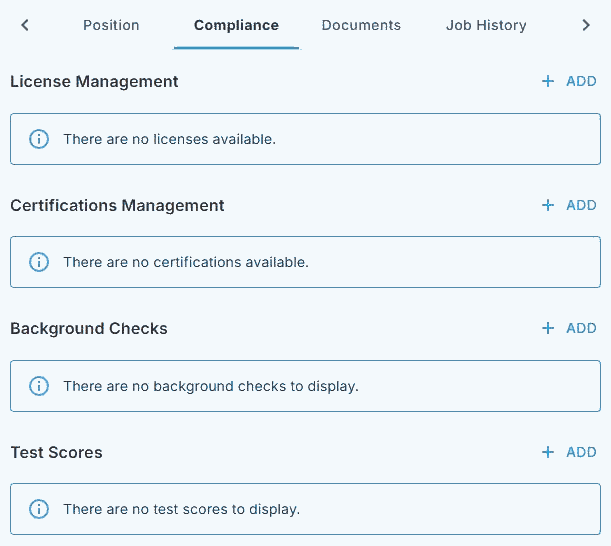
Each Crew record has a Compliance tab for licenses, certifications, background checks and test scores.
That's every lapsed credential caught before the client sees it. Read on for how to set it up, and a weekly routine.
On this page
How renewals flow
The bar along the top shows the stage. The badge on each step shows who does it. On a phone, swipe sideways to see every step.
| Before it expires | If it lapses | |||||||
STEP 1 Automatic Reminder goes out NextCrew reminds the Crew Member before the credential expires. | → | STEP 2 Crew They renew in the app They add the new one, with the new dates and a photo. | → | STEP 3 You You verify it Check it on the Compliance tab and tick Verified. | → | STEP 4 You Check who's expired The Expired Licenses and Expired Certifications widgets list anyone who hasn't renewed. | → | STEP 5 You Follow up Message them, and look again at any job they're confirmed on. |
Automatic · Crew · You
NextCrew does the reminding. Your team only chases the few who don't renew.
Why this is faster in NextCrew
| Without NextCrew | In NextCrew |
|---|---|
| Scrolling a spreadsheet for dates that have passed | A dashboard widget lists everyone who has lapsed. |
| Not knowing whether a lapsed person is on the schedule | The Expired Licenses list shows their confirmed jobs. |
| Calling everyone a month ahead | NextCrew reminds Crew before a credential expires. |
| Building a list for a client by hand | Run the License and Certification Information report. |
Add the widgets to your dashboard
- Open HR › HR Overview, or your Home dashboard.
- Click + ADD at the top right.
- Under Chart/List, pick the list layout and click ADD.
- In Source, choose Expired Licenses. Give it a title and click ADD.
- Do the same for Expired Certifications.
| Widget | What it shows |
|---|---|
| Expired Licenses | Each lapsed license: the person, the license, its expiry date and their confirmed jobs. |
| Expired Certifications | Each lapsed certification, the same way. |
Pick Statistic instead of Chart/List for a single count, such as how many licenses have expired.
Start with the people who are booked
The Confirmed jobs column is the one that matters most. Anyone with a number there is due to work with a credential that has lapsed.
- Contact them first, and ask them to renew and update it in the app today.
- If they can't renew in time, replace them early, while you still have time to fill the job.
The full list: License and Certification Information
Open Reports and run License and Certification Information. Use it when you need every credential in one list, such as for a client's compliance review.
A weekly routine
- Check the Expired Licenses and Expired Certifications widgets.
- Deal with anyone who has confirmed jobs first.
- Message everyone else to renew in the app.
- Verify the new credentials as they come in, and archive the old ones.
NextCrew reminds Crew before a credential expires. The timing is set by NextCrew, not in your settings. If you need it changed, ask NextCrew.
The calls you'll get
| Someone says | What to do |
|---|---|
| Crew: "I renewed, but you still show it expired." | They need to add the new one in the app. Send them Add and Renew Licenses and Certifications, then verify it. |
| Client: "Is everyone coming tomorrow licensed?" | Check the Confirmed jobs column on the Expired Licenses widget, or run the License and Certification Information report. |
| Your team: "Why did nobody warn us?" | Check the credential has an expiry date. Reminders can't run without one. |
Questions people ask
Can I change when reminders go out?
The timing is set by NextCrew, not in your settings. If you need it changed, ask NextCrew.
Where do I see who is expired?
In the Expired Licenses and Expired Certifications widgets, on HR Overview or your Home dashboard.
Does an expired license stop someone being confirmed?
No. NextCrew doesn't stop you assigning or confirming someone whose credential has expired. That's why the Confirmed jobs column matters: deal with those people first.
How do I give a client a list of credentials?
Run the License and Certification Information report.
Other ways people ask this
- How do I see expired licenses?
- Which Crew have licenses expiring?
- License expiration report
- How do I remind Crew to renew a certification?
- Who is working with an expired license?
Related guides
- Track Licenses and Certifications for Every Crew Member — adding and verifying credentials
- Manage Your Crew: Start Here — the rest of life after hire
Was this article helpful?
That’s Great!
Thank you for your feedback
Sorry! We couldn't be helpful
Thank you for your feedback
Feedback sent
We appreciate your effort and will try to fix the article