You can't fix a pipeline you can't see. NextCrew shows you yours two ways: a Pipeline view that lists every candidate by stage, and five dashboard widgets that show where candidates stall and where they come from.
Summary
Open the Pipeline view on Crew Members to see every candidate grouped by stage. Then add the recruiting widgets to your HR Overview: HR Statuses, Newest Crew Members, Time to Hire, Referral Sources and New User Registration Trend. Check them once a week. For a full list, run the Crew Member report by registration date. What goes wrong: paying for job boards that bring in no candidates.
How to do it
- Go to HR › Crew Members and pick the Pipeline view from the view menu. Every candidate is grouped by stage.
- Open HR Overview and click ADD.
- Choose Chart/List, then pick a widget under Source.
- Add the five recruiting widgets in the table below.
- Once a week, check where candidates stall and which sources work.
- Drop or change what isn't working.
The Pipeline view: every candidate, by stage
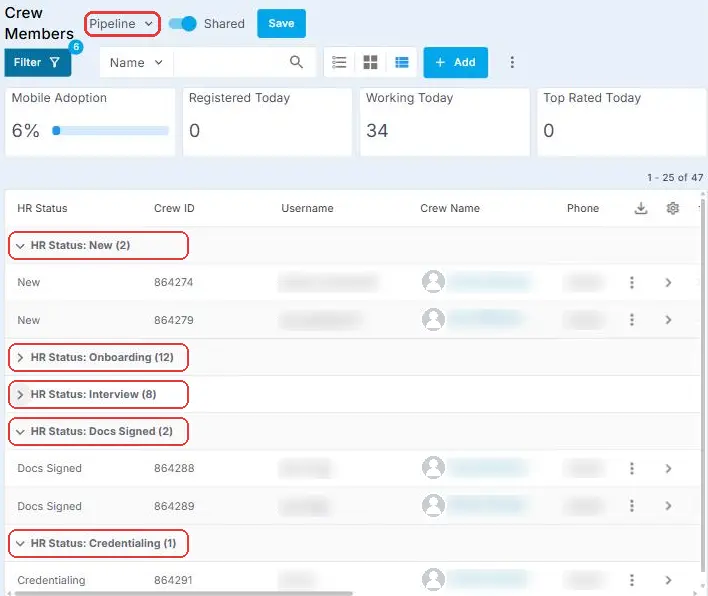
Each group is one stage, with a count, so you can see where every candidate is at a glance and who needs a nudge. Click a group to open or close it. The stages are your HR Statuses, and you set them to match how you hire: add a stage for each real step and put them in your order. See Set Up HR Statuses and Referral Sources. No Pipeline view yet? Group the Crew Members list by HR Status (open the column's menu and choose Group), then save it as a shared view called Pipeline. See Save and Share Your Own List Views.
That is your pipeline on one screen. Read on for what each widget tells you.
On this page
The five recruiting widgets
On your dashboard: click a number on HR Statuses to see the Crew Members in that stage. Every Dashboard Widget: What It Shows and Who It's For covers every widget, including these five.
| Widget | What it shows | The question it answers |
|---|---|---|
| HR Statuses | How many candidates are in each stage. | Where is everyone right now? |
| Newest Crew Members | Your ten newest registrations and their stage. | Who just came in? |
| Time to Hire | How long candidates spend in each stage, on average. | Where do candidates get stuck? |
| Referral Sources | How candidates found you, overall. | Which sources work? |
| New User Registration Trend | Registrations by week and by source, over the last 30, 90 or 180 days. | Is it getting better or worse? |
A long bar at New on Time to Hire means candidates wait too long before anyone contacts them. The target is 24 hours.
The full list
Run the Crew Member report in Reports › HR & Recruiting. Filter it by registration date. It shows each candidate and where they came from.
See Find and Use Reports and Dashboards for opening, filtering and exporting reports.
A weekly recruiting check
- Look at Time to Hire. Which stage has the longest bar?
- Look at HR Statuses. Is New growing faster than you can contact people?
- Look at Referral Sources and New User Registration Trend. Which sources bring candidates in, and which don't?
- Filter Crew Members by Status: Registration. Follow up with anyone who started your application but didn't finish.
- Decide one change, such as dropping a job board or giving the New list to one person.
Referral Sources only works if the How did you hear about us list fits your channels. See Set Up HR Statuses and Referral Sources.
Find candidates who didn't finish signing up
Not everyone who starts signing up finishes. Go to HR › Crew Members and filter the list by Status to find them.
| Status | What it means | What to do |
|---|---|---|
| Registration | They started your application but haven't finished it. | Contact them and ask them to finish it. |
| Pending | They signed up but haven't verified their account. | Ask them to open the verification email, and check Spam or Junk. If it's gone, they sign in again and NextCrew offers to send another. |
Status is a different field from HR Status. See what each Status means.
Questions people ask
Can I change the date range?
New User Registration Trend lets you choose the last 30, 90 or 180 days.
Can I see which job board a candidate came from?
Yes, if it's on your Referral Sources list and they picked it. The Crew Member report shows it for each person.
Other ways people ask this
- How many candidates do we have?
- Which job boards work?
- How long does it take us to hire?
- Where do candidates drop off?
- Recruiting dashboard
- How do I see what stage each candidate is in?
- Pipeline view
Related guides
- Every Dashboard Widget: What It Shows and Who It's For — what each number means, and how to click it for the list
- Recruit Candidates: Start Here — the whole recruiting path
- Find and Use Reports and Dashboards — reports and dashboards in general
Was this article helpful?
That’s Great!
Thank you for your feedback
Sorry! We couldn't be helpful
Thank you for your feedback
Feedback sent
We appreciate your effort and will try to fix the article