You want one place to track every company you're chasing, so nothing depends on one person's memory or spreadsheet. NextCrew keeps prospects in CRM, on the same record they'll have as a client.
Summary
A prospect is a client you haven't won yet. Add them in CRM › Clients with Account Status set to Prospect. Then keep three habits: an honest Lead Status, a note after every conversation, and a task for the next step. A saved view turns that into your pipeline. When you win them, change Account Status to Active and everything carries over. What goes wrong: a prospect with no owner and no task, which nobody follows up.
How to do it
- Go to CRM › Clients and add the company. Set Account Status to Prospect (on the Add Client form it's called Client Status) and fill in Lead Source.
- Add the people you deal with as contacts, with their job titles.
- Set the Manager and Lead Status. Add Assigned Roles for anyone else who works the account.
- After each call, add a note with what they said. Use a note template so every note covers the same points.
- Add a task with a due date for the next step.
- Save a view of your prospects, grouped by Lead Status. That's your pipeline.
- When you win them, change Account Status to Active and Lead Status to Won.
From first call to first order
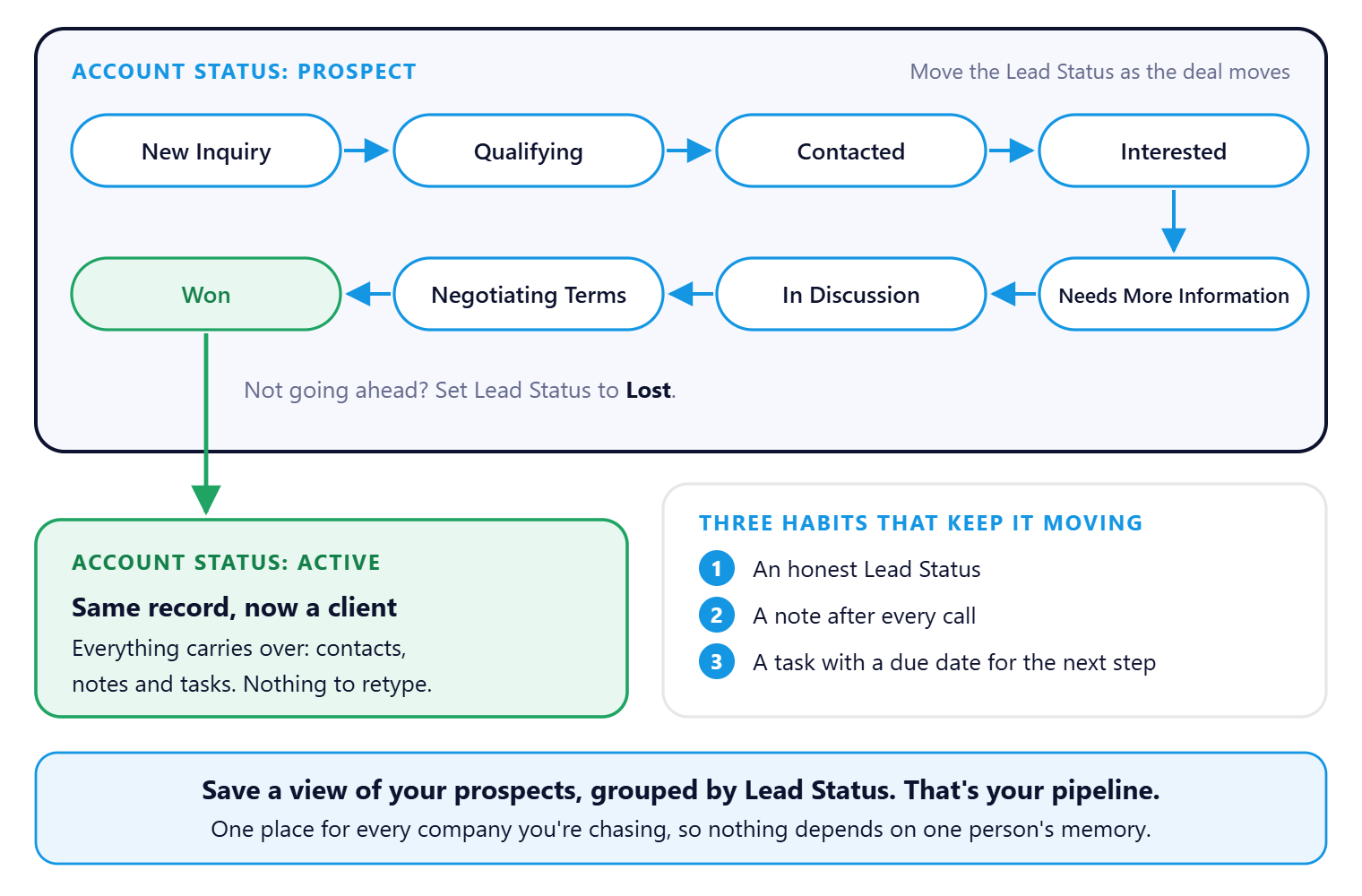
A prospect lives on the same record they'll have as a client. Move the Lead Status as the deal moves. When you win them, set it to Won and change Account Status to Active, and everything carries over, with nothing to retype. The Lead Status choices shown are the ones on our demo; yours come from your own lists and may be different.
That is a prospect tracked from first call to first order. Read on to set up your lists, build the pipeline view and fix a prospect that's gone missing.
On this page
Set up your lists once
Five dropdowns do the work. They live in Settings › Code Tables, and an admin can change them. Spend twenty minutes here before you add your first prospect.
| List | Answers | Example values |
|---|---|---|
| Lead Sources | How did they find us? | Website, Referral, Social Media, Event |
| Lead Status | Where is the deal? | Prospecting, In Discussion, Waiting on Contract, Won, Lost |
| Follow Up Statuses | What do we owe them next? | Pending Response, Sent Proposal, Scheduled Follow-up |
| Client Account Types | What kind of client is this? | VIP/Preferred, One-Time, Enterprise, Non-Profit |
| Line of Business | Which part of our business serves them? | Travel, Per Diem, Conference, Hotel |
Lead Status and Follow Up Status are different. Lead Status is where the deal is, such as In Discussion. Follow Up Status is what you owe them, such as Sent Proposal. A deal can stay In Discussion for weeks while the follow-up changes every few days.
⚠️ Watch out
Before you rename or delete a value, open it and check Associated Records. Saved views that filter on a value stop matching once it's renamed or gone. If you're not sure, leave it and move it to the bottom with Order.
The steps are in Set Up Your CRM Lists.
Add and work a prospect
1. Add the company
Go to CRM › Clients and add the company like any client. Set Account Status to Prospect. That one field separates your pipeline from your clients. Everything else is the same record, so nothing is typed twice when you win them.
Fill in Lead Source now, while you remember it. Nobody can work it out three months later. See Add a New Client.
2. Add the people
Add each person you deal with from the Contacts panel on the Overview tab. Give each one a real job title, so you can tell three names at one company apart later.
Each contact has their own Follow Up Status. The company can be at Sent Proposal while the operations manager is at Scheduled Follow-up.
See Add and Manage Client Contacts.
3. Give it an owner, a status and a team
- Manager: who owns this prospect. An unowned prospect is nobody's job.
- Lead Status: where the deal is.
- Line of Business: which part of your business would serve them.
Then show who else works the account. On the Overview tab, find Assigned Roles and choose ADD. Pick a person and their role, such as account manager, compliance or invoicing.
The roles come from the Admin Roles list in Settings › Code Tables, named the way your agency works. Anyone who opens the record sees who handles what. That matters most for bigger clients, where a different person looks after each area. Do it for prospects too, so the person running the proposal is on record. See Lookup Tables (Code Tables): Start Here.
4. Write the note
Right after the call, open the prospect and click Add Note. Write what they said: what's wrong with their current agency, when they'll decide, and who else must approve. Pick a note category, such as Call Log or Meeting Notes, so you can find it later.
Write the same kind of note often? Save it as a note template and share it with your team. See Add Notes to a Record and Use Note Templates.
A note template for a first call might ask: What agency do they use now, and what isn't working? Which jobs and how many? When will they decide, and who approves? What did we promise? What's the next step, and when? Save it as a template and share it, and every call note covers the same points.
⚠️ Watch out
Notes are internal. Crew Members can't see them, and neither can client contacts, even with a portal login. Write them for the colleague who takes over the account.
5. Set the next task
The note says what happened. The task says what happens next. On the prospect, click the + button and choose Add Task. The prospect is linked for you.
Give it a due date. Reminders come from the due date, so a task without one never chases anyone. See Create and Track Tasks.
Build your pipeline view
A view is the client list, filtered and arranged your way, saved under a name. Open it tomorrow and it shows today's data.
- Open CRM › Clients and filter on Account Status = Prospect.
- Use the cog icon to show the columns you want: Lead Status, Follow Up Status, Manager and Line of Business.
- Drag the Lead Status column header into the grouping area to see your pipeline by stage.
- Click Save View and name it.
| View | Filter and grouping | Use it for |
|---|---|---|
| My pipeline | Prospects where you are the Manager, grouped by Lead Status | Your first look every morning |
| Owes a follow-up | Follow Up Statuses that mean it's your move | Your call list |
| Team pipeline | All prospects, grouped by Manager | The weekly sales meeting |
NextCrew opens the last view you used, so pick your pipeline once and it's there next time. To share a view or export it to Excel, see Save and Share Your Own List Views and Export a List to Excel.
Win or lose the deal
You won it. Change Account Status from Prospect to Active, and set Lead Status to Won. Check the Assigned Roles too: the account manager and invoicing contact often change once they're a client. Contacts, notes and history all stay on the record.
Then set the client up: rates and portal access.
Record the losses too. Set Lead Status to Lost and add a note saying why: price, timing, the current agency, or no decision. Read them back each quarter.
A prospect isn't in my pipeline view
| Check | If yes | If no |
|---|---|---|
| 1. Is Account Status set to Prospect? | Go to check 2. | Set it. The view filters on it. |
| 2. Are you the Manager, if your view filters on Manager? | Go to check 3. | Update the Manager. Your view only shows your prospects. |
| 3. Does the status in your filter still exist? | Contact support with the company name, your view name and its filters. | An admin renamed it. Rebuild the filter and save the view again. |
A dropdown is missing the option I need
Only admins can change the lists. If you're not an admin, ask one to add the value. If you are, add it in Settings › Code Tables, and set its Order so it sits where people expect. Check it isn't already there under another name first.
A task went unnoticed
| Check | If yes | If no |
|---|---|---|
| 1. Does the task have a due date? | Go to check 2. | Add one. Reminders come from the due date. |
| 2. Is it assigned to the right person? | Check who can see the task. Limiting who sees it can hide it from people you expected to have it. | Reassign it. |
How to know it's done
- Account Status is Prospect, and Lead Source is filled in.
- At least one contact, with a real job title.
- Manager is a person, and Assigned Roles show who else works it.
- Lead Status shows where the deal is today.
- There's a note from the last conversation.
- There's an open task with a due date.
Questions people ask
Can I keep prospects and clients apart?
Yes. Filter on Account Status, and save it as a view.
Do I lose anything when a prospect becomes a client?
No. It's the same record with a new Account Status. Contacts, notes, roles and history stay.
Can two people work the same prospect?
Yes. One person is the Manager, and Assigned Roles show everyone else and what they handle. Each task still has one owner, so follow-ups don't get dropped.
Can I change the pipeline stages?
Yes. Lead Status is a list an admin can edit, and so are lead sources and follow-up statuses.
We already use another CRM. Can we use this too?
You can, but pick one as the place your team keeps prospects. A pipeline kept in two places ends up current in neither.
Can a client contact see my notes?
No. Notes are internal, even for contacts with a portal login.
Other ways people ask this
- How do I use NextCrew for prospects?
- How do I track prospects?
- How do I build a sales pipeline?
- How do I turn a prospect into a client?
- My prospect disappeared from my view.
- How do I add a follow-up status?
- What's the difference between lead status and follow-up status?
- I never got a task reminder.
- How do I show who handles what for a client?
Related guides
- The Staffing Agency CRM Playbook — the strategy behind this guide: who belongs on the list, notes, tasks, a sales day and what to measure
- Manage Clients and Prospects: Start Here — everything else in client management
- Add a New Client — the full client record
- Set Up Your CRM Lists — lead sources, statuses and the other CRM dropdowns
- Create and Track Tasks — every field on a task
- Save and Share Your Own List Views — views, sharing and grouping
Was this article helpful?
That’s Great!
Thank you for your feedback
Sorry! We couldn't be helpful
Thank you for your feedback
Feedback sent
We appreciate your effort and will try to fix the article