Imagine a teammate who watches every job, every clock-in, every license and every client, all day, and shows you what needs you first. That's CrewPilot AI, built into NextCrew 2.0.
Summary
CrewPilot AI follows what happens across your agency and sorts each event into the module for that area: Recruitment AI, Crew AI, Workspace AI, Compliance AI, Ops Intelligence AI, Client Health AI and Financial AI. It reads resumes and license images for you. You see it in three places: the AI Ticker at the top of every screen, the AI Command Center, and Ask CrewPilot, the assistant you type questions to. Your workflows send the emails and create the tasks, and your team makes every decision. What goes wrong: treating the Command Center as a to-do list. Its items are read-only, so click one to open the record behind it and do the work there.
See it in action
- In the left menu, click CrewPilot AI. It opens the AI Command Center.
- Pick a Date Range and look at the Critical, High and Medium counts.
- Click a module, such as Compliance AI, or a status, such as Failed, to narrow the list.
- Click an item to open the record behind it: the job, the Crew Member, the timesheet or the client.
- Glance at the AI Ticker at the top of the screen to see the latest event as it happens.
- Click the CrewPilot icon (the sparkle) in the system tray on the right and ask a question in plain words, such as "Who is working today?"
How CrewPilot AI works, layer by layer
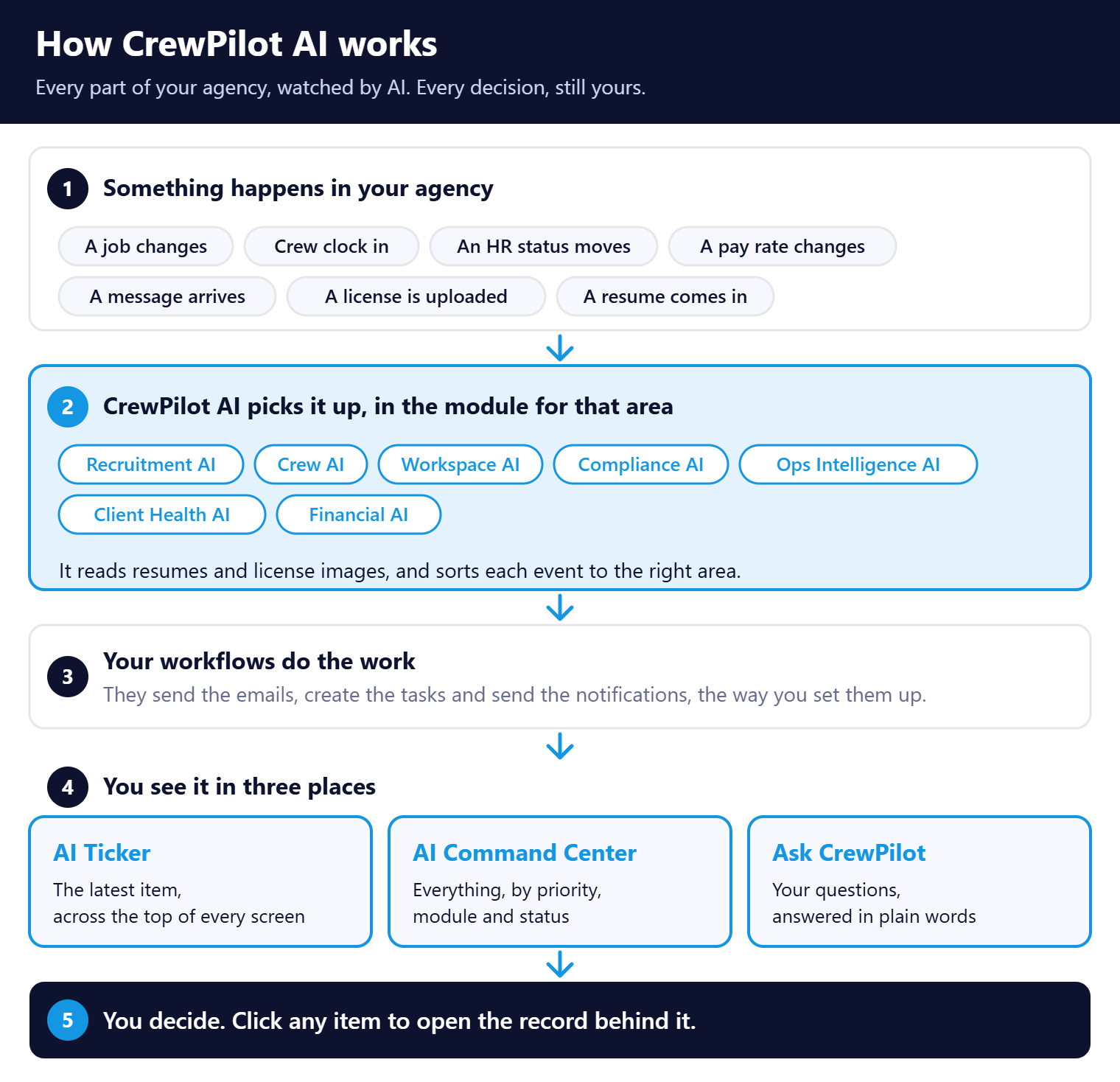
Read it top to bottom: your agency's day goes in at the top, and a clear view of what needs you comes out at the bottom.
Something happens, CrewPilot sorts it, your workflows do the busywork, and you see what matters. Below: each layer, each module, and what a morning looks like.
On this page
The layers, in plain words
| Layer | What happens | Who does it |
|---|---|---|
| 1. Your agency's day | A job changes, Crew clock in, an HR status moves, a pay rate changes, a message arrives, a license is uploaded, a resume comes in. | Your team, your Crew and your clients |
| 2. CrewPilot AI | Picks up each event and sorts it into the module for that area. Reads resumes and license images for you. | CrewPilot AI |
| 3. Your workflows | Send the emails, create the tasks and send the notifications you've set up. | Workflow automation |
| 4. Where you see it | The AI Ticker, the AI Command Center and Ask CrewPilot. | CrewPilot AI |
| 5. Your decision | Open the record behind any item and decide what to do. | You |
AI shows, you decide. CrewPilot AI doesn't book Crew, pay anyone or make decisions for you. It brings the right information to the top, so your team spends its time on decisions instead of digging.
Follow one event from start to finish
Here's a single clock-in, from the Crew Member's phone to your screen. On a phone, swipe sideways to see every step.
| On site | CrewPilot AI | You | ||||||
STEP 1 Crew A Crew Member clocks in From the NextCrew app, on site. | → | STEP 2 Automatic CrewPilot picks it up Ops Intelligence AI sorts the clock-in. | → | STEP 3 Automatic It shows on the AI Ticker At the top of your screen, as it happens. | → | STEP 4 Automatic It lands in the Command Center With its module, status and priority. | → | STEP 5 You You open the record One click opens the record behind it. |
Crew · Automatic · You
No one had to call, text or check a list. The clock-in found you.
A module for every area of your agency
Each module watches one area. Click a module in the Command Center to see only its items.
| Module | What it watches |
|---|---|
| Recruitment AI | Sourcing and tracking new talent |
| Crew AI | Crew retention and data accuracy |
| Workspace AI | Scheduling |
| Compliance AI | Credentials and alerts |
| Ops Intelligence AI | Timesheets and day-to-day operations |
| Client Health AI | Client retention and KPIs |
| Financial AI | Rates, invoicing and margin |
Real items from a NextCrew account: Job details changed (Workspace AI), HR Status changed (Recruitment AI), a message and a pay rate change (Crew AI), and a Crew Member clocking in (Ops Intelligence AI).
The AI Command Center
The AI Command Center
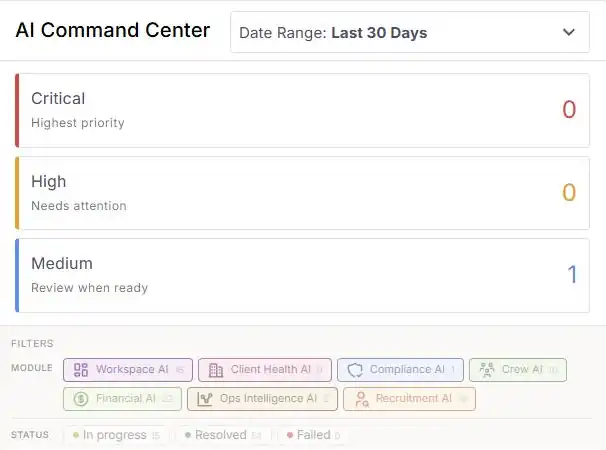
Pick a date range, see what's Critical, High or Medium, then filter by module or status.
| You see | What it means |
|---|---|
| Critical | Highest priority. Look at these first. |
| High | Needs attention. |
| Medium | Review when you're ready. |
| Module filters | Each module, with how many items it has in your date range. |
| Status | In progress, Resolved or Failed. NextCrew sets the status, and it's read-only. |
| The list | Each work item with its module, status and last update. Click one to open the record behind it. |
⚠️ Watch out
You can't resolve or close an item in the Command Center. Open the record behind it and do the work there.
The AI Ticker
The AI Ticker

The AI Ticker sits at the top of every screen and shows the latest event and the module that picked it up.
The AI Ticker sits at the top of every screen. It shows the latest event, such as a job change or a reply from a Crew Member, and the module that picked it up. You don't need to open anything to stay in the loop.
Ask CrewPilot
Ask CrewPilot is the assistant. Click the sparkle icon in the system tray on the right, type a question in plain words, and get an answer on the same screen. Ask how to do something, ask about your own records, such as open jobs this week or who is working today, or search resumes.
It's added from Settings › App Marketplace, and depending on your plan there may be a cost. See Ask CrewPilot for the full guide.
A morning with CrewPilot
| When | What CrewPilot shows you |
|---|---|
| You sign in | The Command Center counts tell you at once whether anything is Critical. |
| Crew start arriving | Clock-ins show on the AI Ticker as they happen. |
| A license is uploaded | CrewPilot reads the image for you, so nobody types it in. |
| A client changes a job | Workspace AI picks it up, and any workflow you've set up tells the people who need to know. |
| You need an answer | Ask CrewPilot, without leaving the screen you're on. |
What changes for your team
| Without CrewPilot AI | With CrewPilot AI |
|---|---|
| You find out about a change when someone calls | Changes show on the AI Ticker as they happen |
| You check lists one by one to see what's wrong | One screen ranks what needs you first |
| Someone types license and resume details by hand | CrewPilot reads them for you |
| Questions wait for a colleague or a guide | Ask CrewPilot in plain words, on any screen |
| Problems surface at the end of the week | Problems surface the same day, sorted by area |
How to get CrewPilot AI
| Your agency | What to do |
|---|---|
| New to NextCrew 2.0 | The AI Command Center is already on. Click CrewPilot AI in the left menu. |
| On NextCrew 2.0, but you don't see it | It isn't activated for your agency yet. If you're interested, let us know. See Get Help With NextCrew. |
| Still on NextCrew Legacy | CrewPilot AI is part of NextCrew 2.0. Switch with free help from our team. See Switch From NextCrew Legacy to NextCrew 2.0. |
If something's not right
| What you see | Why | What to do |
|---|---|---|
| No CrewPilot AI in the left menu | It isn't activated for your agency yet. | Let us know if you're interested. |
| No sparkle icon in the system tray | Ask CrewPilot isn't added. | Ask your admin to add it in Settings › App Marketplace. |
| An item shows Failed | Something in that event didn't go through. | Open the record behind it and check it there. If it keeps happening, let us know. |
| The list looks empty | The date range or a filter is too narrow. | Widen the date range or clear the filters. |
Questions people ask
Does CrewPilot AI make changes on its own?
No. It reads, sorts and shows. Your workflows send the emails and create the tasks you've set up, and your team makes the decisions.
What does the AI actually do?
It reads resumes and license images, sorts each event into the right module, and answers your questions in Ask CrewPilot.
Can I mark an item as done?
No. Statuses are read-only. Open the record behind the item and do the work there.
Is it in NextCrew Legacy?
No. CrewPilot AI is part of NextCrew 2.0.
Does it cost extra?
The AI Command Center is on for new agencies. For Ask CrewPilot, it depends on your plan, so there may be a cost. Ask us.
Other ways people ask this
- What is CrewPilot AI?
- How does AI work in NextCrew?
- What is the AI Command Center?
- What is the AI Ticker?
- What does Workspace AI mean?
- Does NextCrew have AI?
- How do I turn on CrewPilot AI?
Related guides
- Ask CrewPilot — the assistant, step by step
- How NextCrew Works: The Big Picture — how the pieces fit
- What NextCrew Automates — the workflows behind the emails and tasks
- Switch From NextCrew Legacy to NextCrew 2.0 — get CrewPilot AI with 2.0
- App Marketplace: Start Here — adding Ask CrewPilot
Was this article helpful?
That’s Great!
Thank you for your feedback
Sorry! We couldn't be helpful
Thank you for your feedback
Feedback sent
We appreciate your effort and will try to fix the article