You want a recruiter to stop seeing invoices, or a client to stop booking Crew themselves. Somewhere in NextCrew there's a switch for it. This page lists every one, by area, and says what it does.
Summary
These switches are in Settings › Permissions › System. Global Permissions sets each one for your whole agency. The Role, Location, Group and User Permissions tabs change a switch for just those people. Most switches open a menu item, a page or a tab. The rest decide what someone can do once they're there, such as delete an invoice or change a bill rate. What goes wrong: allowing a menu item but not the page behind it, so the menu opens a blocked page.
How to do it
- Find the switch you need on this page.
- In NextCrew, go to Settings › Permissions and open the System tab.
- To change it for everyone, open Global Permissions, find the switch and turn it on or off.
- To change it for some people only, open Role Permissions, Location Permissions, Group Permissions or User Permissions. Pick the switch from Available Permissions, pick who it's for, set Allow and click Add.
- Ask the person to open the screen, or sign in as a test user, and check they see what you expect.
Where to find it
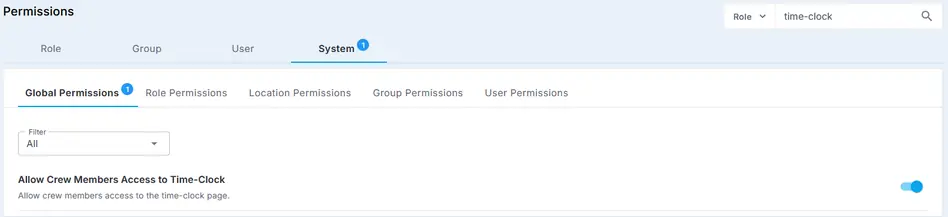
Settings › Permissions › System › Global Permissions. Each switch has a short description and an on/off toggle. Type part of a name in Search at the top to find one fast. The tabs next to Global Permissions change a switch for a role, office, group or person.
That's how to change one. Below is every switch, area by area. Fields such as pay rate and SSN are controlled on the Role, Group and User tabs instead: see Control What Each Person Can See and Do: Permissions.
On this page
- How the switches work
- HR and Crew Members
- Clients and contacts (CRM)
- Orders, jobs and offers (Workspace)
- Today's jobs and timesheets (Operation)
- Messages and Channels
- Invoices and payments (Accounting)
- Payroll
- Reports, data import and CrewPilot AI
- Settings
- Lookup tables (Code Tables)
- The tray on the right
- What your team can do
- What client users can do
- What Crew Members can do
- Clock-in rules
- Clocking in and timesheets in the NextCrew app
- Hide job details until someone is confirmed
- Parts of NextCrew you can turn on or off
- Why it's set up this way
- If something's not right
- Questions people ask
- Other ways people ask this
- Related guides
How the switches work
| The switch name says | What it controls |
|---|---|
| Menu | An item in the left menu, such as Accounting. |
| Sub Menu | An item under a menu, such as Invoices under Accounting. |
| Page or List Page | The page itself. Someone can have the menu item and still be blocked from the page. |
| Detail Page … Tab | One tab on a record, such as the Payroll tab on a Crew Member. |
| Client Can … / Crew … | What your clients' users or your Crew can do. |
| Enable … | A whole feature, on or off for your agency. |
To hide a screen completely, turn off its menu item and its page. To keep a screen but hide one part of it, turn off just that tab.
When settings disagree, the most specific one wins: Global, then Role, Location, Group and User. So an override for one person beats their role.
HR and Crew Members
Who can reach your Crew records, and which tabs on a Crew Member they can open.
| Switch | What it does |
|---|---|
| Allow HR Menu | Shows the HR item in the left menu. |
| Allow HR Overview Sub Menu | Shows HR Overview under its menu. |
| Allow HR Overview Page | Lets the person open the HR Overview page. |
| Allow Crew Members Sub Menu | Shows Crew Members under its menu. |
| Allow Crew Members List Page | Lets the person open the list of Crew Members. |
| Allow Crew Member Detail Page | Lets the person open a Crew Member's record. |
| Allow Crew Member Detail Page Availability Tab | Lets the person open the Availability tab on a Crew Member's record. |
| Allow Crew Member Detail Page Compliance Tab | Lets the person open the Compliance tab on a Crew Member's record. |
| Allow Crew Member Detail Page Documents Tab | Lets the person open the Documents tab on a Crew Member's record. |
| Allow Crew Member Detail Page Experience Tab | Lets the person open the Experience tab on a Crew Member's record. |
| Allow Crew Member Detail Page Forms Tab | Lets the person open the Forms tab on a Crew Member's record. |
| Allow Crew Member Detail Page HR Tab | Lets the person open the HR tab on a Crew Member's record. |
| Allow Crew Member Detail Page Job History Tab | Lets the person open the Job History tab on a Crew Member's record. |
| Allow Crew Member Detail Page Payroll Tab | Lets the person open the Payroll tab on a Crew Member's record. This tab holds pay setup and bank details. |
| Allow Crew Member Detail Page Portfolio Tab | Lets the person open the Portfolio tab on a Crew Member's record. |
| Allow Crew Member Detail Page Position Tab | Lets the person open the Position tab on a Crew Member's record. |
| Allow Crew Member Detail Page Workflow Tab | Lets the person open the Workflow tab on a Crew Member's record. |
| Allow Sent Invitations Sub Menu | Shows Sent Invitations under its menu. |
| Allow Sent Invitations List Page | Lets the person open the Sent Invitations page. |
| Allow Workflows Menu | Shows the Workflows item in the left menu. |
| Allow Workflows List Page | Lets the person open the Workflows page. Allow it together with the menu item, or the menu opens a blocked page. |
| Allow Forms List Page | Lets the person open the Forms page. |
| Allow Register Page | Lets the person open the Register page. |
Clients and contacts (CRM)
Who can see your clients, their contacts and the setup on each client.
| Switch | What it does |
|---|---|
| Allow CRM Menu | Shows the CRM item in the left menu. |
| Allow CRM Overview Sub Menu | Shows CRM Overview under its menu. |
| Allow CRM Overview Page | Lets the person open the CRM Overview page. |
| Allow Clients Sub Menu | Shows Clients under its menu. |
| Allow Clients List Page | Lets the person open the list of clients. |
| Allow Client Detail Page | Lets the person open a client's record. |
| Allow Client Detail Page Configuration Tab | Lets the person open the Configuration tab on a client's record. |
| Allow Client Detail Page Crew Preference Tab | Lets the person open the Crew Preference tab on a client's record. |
| Allow Client Detail Page Holiday Schedule Tab | Lets the person open the Holiday Schedule tab on a client's record. |
| Allow Contacts Sub Menu | Shows Contacts under its menu. |
| Allow Contacts List Page | Lets the person open the list of client contacts. |
| Allow Client Contact Detail Page | Lets the person open a client contact's record. |
Orders, jobs and offers (Workspace)
Who can see and work on orders, jobs, offers and the calendar.
| Switch | What it does |
|---|---|
| Allow Workspace Menu | Shows the Workspace item in the left menu. |
| Allow Workspace Overview Sub Menu | Shows Workspace Overview under its menu. |
| Allow Workspace Overview Page | Lets the person open the Workspace Overview page. |
| Allow Orders Sub Menu | Shows Orders under its menu. |
| Allow Orders List Page | Lets the person open the list of orders. |
| Allow Order Detail Page | Lets the person open an order. |
| Allow Order Detail Page Configuration Tab | Lets the person open the Configuration tab on an order. |
| Allow Order Detail Page Jobs Tab | Lets the person open the Jobs tab on an order. |
| Allow Order Detail Page Offers Tab | Lets the person open the Offers tab on an order. |
| Allow Jobs List Page | Lets the person open the list of jobs. |
| Allow Job Detail Page | Lets the person open a job. |
| Allow Job Detail Page Configuration Tab | Lets the person open the Configuration tab on a job. |
| Allow Job Detail Page Offers Tab | Lets the person open the Offers tab on a job. |
| Allow Job Detail Page Additional Costs Tab | Lets the person open the Additional Costs tab on a job. |
| Allow Job Detail Page Burden Costs Tab | Lets the person open the Burden Costs tab on a job. |
| Allow Offers List Page | Lets the person open the list of offers. |
| Allow Offer Detail Page | Lets the person open an offer. |
| Allow Offer Detail Page Pay Package Tab | Lets the person open the Pay Package tab on an offer. |
| Allow Offer Detail Page Additional Costs Tab | Lets the person open the Additional Costs tab on an offer. |
| Allow Offer Detail Page Burden Costs Tab | Lets the person open the Burden Costs tab on an offer. |
| Allow Quick Offer Page | Lets the person open the Quick Offer page. |
| Allow Calendar Sub Menu | Shows Calendar under its menu. |
| Allow Calendar Page | Lets the person open the Calendar page. |
| Allow Calendar Page Crew Members Tab | Lets the person open the Crew Members tab on the Calendar. |
| Allow Job Board Sub Menu | Shows Job Board under its menu. |
Today's jobs and timesheets (Operation)
Who can see Daily Pulse and timesheets.
| Switch | What it does |
|---|---|
| Allow Operation Menu | Shows the Operation item in the left menu. |
| Allow Operation Overview Sub Menu | Shows Operation Overview under its menu. |
| Allow Operation Overview Page | Lets the person open the Operation Overview page. |
| Allow Daily Pulse Sub Menu | Shows Daily Pulse under its menu. |
| Allow Daily Pulse List Page | Lets the person open the Daily Pulse page. |
| Allow Timesheet Sub Menu | Shows Timesheet under its menu. |
| Allow Timesheet List Page | Lets the person open the list of timesheets. |
Messages and Channels
Who can see messages and Channels.
| Switch | What it does |
|---|---|
| Allow Messages Menu | Shows the Messages item in the left menu. |
| Allow Inbox Sub Menu | Shows Inbox under its menu. |
| Allow Inbox Messages List Page | Lets the person open the Inbox page. |
| Allow Sent Sub Menu | Shows Sent under its menu. |
| Allow Sent Messages List Page | Lets the person open the Sent messages page. |
| Allow Trash Sub Menu | Shows Trash under its menu. |
| Allow Trash Messages List Page | Lets the person open the Trash page. |
| Allow Channels Menu | Shows the Channels item in the left menu. |
| Allow Channels Page | Lets the person open the Channels page. |
Invoices and payments (Accounting)
Who can see invoices, invoice batches and payments.
| Switch | What it does |
|---|---|
| Allow Accounting Menu | Shows the Accounting item in the left menu. |
| Allow Accounting Overview Sub Menu | Shows Accounting Overview under its menu. |
| Allow Accounting Overview Page | Lets the person open the Accounting Overview page. |
| Allow Invoice Batches Sub Menu | Shows Invoice Batches under its menu. |
| Allow Invoice Batches List Page | Lets the person open the Invoice Batches page. |
| Allow New Invoice Batch Page | Lets the person start a new invoice batch. |
| Allow Invoices Sub Menu | Shows Invoices under its menu. |
| Allow Invoices List Page | Lets the person open the list of invoices. |
| Allow Invoice Detail Page | Lets the person open an invoice. |
| Allow Payments Sub Menu | Shows Payments under its menu. |
| Allow Payments List Page | Lets the person open the Payments page. |
Payroll
Who can see payroll.
| Switch | What it does |
|---|---|
| Allow Payroll Menu | Shows the Payroll item in the left menu. |
| Allow Payroll Overview Sub Menu | Shows Payroll Overview under its menu. |
| Allow Payroll Overview Page | Lets the person open the Payroll Overview page. |
Reports, data import and CrewPilot AI
Who can see reports, import data and use CrewPilot AI.
| Switch | What it does |
|---|---|
| Allow Reports Menu | Shows the Reports item in the left menu. |
| Allow Data Exchange Menu | Shows the Data Exchange item in the left menu. |
| Allow Data Import Sub Menu | Shows Data Import under its menu. |
| Allow Data Import Page | Lets the person open the Data Import page. |
| Allow CrewPilot AI Menu | Shows the CrewPilot AI item in the left menu. |
| Allow AI Command Center Page | Lets the person open the AI Command Center page. |
| Allow CrewPilot AI in System Tray | Shows CrewPilot AI in the tray on the right. |
| Allow Data Exports | Shows the export buttons, so people can download lists and reports to Excel. Turn it off and those buttons don't show. |
Settings
Who can change how NextCrew is set up for your agency. Keep these to your admins.
| Switch | What it does |
|---|---|
| Allow Settings Menu | Shows the Settings item in the left menu. |
| Allow Company Profile Sub Menu | Shows Company Profile under its menu. |
| Allow Company Profile Page | Lets the person open the Company Profile page. |
| Allow Company Profile Page Admin Users Tab | Lets the person open the Admin Users tab on Company Profile. |
| Allow Company Profile Page Appearance Tab | Lets the person open the Appearance tab on Company Profile. |
| Allow Company Profile Page Holiday Schedule Tab | Lets the person open the Holiday Schedule tab on Company Profile. |
| Allow Company Profile Page Locations Tab | Lets the person open the Locations tab on Company Profile. |
| Allow Company Profile Page Notes Tab | Lets the person open the Notes tab on Company Profile. |
| Allow Company Profile Page Positions Tab | Lets the person open the Positions tab on Company Profile. |
| Allow Company Profile Page Rate Configurations Tab | Lets the person open the Rate Configurations tab on Company Profile. |
| Allow Company Profile Page Shift Differentials Tab | Lets the person open the Shift Differentials tab on Company Profile. |
| Allow Site Configuration Sub Menu | Shows Site Configuration under its menu. |
| Allow Site Configurations List Page | Lets the person open the Site Configuration page. |
| Allow Permissions Sub Menu | Shows Permissions under its menu. |
| Allow Permissions List Page | Lets the person open the Permissions page. |
| Allow Admin Roles Page | Lets the person open the Admin Roles page. |
| Allow App Marketplace Sub Menu | Shows App Marketplace under its menu. |
| Allow App Marketplace Page | Lets the person open the App Marketplace page. |
| Allow Code Tables Sub Menu | Shows Code Tables under its menu. |
| Allow Code Tables Page | Lets the person open the Code Tables page. |
Lookup tables (Code Tables)
Each lookup table has its own switch, so you can let someone keep one list up to date without opening the rest.
| Switch | What it does |
|---|---|
| Allow Additional Cost Types Page | Lets the person open the Additional Cost Types page. |
| Allow Burden Cost Types Page | Lets the person open the Burden Cost Types page. |
| Allow Certification Types Page | Lets the person open the Certification Types page. |
| Allow Client Account Types Page | Lets the person open the Client Account Types page. |
| Allow Document Categories Page | Lets the person open the Document Categories page. |
| Allow Followup Statuses Page | Lets the person open the Followup Statuses page. |
| Allow Group Categories Page | Lets the person open the Group Categories page. |
| Allow HR Statuses Page | Lets the person open the HR Statuses page. |
| Allow Job Statuses Page | Lets the person open the Job Statuses page. |
| Allow Lead Sources Page | Lets the person open the Lead Sources page. |
| Allow Lead Source Statuses Page | Lets the person open the Lead Source Statuses page. |
| Allow License Types Page | Lets the person open the License Types page. |
| Allow Lines of Business Page | Lets the person open the Lines of Business page. |
| Allow Note Categories Page | Lets the person open the Note Categories page. |
| Allow Offer Sub Statuses Page | Lets the person open the Offer Sub Statuses page. |
| Allow Pay Codes Page | Lets the person open the Pay Codes page. |
| Allow Referral Sources Page | Lets the person open the Referral Sources page. |
| Allow Tags Page | Lets the person open the Tags page. |
| Allow Task Categories Page | Lets the person open the Task Categories page. |
| Allow Task Category Statuses Page | Lets the person open the Task Category Statuses page. |
The tray on the right
The icons in the tray on the right side of the screen.
| Switch | What it does |
|---|---|
| Allow Feed Tray | Shows the Feed, where the person can follow the audit trail of changes to records. |
| Allow Tasks Tray | Shows the Tasks tray, where the person keeps track of tasks. |
| Allow Integrations Tray | Shows the Integrations tray, for the apps your agency has connected. |
| Allow Viewing Permission Hierarchy | Shows the Permission Hierarchy icon, which tells you which permission applies to the screen you're on. Turn it on for whoever troubleshoots access. |
What your team can do
Actions, not screens. These decide what someone can change once they're on the page.
| Switch | What it does |
|---|---|
| Allow Admin to Manage Permissions | Lets admins other than the master admin manage permissions. |
| Admins Can Modify Actual Hours for Jobs | Lets admins change the actual hours on a job. That overrides the hours worked out from the job's start and end times. |
| Allow Admins to Change Bill Rate | Lets admins change the bill rate on a job, offer or timesheet. |
| Allow Admin To Delete Invoice | Lets admins delete invoices. |
| Allow Admins to View Client Reviews | Lets admins see the reviews clients leave. |
| Allow User to Create or Update Tags | Lets the person create new tags and change existing ones. Without it, they can only use tags that already exist. |
| Allow User to Manage Note | Lets the person edit and delete notes. |
| Allow User to Manage Attachment | Lets the person delete attachments. |
| Allow User to Manage Violations | Lets the person edit and delete violations. |
| Allow Job Over-Booking | Lets your team book more Crew on a job than it has positions. |
| Require Crew to Have Job's Position for Confirmation | Stops a Crew Member being confirmed on a job unless that position is on their profile. |
What client users can do
These apply to your clients' users in the client portal and app.
| Switch | What it does |
|---|---|
| Client Can Manage Jobs | Lets client users create and edit jobs. |
| Client Can Confirm Crew Member for a Job | Lets client users confirm Crew Members on jobs themselves. |
| Client Can Invite Crew Members to Job | Lets client users invite Crew Members to jobs. |
| Client Can Manage Bill Rate on Job | Lets client users manage the bill rate on jobs. |
| Client Can Change Job Privacy | Lets client users change who can see a job. |
| Allow Client to Edit Job Times | Lets client users change a job's start or end time. |
| Allow Client to Edit Time for Timesheet | Lets client users change the times on a timesheet. |
| Allow Crew Profile Popout | Lets client users open the Crew profile popout. |
| Allow Crew Profile Popout Additional Info Tab | Shows the Additional Info tab in the Crew profile popout. |
| Allow Crew Profile Popout Compliance Tab | Shows the Compliance tab in the Crew profile popout. |
| Allow Crew Profile Popout Experience Tab | Shows the Experience tab in the Crew profile popout. |
| Allow Crew Profile Popout Portfolio Tab | Shows the Portfolio tab in the Crew profile popout. |
What Crew Members can do
These apply to your Crew in the NextCrew app.
| Switch | What it does |
|---|---|
| Allow Crew Member To Create Jobs | Lets Crew Members add their own jobs. |
| Allow Crew Members to Create Timesheet Records | Lets Crew Members create timesheets for jobs they're confirmed on. |
| Allow Crew Members Access to Time-Clock | Lets Crew Members use the kiosk time clock. It must be on before you can set up a kiosk. |
| Allow Crew Member to Manage Work History | Lets Crew Members manage their own work history. |
| Crew Members Can Manage Skills | Lets Crew Members manage their own skills. |
| Enable Crew Member Portfolio | Lets Crew Members manage their own portfolio. |
| Allow Crew Members to Register With SMS Enabled Phone | Lets Crew Members add a phone that can get texts when they sign up. |
| Display Client Name to Crew Member | Shows the client's name to Crew on the job and in the app. |
Clock-in rules
How clock-in and clock-out work.
| Switch | What it does |
|---|---|
| Do Not Allow Multiple Clock In And Out Per User Per Job (SYSTEM) | Allows only one clock-in and clock-out per person on each job. |
| Enable Clock-In Reminder Push Notifications | Sends Crew a push notification reminding them to clock in. |
| Enable Clock-Out Reminder Push Notifications | Sends Crew a push notification reminding them to clock out. |
Clocking in and timesheets in the NextCrew app
These decide what Crew can do in the NextCrew app when they clock in and fill in their time. On the Permissions screen, these names still end in "(Beta Mobile App)". The label is old: all of them are live in the app.
| Switch | What it does |
|---|---|
| Crew Members Can Modify Timesheets | Lets Crew Members change timesheets they're on. |
| Enable Adding Expenses | Lets Crew Members add expenses in the app. |
| Enable GEO-Fencing | Checks that Crew are at the job's location when they clock in. Set how close they need to be in Set the Geofencing Radius for Clock-In. |
| Enable Time Restriction for Clock-In/Out | Limits how early or late Crew can clock in and out. |
| No More Than One Clock-In Per Day Per Job | Allows each Crew Member one clock-in per day on a job. |
| Notify if Crew is Running Late | Lets the right people know when a Crew Member is running late. |
Hide job details until someone is confirmed
Keep job details back from people who aren't confirmed on the job yet.
| Switch | What it does |
|---|---|
| Hide Job Info for Unconfirmed Users | Hides all of these together: attached documents, description, custom fields and street address. |
| Hide Address 1 & 2 For Unconfirmed Users | Hides the job's street address. |
| Hide Description For Unconfirmed Users | Hides the job description. |
| Hide Attached Documents For Unconfirmed Users | Hides documents attached to the job. |
| Hide Custom Fields For Unconfirmed Users | Hides custom fields. |
| Hide Job Custom Field For Unconfirmed Users | Hides the job's custom fields. |
| Hide Job Order Custom Fields For Unconfirmed Users | Hides the order's custom fields. |
Parts of NextCrew you can turn on or off
These switch a whole feature on or off for your agency.
| Switch | What it does |
|---|---|
| Enable Auto-Confirm | Turns on Auto-Confirm for jobs. |
| Enable Notify Now Actions | Turns on Notify Now on jobs. |
| Enable Job Order Publish Module | Lets you keep an order unpublished, so it stays hidden until an admin publishes it. |
| Enable Job Schedule | Turns on Job Schedule. |
| Enable Rate Markup Module | Works out bill rates on jobs, offers and timesheets from your markup records. |
| Enable Workers Comp Code Module | Turns on workers' comp codes. |
| Enable Shift Differential Calculation | Turns on the shift differential calculation. |
| Use Simple Shift Differential | With shift differentials on, applies the first differential that matches the job's start, without splitting the job's hours. |
| Enable Offer/Assignment Note Module | Turns on notes on offers and assignments. |
| Enable Note Category | Adds a category to each note. |
| Enable Channels Module | Turns on Channels. |
| Enable CrewPilot AI Module | Turns on CrewPilot AI. |
| Enable Data Import Module | Turns on Data Import, so admins can import data. |
Why it's set up this way
| Without NextCrew | In NextCrew |
|---|---|
| Everyone who signs in sees everything. | Each screen, tab and action has its own switch. |
| One person's exception means changing it for the whole team. | Change a switch for one role, office, group or person. |
| Guessing why someone can't see a page. | The Permission Hierarchy icon shows which switch applies. |
If something's not right
| What you see | Check this first | Who fixes it |
|---|---|---|
| A menu item opens a blocked or blank page | The menu switch is on but the page switch isn't. Turn on both. | Your master admin |
| Someone still sees a screen you turned off in Global Permissions | An override on their role, office, group or user allows it. | Your master admin |
| You can't find the Permissions page | Only the master admin can open it, unless Allow Admin to Manage Permissions is on. | Your master admin |
| You're not sure which switch applies | Turn on Allow Viewing Permission Hierarchy for yourself, then use the icon on that screen. | Your master admin |
| No White-List IPs card on a client for the kiosk | Allow Crew Members Access to Time-Clock has to be on. | Your master admin |
Questions people ask
Can I hide invoices from recruiters?
Yes. Add a Role Permissions override for their role that turns off Allow Accounting Menu, or just Allow Invoices List Page and Allow Invoice Detail Page.
Can I stop clients confirming Crew themselves?
Yes. Turn off Client Can Confirm Crew Member for a Job.
Can I keep the job address from people who aren't booked yet?
Yes. Turn on Hide Address 1 & 2 For Unconfirmed Users, or Hide Job Info for Unconfirmed Users to hide all the details.
Do changes apply straight away?
Yes, the next time the person opens the screen.
Other ways people ask this
- What does each permission in NextCrew do?
- How do I hide a menu from a user?
- Which permission controls the Payroll tab?
- How do I stop clients editing jobs?
- Why does a menu item open a blocked page?
- Where is the list of screen-level permissions?
Related guides
- Control What Each Person Can See and Do: Permissions: fields such as pay rate and SSN, and which setting wins
- Users and Permissions: Start Here
- Add an Office User: give a new person their role and office
- Set Up Groups: permissions for a group of people
- Lookup Tables (Code Tables): Start Here
- Set Up a Kiosk Time Clock at a Client's Site: needs Allow Crew Members Access to Time-Clock
Was this article helpful?
That’s Great!
Thank you for your feedback
Sorry! We couldn't be helpful
Thank you for your feedback
Feedback sent
We appreciate your effort and will try to fix the article