If you run more than one office, NextCrew needs to know. Office locations let you split Crew, clients, jobs and users by branch.
Summary
Add each office under Settings › Company Profile › Locations. Once they exist, you'll see Office Location on Crew Members, clients, orders, rate configurations and office users. Mark your main office as Primary.
How to do it
- Go to Settings › Company Profile › Locations.
- Click Add Record.
- Type the Name, such as East Coast, and choose the Type.
- Search for the address, then add a phone, email and contact if you want them on record.
- Turn on Primary for your main office, then click Add.
The New Location form
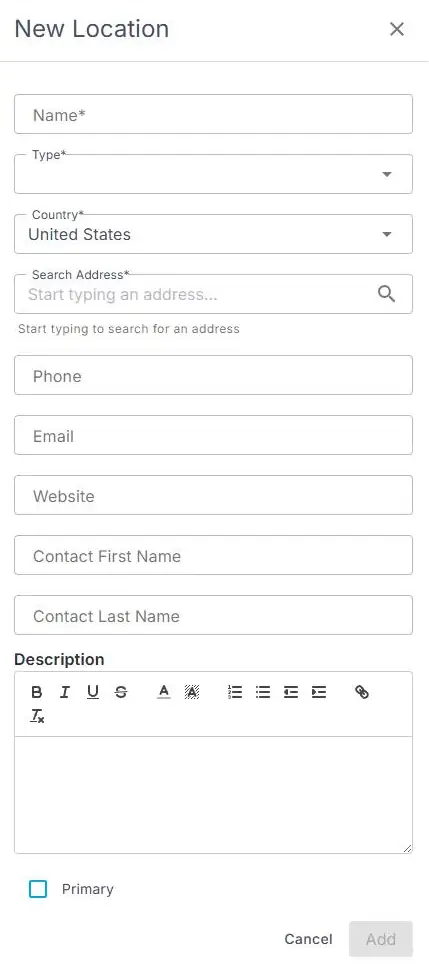
Settings › Company Profile › Locations › Add Record opens this form. Fields marked * are required.
When you would use this
Several branches: each branch can filter to its own Crew, clients and orders.
Regional teams: name locations by region, such as Midwest or West Coast, if that's how you split work.
That's the location added. Read on for where it's used.
Where office locations are used
- Crew Members and clients can each belong to an office location.
- Orders show their office location, so you can filter by branch.
- Rate configurations and office users can be tied to an office location.
- Sign-up can ask Crew to pick their office. That's a setting in Settings › Site Configuration › Recruitment.
Other ways people ask this
- How do I add a branch?
- How do I add another office?
- Where do I change our office address?
- What is an office location?
Related guides
- Add an office user — giving a user an office location
- Company Settings: Start Here — everything else to set up
Was this article helpful?
That’s Great!
Thank you for your feedback
Sorry! We couldn't be helpful
Thank you for your feedback
Feedback sent
We appreciate your effort and will try to fix the article