Some clients want Crew to clock in at the site, on a device the client controls, not on each person's phone. A kiosk time clock turns a tablet or computer at the client's location into that station.
Summary
The kiosk is a web page, so any tablet or computer with a browser works. It only works from IP addresses you add to the client's White-List IPs for Time Clock, so the site needs a static IP address, one that doesn't change. First turn on Allow Crew Members Access to Time-Clock. Then add the site's address to the client and lock the tablet to the time clock page. Crew sign in with their own username and password and clock in to the jobs they're confirmed on at that client. Their clock-ins land on their timesheet, just like a phone clock-in.
How to do it
- Ask the client whether their site has a static IP address. If it doesn't, sort that first. See Get a static IP address.
- Go to Settings › Permissions › System › Global Permissions and turn on Allow Crew Members Access to Time-Clock. You do this once. If it's off, nobody can use the kiosk and the white-list doesn't show on your clients.
- Put a tablet or computer at the site, on the client's own internet, not a cell hotspot or guest Wi-Fi.
- On that device, open https://yourcompany.nextcrew.com/time-clock, using the name in your own NextCrew address. The purple box at the top shows the device's IP address.
- In NextCrew, go to CRM › Clients, open the client and click the Configuration tab.
- Under White-List IPs for Time Clock, click Add, paste the address and click Add.
- Reload the page on the device. Have a Crew Member who is confirmed on a job at that client sign in and clock in, then check the clock-in is on their timesheet.
- Lock the tablet to the time clock page so nobody can leave it. See Lock the device to the time clock.
Where to find it
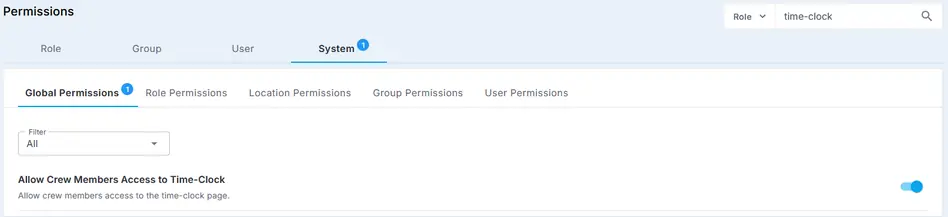
Step 2. Search for time-clock on the System tab and turn on Allow Crew Members Access to Time-Clock.
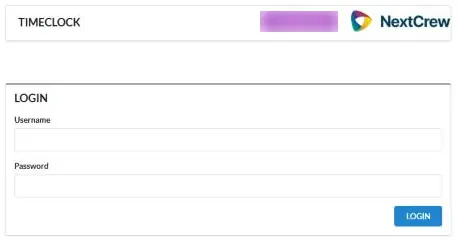
Step 4. The time clock page shows the device's IP address in the purple box. Crew sign in here with their own username and password.
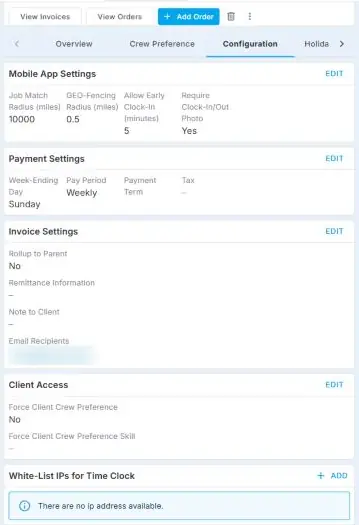
Steps 5 and 6. The White-List IPs for Time Clock card is at the bottom of the client's Configuration tab.
▶ Watch a kiosk time clock being set up
The video and the walkthrough start at the device. Turn on Allow Crew Members Access to Time-Clock first (step 2), or the white-list won't show on the client. Prefer to click through it yourself? Open the interactive walkthrough.
That's the kiosk live. Everything below is for the static IP address, locking the tablet, and when Crew can't see their jobs.
On this page
When you'd use one
Nobody has to use a kiosk. Clocking in on the phone already works. A kiosk is the better answer when:
- Phones stay in a locker. Warehouses, food production and clean rooms often keep phones off the floor. A tablet at the door is the only way to clock in.
- The client doesn't trust phone clock-ins. The kiosk only works from the client's own internet, so the clock-in shows the person was on site.
- Lots of people arrive at once. One station at the door is quicker than forty people on forty phones.
- Some Crew don't have a working smartphone. The kiosk gives them a way in.
Get a static IP address
A static IP address is one that never changes. The kiosk only works from the addresses on the client's white-list, so if the site's address changes, the kiosk stops working the next morning, with no warning. Most business internet plans give out a new address from time to time unless the client asks for a static one.
Find out whether the site has one
Ask the client's office manager or IT contact one question: "Do we have a static IP address?" Add a note on the client with the answer and who told you.
If the site doesn't have one
- Ask their internet provider. Most providers offer a static IP address on business plans, often for a small monthly fee. This is the simplest fix.
- Use a third-party service. If the provider can't, the client can use a service that gives the kiosk device a fixed IP address, such as a business VPN with a dedicated IP, or a cellular router with a static IP from the carrier. Add that service's address to the white-list instead.
If you use a third-party service: the white-list then checks the service's address, not the building. Only put the kiosk device on it. If other devices can use the same connection, they can reach the time clock too.
Lock the device to the time clock
Without a lock, anyone can close the browser, go to another website or change the device's settings. Each kind of device does this differently. Set a passcode that only the client's manager and your team know.
iPad or iPhone: Guided Access
- Go to Settings › Accessibility › Guided Access and turn it on.
- Tap Passcode Settings › Set Guided Access Passcode and enter a passcode.
- Open Safari to the time clock page.
- Triple-click the side button (or the Home button on older iPads), then tap Start.
- To unlock, triple-click again, enter the passcode and tap End.
Android tablet: App pinning
- Go to Settings › Security (on some tablets, Security & privacy › More security settings) and turn on App pinning (some tablets call it Pin app or Pin windows).
- Turn on Ask for PIN before unpinning.
- Open Chrome to the time clock page.
- Open the recent apps screen, tap the Chrome icon at the top of its window and tap Pin.
- To unpin, hold Back and Recent apps together (or swipe up and hold), then enter the PIN.
The menu names differ by tablet maker. If you can't find App pinning, search for "pin" in Settings. Pinning keeps Chrome on screen, but someone could still type another web address. For a tighter lock, the client can install a kiosk browser app from the Google Play Store that only opens one page.
Windows computer: Kiosk mode
Windows has a kiosk mode (Assigned Access) that runs one app full screen for a separate kiosk user. It's under Settings › Accounts › Other users › Kiosk on Windows 11 Pro. The client's IT contact usually sets this up.
Whichever device you use
- Turn off auto-lock or sleep so the screen stays on. On an iPad, Settings › Display & Brightness › Auto-Lock › Never. On Android, Settings › Display › Screen timeout.
- Keep it plugged in, and mount it where Crew walk past it on the way in.
- Write down the passcode somewhere safe. Without it, you can't unlock the device to fix it.
How Crew clock in at the kiosk
- Each Crew Member signs in on the device with their own NextCrew username and password.
- They see the jobs they're confirmed on at that client, and clock in or out.
- Ask Crew to log out when they're done, so the next person signs in as themselves.
- If someone can't sign in, it's the same fix as the app. See Support Your Crew Members.
What the white-list protects
The white-list checks where a clock-in came from, not who made it. From an address that isn't listed, the page won't let anyone in. From a listed address, it works for any Crew Member confirmed at that client.
- An address covers a whole internet connection, not one room. If the client's guest Wi-Fi uses the same connection, it's inside the white-list too. If that matters, put the kiosk on a network visitors can't use.
- You can add as many addresses as you need. A client with four warehouses gets four entries, one per site.
- Each client has its own white-list. Adding an address to a parent client doesn't cover its other client records.
Photos at clock-in
If you require a photo at clock-in, the photo is attached to the Crew Member's timesheet, the same as a photo taken in the mobile app. That's what ties a clock-in to a face, not just to the site.
Kiosk and phone together
The kiosk is an extra way to clock in, not a replacement. On the same job, some Crew can use the kiosk while others use the NextCrew app. Both land on the same timesheet, so you can move people over gradually.
If something's not right
| What you see | Check this first | Who fixes it |
|---|---|---|
| There's no White-List IPs for Time Clock card on the client | Allow Crew Members Access to Time-Clock in Settings › Permissions › System › Global Permissions. It has to be on. | Your NextCrew admin |
| The page says you don't have access to the Timeclock | Whether the address in the purple box is on the client's white-list, exactly. Paste it, don't type it. | You |
| Crew sign in but see no jobs | Whether they're confirmed on a job at that client, and whether the address is on the right client. | You |
| It worked last week and stopped | The address changed, usually after a router restart or a new internet provider. Read the new address on the device and add it. Then get a static IP address so it doesn't happen again. See Get a static IP address. | You, with the client |
| The device shows a different address each day | It's on a cell hotspot or a guest network. Move it to the client's main connection. | The client |
| Someone left the time clock page or changed settings | The device isn't locked. See Lock the device to the time clock. | The client |
Your own obligations
NextCrew records the time of each clock-in, the address it came from, and a photo if you require one. What you may collect, how long you keep it and what you must tell Crew first depend on the state where the work happens. Some states have specific rules about photos of workers. Check with your own legal or HR advisor before you require photos.
Other ways people ask this
- How do I set up a time clock tablet at a client?
- How do I whitelist an IP address for the time clock?
- Why does the time clock say I don't have access?
- Do I need a static IP address for the kiosk?
- How do I lock an iPad or Android tablet to one page?
- Can Crew clock in without their phone?
Related guides
- Set the Geofencing Radius for Clock-In: the radius that applies to mobile clock-in
- Clock In, Clock Out and Add Breaks: the phone side of the same job
- Review and Approve Timesheets: what happens to a kiosk clock-in afterward
- Let Clients See Who's On Site: what your client sees on the day
- Support Your Crew Members: when a Crew Member can't sign in
Was this article helpful?
That’s Great!
Thank you for your feedback
Sorry! We couldn't be helpful
Thank you for your feedback
Feedback sent
We appreciate your effort and will try to fix the article