A follow-up that lives in someone's head gets missed the day they're out. Tasks put every follow-up in NextCrew, with an owner and a due date, where your whole team can see it.
Summary
A task has a title, an owner, a due date, a priority and a status. Every task lands in one Tasks list, so you see the whole agency's follow-ups in one place. Link a task to the Crew Member, client, job, order or timesheet it's about, and it also shows on that record, under Tasks on the right edge. Hand a task to someone on your team, a Crew Member or a client user, and they get a notification. Crew Members get a push on their phone, and client users get an email. NextCrew also creates some tasks for you, such as one for each onboarding document. What goes wrong: follow-ups kept in an inbox or on sticky notes, where nobody else can see them.
Your day with Tasks
- Add a task from the record it's about. Click Add task on the right edge, and it's linked for you.
- Give it one owner in Assigned To, plus a due date and a priority. They get a notification.
- Each morning, open Tasks in the menu and filter by Assigned To to see your own list.
- On any Crew Member, client, job or order, click Tasks on the right edge to see what's open on it.
- Turn on Completed when a task is done.
Every task, in one list
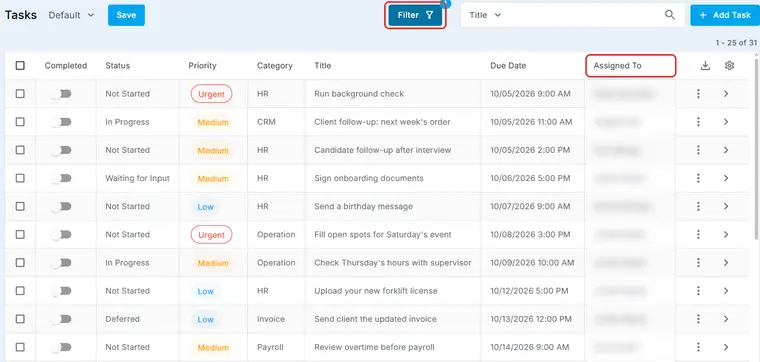
Client and candidate follow-ups, onboarding documents, background checks, even birthday messages: every follow-up in your agency is in one list. Click Filter, pick Assigned To, and you're looking at just your day.
That's every follow-up in one place. Read on for tasks worth creating and how to hand one off.
On this page
Tasks worth creating
Not sure where to start? Here are follow-ups staffing teams handle every week. Each one becomes a task with an owner, a date and a link to the record it's about.
| When this happens | The task | Assign it to | Link it to |
|---|---|---|---|
| A client asks for something on the phone | Client follow-up: send what they asked for | Their account manager | The client |
| You finish an interview | Candidate follow-up: call back with next steps | The recruiter | The Crew Member |
| A candidate is ready to move forward | Run the background check | Whoever handles screening | The Crew Member |
| A new hire hasn't signed their paperwork | Sign your onboarding documents | The Crew Member | The Crew Member |
| A Crew Member's birthday is coming up | Send a birthday message | Their recruiter | The Crew Member |
| A license is about to expire | Upload your new license | The Crew Member | The Crew Member |
| A job still has open spots the day before | Fill the open spots for tomorrow | Your scheduler | The job or the order |
| Hours on a timesheet look wrong | Check the hours with the supervisor | Whoever approves timesheets | The timesheet |
| A client hasn't approved last week's hours | Approve last week's hours | The client user | The timesheet |
Some of these NextCrew creates for you, such as a task for each onboarding document. See Track Onboarding in Workflows.
Add a Category, such as HR or Payroll, so each team can filter to its own work. See Set Up Note and Task Categories.
See every task in one list
Tasks in the menu is your agency's to-do list. Every task is there, whoever created it and whatever it's linked to. Each row shows the priority, the title, the due date and the owner.
- Click Filter and pick Assigned To to see one person's tasks. Choose yourself for your own day, or a teammate to see what's on their plate.
- Click Save to keep a filter as a view, so it opens that way next time.
- The list opens with a date range filter on. Widen it if a task seems to be missing.
- Tick several tasks to Mark as Complete together.
Find tasks on the record they're about
A task linked to a Crew Member, client, job, order, timesheet or offer follows that record. Open the record and click Tasks on the right edge. You see every open task linked to it, and you can filter them by priority or turn on Show Completed.
The tasks on this record, one click away
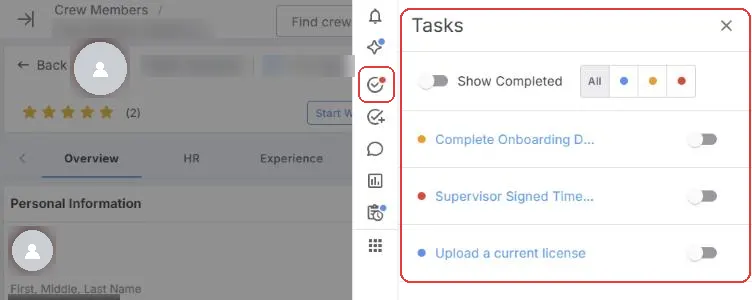
Open a Crew Member, client, job or order and click Tasks on the right edge. You see what's still open on that record, without leaving it.
So when a client calls, open their record and you can see what's already in hand before you answer. Nobody has to go looking, and nothing gets done twice.
A task can be linked to more than one record. Link an interview task to both the candidate and the client, and it shows on both.
Hand a task to someone else
Delegating in NextCrew takes one field. The task stays visible, so you don't have to chase anyone to know where it stands.
- Open the task and choose the person in Assigned To. They get a notification, and since a task has one owner, it's always clear who's on it.
- Set the Due Date and Priority so they know when it matters.
- Put what they need in Description, and add files under Attachments, so they don't have to come back and ask.
- Want others in the loop? Give them access under Permissions.
- Follow along from Tasks, filtered by Assigned To. Progress goes in the task's Notes, where anyone with access can read it.
You can hand a task to a Crew Member or a client user too. A Crew Member gets a push notification on their phone, and the bell icon in the NextCrew app shows their tasks. A client user gets an email and sees the task in the client portal. Tasks need to be turned on for them first (see Settings below).
Where it saves time
| Without NextCrew | In NextCrew |
|---|---|
| Follow-ups on sticky notes and inbox flags | One Tasks list the whole team can see. |
| Follow-ups lost when someone is out | Each task has an owner and a due date, so anyone can pick it up. |
| Asking around before you call a client back | Open the client and click Tasks. What's open is right there. |
| Texting a Crew Member to send a form | Assign them a task. It arrives as a push on their phone. |
| Chasing each onboarding document | NextCrew creates a task for each document and ticks it off when it's done. |
| Emailing a client to do something | Assign the client user a task in their portal. |
Who can get a task
| Assigned to | Where they see it |
|---|---|
| Someone on your team | A notification, then the Tasks list and the linked record |
| A Crew Member | A push notification on their phone. In the app, the bell icon shows their tasks, or they open the menu, then Tasks |
| A client user | An email, then the client portal, from the icons on the right of the screen |
Settings that turn tasks on
| Setting | Where it is | What it does |
|---|---|---|
| Enable Task Module | Site Configuration › Company | Turns tasks on for your team |
| Enable Task Module for Crew Members | Site Configuration › Company | Lets Crew see their tasks |
| Show Global Task Categories | Site Configuration › Company | Shows the standard task categories |
| Enable Task Module for Client | Site Configuration › CRM | Lets client users see tasks |
⚠️ Watch out
Site Configuration saves each change as soon as you leave the field. There's no Save button and no undo.
Questions people ask
Will they know I gave them a task?
Yes. They get a notification. Crew Members get a push on their phone, and the bell icon in the app shows their tasks. Client users get an email.
Where do I see the tasks for one client or Crew Member?
Open their record and click Tasks on the right edge.
Can I assign a task to more than one person?
No. A task has one owner, so it's always clear who's responsible. Give others access under Permissions.
Does NextCrew create tasks by itself?
Yes, some. For example, a task for each onboarding document, ticked off when it's done.
Can a Crew Member see their tasks?
Yes, in the app, if tasks are turned on for Crew.
How do I see tasks I've finished?
Turn on Show Completed.
Other ways people ask this
- How do I set a follow-up reminder?
- How do I delegate a task?
- Can I assign a task to a Crew Member?
- Can I assign a task to a client?
- Where are my tasks?
- Where do I see tasks for a client?
- How do I track to-dos in NextCrew?
Related guides
- How NextCrew Works: The Big Picture — how everything fits together
- Create and Track Tasks — every field, step by step
- Set Up Note and Task Categories — categories and statuses
- Find Your Way Around NextCrew — the icons down the right edge
- Track Onboarding in Workflows — the tasks NextCrew creates for onboarding
Was this article helpful?
That’s Great!
Thank you for your feedback
Sorry! We couldn't be helpful
Thank you for your feedback
Feedback sent
We appreciate your effort and will try to fix the article