Same orders, same jobs, same people. The list and the calendar just show them differently, so open the one that answers today's question fastest.
Summary
Workspace › Orders shows your work as lists, on three tabs: Orders, Jobs and Offers. An offer is one Crew Member on one job; many teams call it an assignment. Workspace › Calendar shows the same work by date, on Orders, Jobs and Crew Members. Every view has filters, such as client or assigned user, and you can save any view and share it with your team. The real difference is the picture: a list is best for grouping and sorting lots of rows, and the calendar is best for seeing the week, with each Crew Member's jobs and hours and drag-and-drop booking. What goes wrong: setting up the same filters every morning instead of saving them once.
How to do it
- Pick the screen for your question: Workspace › Orders for lists, or Workspace › Calendar for dates.
- Choose the tab: Orders, Jobs or Offers on the list; Orders, Jobs or Crew Members on the calendar.
- Click Filter to narrow it, for example to one client or one assigned user.
- On a list, group rows by a column, drag columns into the order you want, and pick which ones show with the gear icon.
- On the Crew Members calendar, drag an open job onto a Crew Member to book them, or onto someone else to move it.
- Save it as a view and tick Shared, so your team opens it in one click.
Same work, two ways to see it
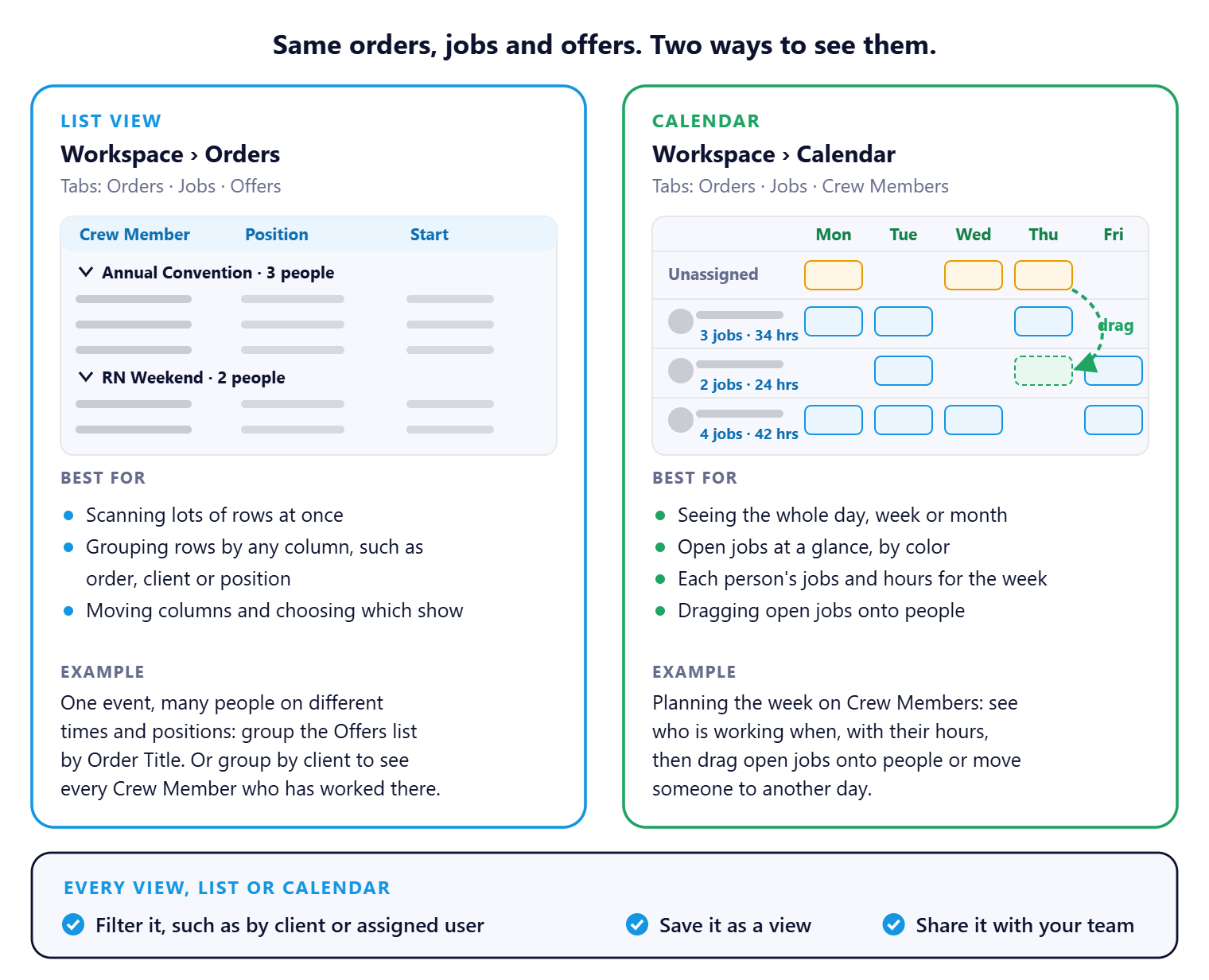
The list and the calendar hold the same orders, jobs and offers. Reach for the list when you want rows grouped your way, and the calendar when you want to see the week, who is working, their hours, and drag jobs onto people. Whichever you pick, filter it, save it and share it once, and your team opens it in one click every day.
When you would use this
Today's open jobs. On the calendar, open jobs are the orange cards in the Unassigned row. On the Jobs list, the Open count at the top shows how many are still waiting.
One event, many people. A convention with cooks, servers and bartenders on different times: group the Offers list by Order Title, and everyone working it sits in one group with their position and time.
Who has worked for a client. Group the Offers list by Client Name to see every Crew Member who has worked for each client. The Status column shows who confirmed.
Planning the week. On the Crew Members calendar, each person shows their jobs and hours for the week. Drag open jobs onto people, or move someone to another day.
That's the right view, set up once. Read on for what each one does best.
On this page
List or calendar, side by side
| What you want to do | Use |
|---|---|
| See orders, jobs or offers as rows you can sort and scan | List |
| Group rows, such as everyone on one event or each client's Crew | List |
| Choose and reorder the columns you see | List |
| See a whole day, week or month at a glance | Calendar |
| Spot open jobs by color | Calendar |
| See each Crew Member's jobs and hours for the week | Calendar (Crew Members tab) |
| Book or move people by dragging | Calendar (Crew Members tab) |
| Filter, save and share | Both |
What a list does best
- Group rows by any column: open the column's menu and choose Group. Group Offers by Order Title for one event, or by Client Name for a client's Crew.
- Move columns by dragging a column header to where you want it.
- Choose columns with the gear icon at the top right. The Offers list can show columns such as Order Title, Position and Weekly Hours.
- Export what you see to Excel. See Export a List to Excel.
Offers, grouped by client
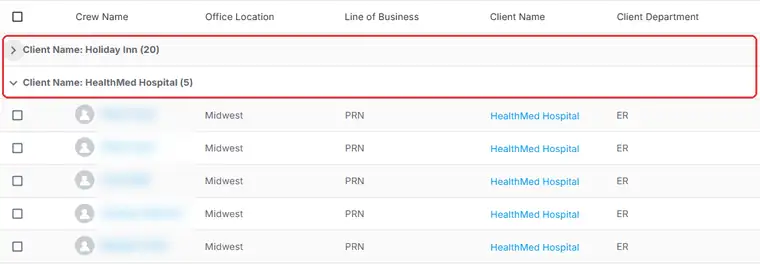
Each client gets its own group, with its offers underneath. Click a group row to fold it away when you only need one client.
For searching, filtering and sorting in detail, see Search, Filter and Sort Any List.
What the calendar does best
- Switch between Day, Week and Month, and see the whole period at once.
- Colors show where each job stands: orange is open, blue is partly filled, green is filled.
- On Crew Members, each person shows how many jobs they have and their total hours for the week.
- Drag a job from Unassigned onto a Crew Member to book them, or drag it to another person or day to move it.
- If a change would put someone into overtime, NextCrew stops it or asks you first, depending on your settings. See Prevent and Manage Overtime.
Who is working, and who still needs someone
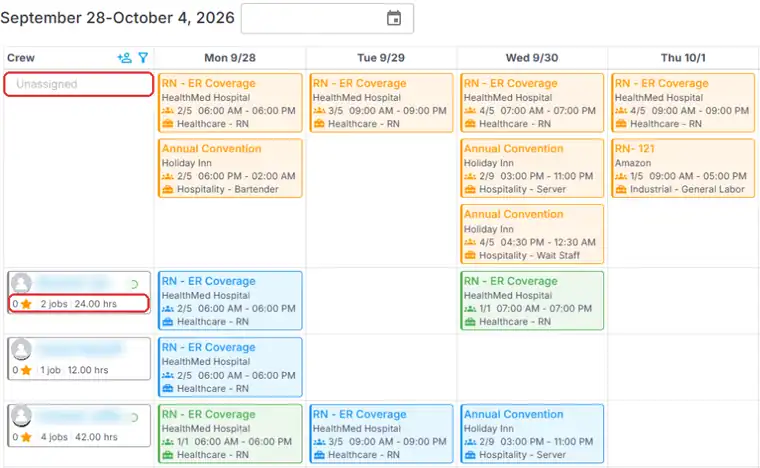
On the Crew Members tab, jobs with an open spot sit in the Unassigned row at the top. Every Crew Member below shows their jobs for the week, with a count and total hours next to their name.
For every calendar control, see Schedule on the Calendar: Orders, Jobs and Crew.
Save and share any view
Every list and every calendar can be saved as a view: the tab, filters and layout you set up. Name it for the job it does, such as People Working This Week, and tick Shared so your whole team works from the same screen.
See Save and Share Your Own List Views.
Questions people ask
Is an offer the same as an assignment?
Yes. NextCrew calls each Crew Member on a job an offer, from Requested to Confirmed. Many teams say assignment. It's the same thing.
If I change something on the calendar, does the list change too?
Yes. They're the same orders, jobs and offers, shown two ways.
Can my team see the views I save?
Only the ones you mark Shared.
Other ways people ask this
- What's the difference between the list and the calendar?
- How do I see who is working this week?
- How do I see all the Crew on one event?
- How do I see which Crew have worked for a client?
- Where is the assignments list?
- Is there a drag and drop scheduler?
Related guides
- Schedule on the Calendar: Orders, Jobs and Crew — every calendar control
- Search, Filter and Sort Any List — every list control
- Save and Share Your Own List Views — saved views
- Orders, Jobs and Offers — the three words explained
Was this article helpful?
That’s Great!
Thank you for your feedback
Sorry! We couldn't be helpful
Thank you for your feedback
Feedback sent
We appreciate your effort and will try to fix the article