A job order is what the client asked for. A job is one role inside it. NextCrew keeps them together, so you always see the whole request in one place.
Summary
When a hotel calls and says “we need front desk staff Friday night and servers all weekend,” that call is one job order (called an Order in NextCrew). Inside it, you add a job for each role and time: front desk Friday, servers Saturday, servers Sunday. Each Crew Member you invite or book on a job has an offer, which shows where they stand. What goes wrong: making a separate order for each role, so one client request ends up split across several orders.
How to do it
- Go to Workspace › Orders.
- Use the tabs at the top to switch between Orders, Jobs and Offers.
- On the Orders list, Jobs Filled and Positions Filled show how close each order is to done.
- Open an order to see its jobs, and open a job to see its offers.
One job order, three jobs, each with its offers
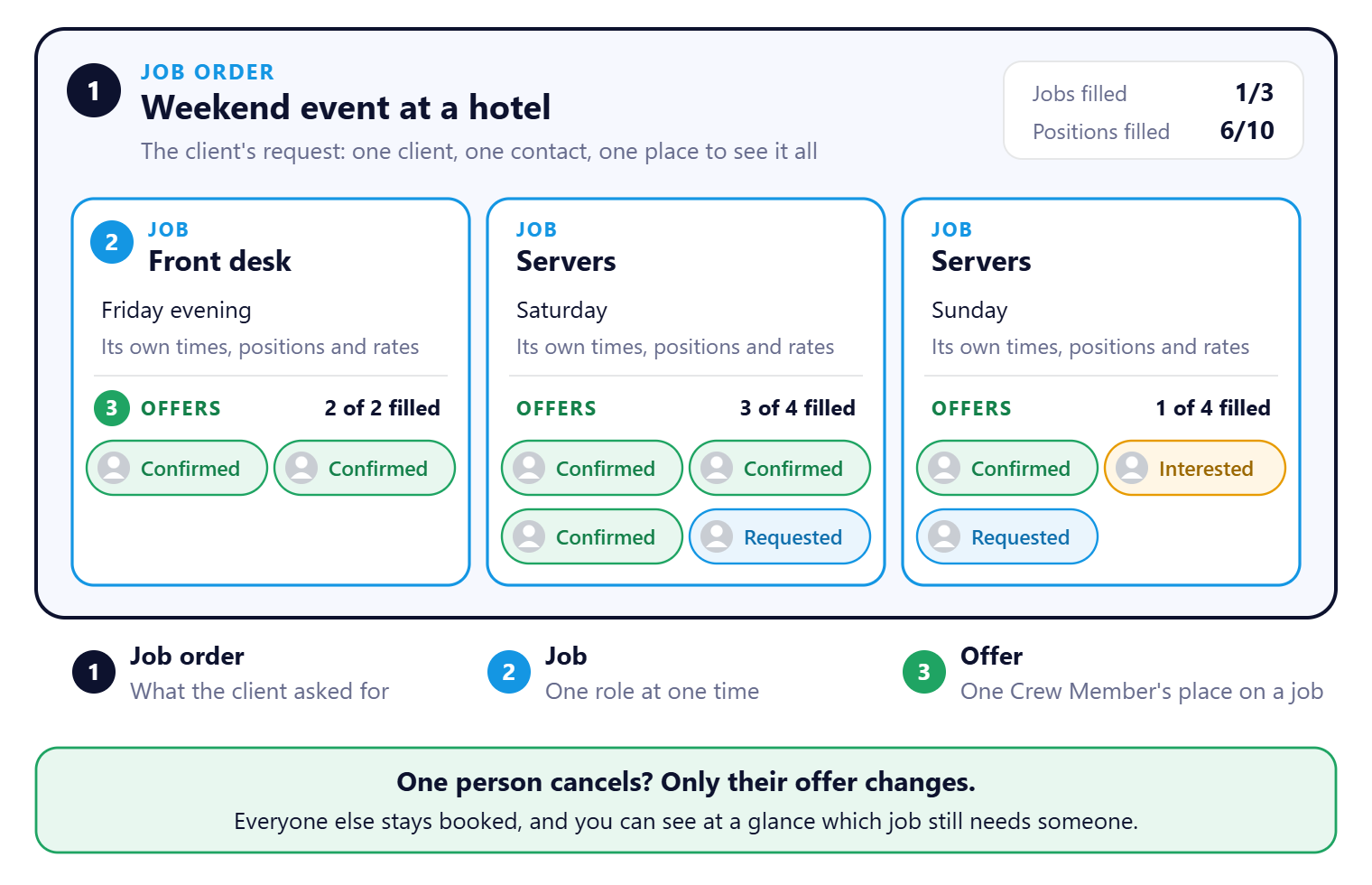
The order tells you how close the whole request is to done. Each job has its own times, positions and rates. Each offer shows where one Crew Member stands.
That's the structure. The example below shows it with real numbers.
An example
| Level | Example | What you track |
|---|---|---|
| Job order | Weekend event at a hotel | The whole request: dates, client, contact |
| Job | Front desk, Friday evening, 2 positions | Positions filled, times, pay and bill rates |
| Offer | One Crew Member, confirmed for the front desk job | Where that one person stands |
The order in the picture has 3 jobs and 10 positions. Part-way there, the Orders list shows 1/3 in Jobs Filled and 6/10 in Positions Filled.
Why this makes your day easier
- One request stays in one place. Clients think in requests, not single jobs. The job order matches how they ask, so you never have to hunt for the pieces.
- Mix roles freely. Each job has its own times, positions and rates, so one order can hold front desk at one rate and servers at another.
- See progress at a glance. Jobs Filled and Positions Filled on the Orders list tell you what is left, without opening anything.
- One cancellation doesn't break the rest. Each person has their own offer. If one drops, only their offer changes. You refill that one spot, and everyone else stays booked.
Other ways people ask this
- What's the difference between a job and a job order?
- What is a job order?
- What's the difference between an order and a job?
- What is an offer?
- What's an assignment?
- Where do I see all the jobs for one client request?
Related guides
- Offer statuses, from Requested to Confirmed — what happens to each offer
- How NextCrew Works: The Big Picture — the full cycle
Was this article helpful?
That’s Great!
Thank you for your feedback
Sorry! We couldn't be helpful
Thank you for your feedback
Feedback sent
We appreciate your effort and will try to fix the article