A candidate who applies and hears nothing for two days has usually moved on. This is the daily routine that stops that.
Summary
New candidates land in HR › Crew Members with the HR Status New. Save a view of them, review each application on the Forms tab, and contact them with a message template. Move them to the next stage on the HR tab. Aim to reach every new candidate within 24 hours. What goes wrong: nobody owns the New list, so candidates wait.
How to do it
- Go to HR › Crew Members, filter on HR Status New and save it as a view.
- Open a candidate and read their application on the Forms tab.
- Click Add Message, pick a template and send it.
- When they move on, change their HR Status on the HR tab.
- Add a note or a task for anything you need to follow up.
Contact a candidate in under a minute
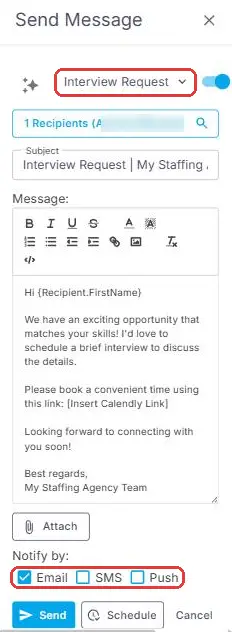
Pick a template, such as Interview Request, and the message is written for you. {Recipient.FirstName} fills in each candidate's own first name, so the same template works for one candidate or fifty. Under Notify by, choose Email, SMS or Push, then Send now or Schedule it for later.
That is a candidate reviewed and contacted. Read on for bulk messages, background checks and keeping a record.
On this page
Find your new candidates
Open HR › Crew Members and filter on HR Status = New. Save it as a view so it's one click each morning. See Save and Share Your Own List Views.
Does your agency have an Application status? Filter on that instead. It holds only candidates who finished the application.
Give each candidate an owner. On the Overview tab, under Additional Info, set the Recruiter.
See sign-ups as they happen
You don't have to wait for the morning check. The CrewPilot ticker at the top of the screen shows each new sign-up and each HR Status change as it happens.
Click the CrewPilot AI icon on the quick-access bar on the right of the screen to see a timeline of recent events.
Review the application
- Forms tab: click the application to read all of it.
- Experience tab: their resume. NextCrew reads it for you, and you can ask it questions in plain words, such as “What are this person’s top skills?”, “Have they worked in a hospital before?” or “List their licenses.” The answers come from the resume. Questions and answers stay on the record, so the next recruiter sees what’s already been asked instead of asking again. To find people by what’s in their resume, search Crew Members by Résumé Skills, Résumé Experience or Résumé Education. See Find Candidates by Skill.
Contact them within 24 hours
- On the candidate's profile, click Add Message at the top.
- Pick a template, such as an interview request, or write your own.
- Choose how to send it: email, text or app notification.
- Send it.
Templates keep every recruiter's wording the same. Some come ready to use. See Create and Share Message Templates.
Text messages need texting turned on for your account. See Turn On Text Messaging with Twilio.
Every message you send is kept on the candidate's profile.
Message everyone in a stage
In the message, open Recipients and select by HR stage, such as everyone in New. Use macros such as first name, so each person gets a personal message.
NextCrew has no interview scheduler. Put your booking or calendar link in your interview template.
Move them to the next stage
Open the candidate's HR tab and change the HR Status, for example from New to Interview. You change it one candidate at a time. For a large change, ask NextCrew about an import.
Some changes happen on their own: New when they sign up, and Docs Signed when they sign their documents. Every change is logged in the candidate's notes.
Background checks and testing
Run a background check through Checkr, or compliance testing through UNA Health. Turn them on in the App Marketplace. You need an account with each company. Checkr's can be created while you turn it on.
You can also use your own process.
Keep a record
Add a note after every call, and a task for every follow-up. A record of each conversation helps whether you hire them or not. See Add Notes to a Record and Create and Track Tasks.
A candidate says they never heard from you
| Check | If yes | If no |
|---|---|---|
| 1. Is there a message on their profile? | Go to check 2. | Nothing was sent. Send it now. |
| 2. Was it sent by text? | Check texting is turned on for your account. | Go to check 3. |
| 3. Is their email right on their profile? | Ask them to check spam, then contact support with their name and the date sent. | Correct it and send again. |
Questions people ask
How fast should we contact new candidates?
Within 24 hours. After that, many have taken another job.
Can I change HR Status for many people at once?
Not on screen. Ask NextCrew about an import.
Does NextCrew flag candidates nobody has contacted?
Not directly. New sign-ups show on the CrewPilot ticker as they arrive, and the Time to Hire chart shows how long candidates stay in New. See Track Your Recruiting Pipeline.
Other ways people ask this
- How do I see new applicants?
- Where is the candidate's application?
- How do I send an interview request?
- How do I move a candidate to interview?
- Can I message all new candidates at once?
- Can I ask questions about a resume?
- Can other recruiters see the questions I asked about a resume?
Related guides
- Recruit Candidates: Start Here — the whole recruiting path
- Send a Message to Crew, Clients or Your Team — every messaging option
- Track Your Recruiting Pipeline — where candidates stall
Was this article helpful?
That’s Great!
Thank you for your feedback
Sorry! We couldn't be helpful
Thank you for your feedback
Feedback sent
We appreciate your effort and will try to fix the article