Click a Crew Member's name on a job to open their profile. Depending on what your agency shares, you'll see their positions, rating, licenses, certifications and documents.
What you can see and do depends on how your agency set up your access. If something here isn't on your screen, ask your agency.
Do this
| 1 | Go to Workspace › Calendar and click the job. |
| 2 | In the Confirmed tab, click the person's name. |
| 3 | The profile shows their positions and rating. |
| 4 | Open Compliance to see their licenses, certifications and Documents Library. |
| 5 | Open Experience, Portfolio or Additional Info for more. |
A Crew Member’s profile
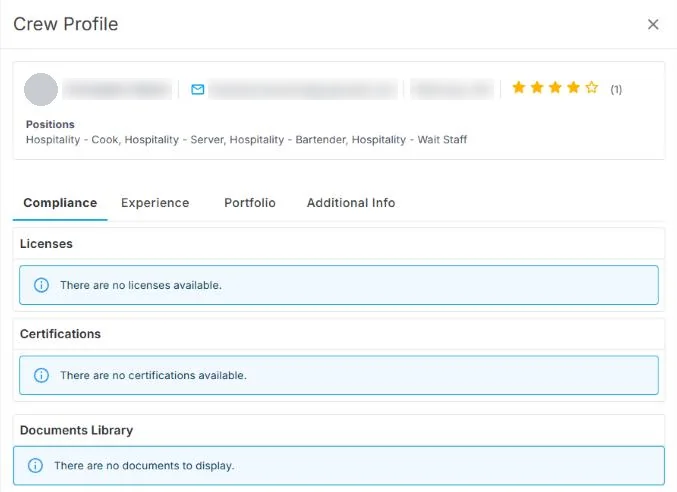
The profile shows their positions and rating, with Compliance, Experience, Portfolio and Additional Info tabs.
If this doesn't work
| What you see | What to do | Who fixes it |
|---|---|---|
| A tab or document isn't there | Your agency decides what you can see. Ask them. | Your agency |
| A license looks out of date | Tell your agency before the job. | Your agency |
Only your agency can
- Choose which profile details and documents you can see.
- Update a Crew Member's documents.
Call or email your contact at your staffing agency.
Other ways people ask this
- Can I see the worker's license?
- How do I check someone's certifications?
- Where are the Crew Member's documents?
- Can I see a worker's profile?
Related guides
If your agency's site has its own name and logo, it is powered by NextCrew and works the same way.
Was this article helpful?
That’s Great!
Thank you for your feedback
Sorry! We couldn't be helpful
Thank you for your feedback
Feedback sent
We appreciate your effort and will try to fix the article