Tasks keep your to-dos in one place, each with a priority, an owner, a due date and a status. Open Tasks from the icons on the right side of any screen. When your agency gives you a task, you also get an email.
What you can see and do depends on how your agency set up your access. If something here isn't on your screen, ask your agency.
Do this
| 1 | Choose the tasks icon on the right side of the screen to see your tasks. |
| 2 | To add one, choose the add task icon just below it. |
| 3 | Enter a Title and choose the Priority. |
| 4 | Choose who it's Assigned To and the Due Date. |
| 5 | Add a Description and anything it's linked to. |
| 6 | Save it. When it's done, turn on Completed. |
The Add Task form
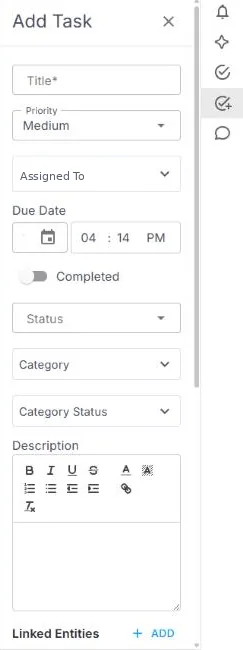
Choose the add task icon on the right side of the screen. Fill in the Title, Priority, Assigned To and Due Date, then save.
If this doesn't work
| What you see | What to do | Who fixes it |
|---|---|---|
| You can't see completed tasks | Turn on Show Completed at the top of the list. | You |
| You don't see Tasks | Your agency hasn't turned it on for you. | Your agency |
Only your agency can
- Turn on Tasks for you.
Call or email your contact at your staffing agency.
Other ways people ask this
- How do I create a task?
- How do I see my tasks?
- How do I mark a task done?
Related guides
If your agency's site has its own name and logo, it is powered by NextCrew and works the same way.
Was this article helpful?
That’s Great!
Thank you for your feedback
Sorry! We couldn't be helpful
Thank you for your feedback
Feedback sent
We appreciate your effort and will try to fix the article