A hospital wants a nurse's license, certifications and details before orientation. A brand wants to see a brand ambassador before they book. Both want one PDF, not a folder of files.
Summary
Export Profile builds one PDF from a Crew Member's record. You pick the sections, put them in the order the client wants, and choose which license and certificate copies go in. The files are copied from the record, so there's nothing to scan or merge. What goes wrong: sending more than the client needs. Pay and bill rates and every past job are easy to include by mistake. Expired credentials aren't flagged, so check the record first.
How to do it
- Open HR › Crew Members, click the name, then click Export Profile at the top of the record.
- Tick only the sections the client asked for. Drag them into the order they want.
- Click Next: Export Data. In each section, untick any field or record the client doesn't need.
- Keep Include attachment ticked on each license and certification you want copied in.
- Click Next: Review & Export. Check the file name, the photo setting and the preview.
- Tick I have reviewed the export data, then click Export PDF.
- Open the PDF, read it through, then send it to the client.
Step 1: choose the sections
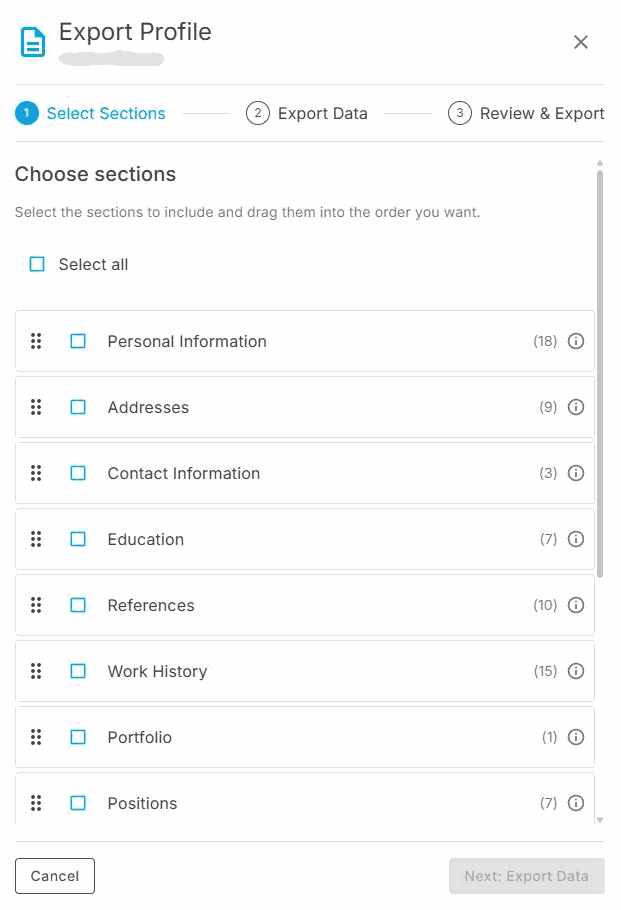
Export Profile opens on Select Sections. Tick the sections the client asked for and drag them into the order they want.
When you would use this
A hospital orientation packet. Tick Personal Information, Licenses and Certifications. Leave Job History off. Keep the license and certificate copies in.
A brand wants to meet the team first. Keep the profile photo on and add Portfolio, Positions and Work History. Leave the money fields out.
A client checks one person's credentials. Export just Licenses and Certifications with their copies. It's a short PDF they can file.
That is the PDF built and sent. Everything below is for deciding what goes in, and what to keep out.
On this page
Before you export: check the record
The PDF prints what's on the record. Fix anything wrong on the record first, not in the export.
- Open the Compliance tab.
- Check the Expires On date of every license and certification you'll send.
- If one has expired, ask the Crew Member for the renewal. Add it, then set the old one to Archived.
- See Track Licenses and Certifications for how.
⚠️ Watch out
The export doesn't warn you about an expired credential. It prints whatever Status the record holds, so an expired license can show as Active. Check the dates yourself before you send.
Step 1: Pick the sections
Nothing is ticked when you start. Tick what the client asked for, or Select all and untick the rest. Drag a section by its handle to move it.
| Section | What it holds | Send it to a facility? |
|---|---|---|
| Personal Information | Name, pronouns, gender, date of birth, hire date, status, pay rate, bill rate, rating | Yes, but untick the rates and anything they didn't ask for |
| Addresses | Saved addresses | Only if asked |
| Contact Information | Email and phone numbers | Usually yes |
| Education | Schools, degrees and dates | If asked |
| References | Reference contacts and notes | If asked |
| Work History | Past employers, entered by the Crew Member | If asked |
| Portfolio | Portfolio items | Mostly for brands |
| Positions | The positions they work | Yes |
| Licenses | Each license, with its number, state, dates and a copy | Yes |
| Certifications | Each certification, with its dates and a copy | Yes |
| Test Scores | Skill tests and scores | If asked |
| Documents | Uploaded files and completed forms | Pick records one by one |
| Job History | Every job they worked for you, with the client name, pay rate and bill rate | No |
Step 2: Choose the fields and records
The sections you picked are listed on the left. Click one to see what's in it.
- For details like Personal Information: untick any field you don't want. Drag fields to change their order.
- For lists like Licenses: untick any record you don't want. Drag records to change their order.
- Include attachment sits on each license, certification and document. Ticked means the file goes into the PDF.
- Click the pencil on a record to choose its fields.
⚠️ Watch out
The pencil also lets you change a value. That change goes into the PDF only, and the record stays as it was. The PDF doesn't show that anything was changed. Never change a license number, date or status here. Fix the record instead, so what you send matches what you hold.
Step 3: Review and export
| You'll see | What to do |
|---|---|
| File name | Starts as the Crew Member's name plus Crew-Profile. Change it if the client wants their own name format. |
| Report template | Leave it on Crew Profile (Default). |
| Include profile photo | Ticked to start. Untick it if the client doesn't want photos. |
| Summary | Shows how many sections, records and files are going in. Treat the page count as a rough guide. |
| Section order | Your last chance to drag sections into order. |
| Preview | A first look at the top of the profile. |
Tick I have reviewed the export data. Export PDF stays gray until you do. Click it, and the PDF downloads to your computer.
The next screen says PDF ready. Click Start another export to make a different version, or Close.
What the PDF looks like
- Page 1 has the photo, name, email and phone numbers.
- Each section follows in your order, as a simple table of labels and values.
- Empty fields are left out, so there are no blank rows.
- The license, certificate and document copies come at the end, one per page, after all the sections.
- The PDF doesn't carry your agency's logo or page numbers.
The copies at the end don't have a heading. List what's enclosed in your email to the client, so they know which page is which.
What to leave out
Send the client what they asked for and nothing more. These are the ones that catch people out.
| Leave out | Where it is | Why |
|---|---|---|
| Default Pay Rate and Default Bill Rate | Personal Information | Your rates are your business. They're ticked when you add this section. |
| Job History | Its own section | It lists every job, with each client's name, pay rate and bill rate. It can also add dozens of pages. |
| Date of birth, gender and pronouns | Personal Information | Only send these if the client asked for them. |
| Completed forms, such as timesheet approvals | Documents | Documents holds forms as well as files. Tick only the records the client needs. |
Send it to the client
The PDF downloads to your computer. Attach it to your email to the client.
NextCrew doesn't save your choices. The next time you open Export Profile, nothing is ticked. If a client takes the same packet every time, write their list down and pick the same sections each time.
Why it's done this way
| Without NextCrew | In NextCrew |
|---|---|
| Download each license and certificate, rename it, and merge them into one file by hand | Tick the sections and click Export PDF. The copies come from the record. |
| Type the Crew Member's details into a cover sheet for every client | The profile pages are built from the record you already keep. |
| Start again when the next facility wants a different order | Drag the sections into the order each client asks for. |
| Hunt through email for the latest copy of a card | The copy on the Compliance tab is the one that goes in. |
| Easy to send something the client shouldn't see | You choose every section, field and file before it goes. |
If something isn't right
| What you see | Check this | Who fixes it |
|---|---|---|
| No Export Profile button | You need to be on the Crew Member's record, not the list. If it's still missing, ask your admin to check your permissions. | Your admin |
| Export PDF is gray | Tick I have reviewed the export data. Make sure at least one section is ticked. | You |
| The PDF is far longer than you expected | Job History is probably ticked. Untick it and export again. | You |
| A license copy is missing | Was Include attachment ticked on that record? Is there a copy on the Compliance tab? | You, or ask the Crew Member to upload one |
| An expired license shows as Active | The PDF prints the record. Update the record, then export again. | You |
| The client wants the background check | Background checks aren't one of the sections. Send the result separately. | You |
| The client wants your logo on it | The PDF has no logo. Say who it's from in your email. | You |
Questions people ask
Can I export more than one Crew Member at once?
Not from here. Export Profile works on one Crew Member's record at a time. Do each person in turn.
Does changing a value in the export change the record?
No. It changes that PDF only. The record stays as it was, which is why you should fix the record instead.
Can I send the PDF from NextCrew?
The PDF downloads to your computer. Attach it to an email to the client.
Does the PDF include the actual license and certificate images?
Yes, when Include attachment is ticked on that record. They come at the end of the PDF, one per page.
Can I save my choices for a client?
Not today. Your choices reset each time you open Export Profile.
Does the export check that credentials are current?
No. It prints what's on the record. Check the expiry dates on the Compliance tab before you export.
Other ways people ask this
- How do I send a nurse's profile to the hospital?
- How do I put all of someone's licenses in one PDF?
- Can I download a Crew Member's profile?
- How do I make an orientation packet?
- How do I share a brand ambassador's profile with a client?
- How do I take the pay rate off the profile export?
- Why is my profile PDF so long?
Related guides
- Track Licenses and Certifications — getting the credentials right on the record before you export
- Chase Expiring Credentials — finding who's expired before you send anyone
- Anatomy of a Crew Member Record — every tab on the record the export draws from
- Manage Your Crew: Start Here — the rest of life after hire
Was this article helpful?
That’s Great!
Thank you for your feedback
Sorry! We couldn't be helpful
Thank you for your feedback
Feedback sent
We appreciate your effort and will try to fix the article