One screen controls how NextCrew behaves for your whole agency. Here's what the settings do, tab by tab, so you can change the right one with confidence.
Summary
Go to Settings › Site Configuration. It has nine tabs: Company, Recruitment, HR, CRM, Jobs, Timesheet, Payroll, Invoice and Integration. There's no Save button: a change applies to everyone in your agency as soon as you make it. Two settings need extra care: Suppress Notifications stops every notification, and changing a session expiration signs everyone out.
How to do it
- Go to Settings › Site Configuration.
- Open the tab for the area you want to change.
- Read the description under the setting, and the tables below, before you change anything.
- Make the change. There's no Save button: changes apply as soon as you make them.
- Tell your team what changed, and when.
A Site Configuration tab
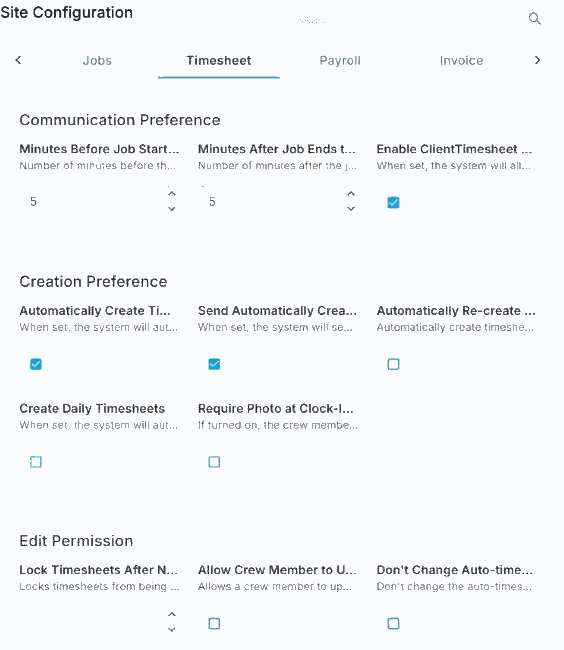
Each tab groups its settings, with a short description under each one. There is no Save button, so a change applies as soon as you make it.
That's how to change a setting. Use the tables below as your reference.
On this page
Company tab
| Setting | What it does |
|---|---|
| Main Email | Your agency's main email address. |
| Suppress Notifications | Stops all notifications going out of NextCrew. Use with great care. |
| Failed Attestation Email | Where failed attestations are reported. |
| Reply To Email and From Address | The reply-to address and the sender address on emails NextCrew sends. |
| Show Bank Information | Shows bank information in NextCrew. |
| Use Canadian ACH | For agencies that pay Crew through Canadian ACH. |
| Custom Page Title | The name in the browser tab. |
| Show Job Board Button on Login Page | Adds a link to your job board on the sign-in page. |
| Social Network links | Your Facebook, Twitter, Instagram, YouTube and LinkedIn pages. |
| Enable Task Module | Turns tasks on or off. Separate settings turn them on for Crew Members, and show global task categories. |
| Password Policy | Minimum and maximum length, required letters, numbers, lowercase, uppercase and special characters, and how many days before a password can be reused. |
| Web Session Expiration and Mobile Session Expiration | How long before people are signed out. Changing either signs everyone out. |
Recruitment tab
| Setting | What it does |
|---|---|
| Enter Office Location at Signup | Makes Crew pick an office when they sign up. |
| Hide Signup Button on Home Page | Hides the sign-up button. |
| Require SSN at Registration | Makes Crew enter their SSN when they register. |
| Show profile photo / resume at registration | Asks for a photo or resume at sign-up. |
| Require profile photo / resume at registration | Makes the photo or resume required. |
HR tab
| Setting | What it does |
|---|---|
| Default Tax Classification | The tax classification new Crew Members get, such as Employee. |
| Show Felony Information | Shows felony information in NextCrew. |
CRM tab
| Setting | What it does |
|---|---|
| Hide Crew Member Review for Client | Hides Crew reviews from clients. |
| Enable Task Module for Client | Turns tasks on for client users. |
| Automatically Create Client User from Client Contact | Creates a client login each time you add a client contact. |
Jobs tab
Jobs has the most settings. They fall into four groups.
Matching
| Setting | What it does |
|---|---|
| Exact Match on Positions | Only matches Crew whose position exactly matches the job. |
| Match Jobs on Position and Availability | Matches on availability as well as position. |
| Default Radius for Job Match | How far, in miles, to look for Crew. |
| Don't Send Job Matches to a Busy Crew Member | Skips job match notifications for Crew who are already busy. |
| Crew Member Must have Hire Date | Only Crew with a hire date can be assigned, found in search or notified. |
| Force Client Crew Preference (and Skill) | Uses each client's preferred Crew when matching. Separate settings apply the same rule to client users. |
| Don't Show Requested Crew Members on Invite | Hides Crew already requested for a job from the invite list. |
| Crew Member Confirmation Conflict Check Option | Whether to check for conflicts before a Crew Member can be confirmed. |
What Crew see in messages
| Setting | What it does |
|---|---|
| Do Not Include Job ID in Communications to Crew | Leaves the job ID out of messages to Crew. |
| Do Not Include Pay Rate in Communications to Crew | Leaves the pay rate out of messages to Crew. |
Defaults for new jobs
| Setting | What it does |
|---|---|
| Default Privacy, and Default Privacy for Client Users | Who can see a new job, when your team or a client creates it. |
| Default Employment Type, Hours, Start Time and Start Date | What a new job starts with. |
| Default the Auto-Confirm Option | Starts new jobs with auto-confirm on. |
| Enable Notify Now Checkbox on Post Job Page | Shows the Notify Now option when posting a job. |
| Default Publish For Job Order | Whether new job orders are published. |
| Force Rate Configuration Positions | Only lets jobs use positions from the client's rate configuration. |
| Recurring Date Source | Where recurring job order dates come from. |
Booking rules
| Setting | What it does |
|---|---|
| Hours Before Job to Prevent Canceling an Offer | How close to the start Crew can still cancel. |
| Do Not Include Unavailable Crew Members for Clone | Leaves unavailable or confirmed Crew off cloned job orders. |
| Apply Rate Calculation when Cloning | Recalculates rates when a job is cloned. |
| Consider Jobs Without an End Date as Open | Keeps part-time, full-time and event jobs open. |
| Allow Double-Booking when Updating Jobs | Skips the double-booking check when you change a job's times. |
| Allow Overlapping Interest for Each Crew Member | Lets a Crew Member show interest in two jobs that overlap. |
Timesheet tab
| Setting | What it does |
|---|---|
| Minutes Before Job Start to Remind to Clock-In | When Crew get the clock-in reminder. |
| Minutes After Job Ends to Remind to Clock-Out | When Crew get the clock-out reminder. |
| Enable Client Timesheet Approval Notification | Tells clients when timesheets need approval. |
| Automatically Create Timesheets for Completed Jobs | Creates timesheets when jobs finish. A related setting tells Crew when this happens. |
| Automatically Re-create Deleted Timesheets | Brings back timesheets that were deleted. |
| Create Daily Timesheets | Creates timesheets every day. |
| Require Photo at Clock-In/Out | Makes Crew take a photo when they clock in or out. |
| Lock Timesheets After Number of Minutes | Stops changes to a timesheet after this many minutes. |
| Crew Member Timesheet Update Settings | What Crew can change on a timesheet in the app. Settings marked Legacy only apply to the old app. |
| Elapsed Minutes for Late Clock-In, Early Clock-Out, Late Clock-Out and No-Shows | When NextCrew counts someone as late, early or a no-show. These drive Daily Pulse. |
| Geo-Fencing Radius (miles) | How close Crew must be to clock in with the app. |
| Before Job Starts in Which Crew is Allowed to Clock-In | How early Crew can clock in. A client, job order or job can set its own value. |
Payroll tab
| Setting | What it does |
|---|---|
| Default Week-Ending Day | The day your pay week ends. |
| Default Pay Period | How often you pay, such as weekly. |
| First Payroll Date | The date of your first payroll in NextCrew. |
Invoice tab
| Setting | What it does |
|---|---|
| Starting Invoice Number | The number your invoices count up from. |
| Override the Sender Email Address | The sender on invoice emails. If blank, the admin sending it is the sender. |
| Days Ahead of Invoice Date to Set Due Date | Your standard payment terms, in days. |
Integration tab
| Setting | What it does |
|---|---|
| Paychex Client ID | Your Paychex ID, if you use Paychex. |
| UNA App Org ID | Your UNA organization ID. |
| Twilio Account SID | Your Twilio account, used for text messages. To turn texting on, use App Marketplace › Twilio instead. See Turn On Text Messaging with Twilio. |
Other ways people ask this
- How do I change the password rules?
- How do I stop notifications?
- How do I change when someone counts as late?
- Where do I set our pay period?
- How do I change the starting invoice number?
- How do I hide pay rates from Crew messages?
Related guides
- Company Settings: Start Here — everything else to set up
- See today's timesheets with Daily Pulse — where the late and no-show settings show up
Was this article helpful?
That’s Great!
Thank you for your feedback
Sorry! We couldn't be helpful
Thank you for your feedback
Feedback sent
We appreciate your effort and will try to fix the article