Holiday jobs usually pay and bill at a higher rate. Add your holidays once a year, and NextCrew knows which jobs they apply to.
Summary
Add holidays under Settings › Company Profile › Holiday Schedule. Each holiday has a start and end, a name, and the country and state it applies in. It also has a Pay Markup, a Bill Markup and a Pay Code. If a client follows different holidays, set them on that client's Holiday Schedule tab instead.
How to do it
- Go to Settings › Company Profile › Holiday Schedule and pick the year.
- Click Add Record.
- Set the Start Date and End Date, with times, and type the Name.
- Choose the Country, then the State: pick ALL for a nationwide holiday, or the one state it applies in.
- Set the Pay Markup, Bill Markup and Pay Code. Then click Add.
The Add Holiday form
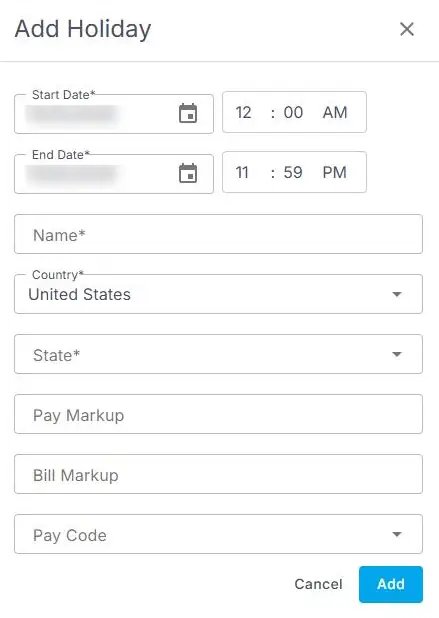
Settings › Company Profile › Holiday Schedule › Add Record opens this form. Fields marked * are required.
That's the holiday on the calendar. Repeat for each holiday, then check the client ones.
Clients with their own holidays
Some clients pay holiday rates on different days, or not at all. Open the client and use its Holiday Schedule tab. For that client's jobs, its own schedule is used instead of yours.
Tips
- Add next year's holidays before the year starts.
- Check each markup against your client contracts.
- Set the start and end times for the whole holiday, so overnight jobs are covered.
Other ways people ask this
- How do I set up holiday pay?
- How do I add a holiday?
- Can a client have different holidays?
- Where do I set the holiday markup?
Related guides
- Set up client rates — overtime, double time and holiday rates per position
- Company Settings: Start Here — everything else to set up
Was this article helpful?
That’s Great!
Thank you for your feedback
Sorry! We couldn't be helpful
Thank you for your feedback
Feedback sent
We appreciate your effort and will try to fix the article