Your Crew and clients should see your agency, not a generic system. Add your details and logos once, and they show up across NextCrew.
Summary
Go to Settings › Company Profile. The Overview tab holds your main address, your website (Client Home Page), date and time formats, an About Us description and your SOP. The Appearance tab holds your logos, favicon, background image and sign-up page look.
How to do it
- Go to Settings › Company Profile.
- On Overview, click Edit next to General Information and fill in your details.
- Set Date Format and Time Format the way your team reads dates.
- Add your About Us text and SOP.
- Open Appearance and upload your Small Logo, Mini Logo and Favicon.
The Appearance tab
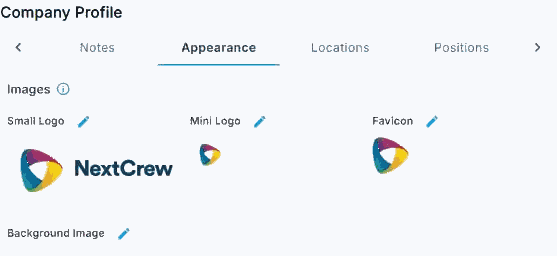
On the Appearance tab, click the pencil next to each image to upload your own.
That's your company set up. Read on for what each part is for.
On this page
What's on the Overview tab
| Setting | What it does |
|---|---|
| Main Address | Your head office address. |
| Client Home Page | Your website. |
| Date Format and Time Format | How dates and times show across NextCrew. |
| About Us | A short description of your agency. |
| SOP | Your standard operating procedures, in one place for your team. |
| Attachments | Files you want kept with your company record, such as policies. |
The Notes tab holds notes about your company, such as decisions and reminders for the team.
What's on the Appearance tab
| Setting | What it does |
|---|---|
| Small Logo and Mini Logo | Your logo at two sizes, for different places in NextCrew. |
| Favicon | The small icon in the browser tab. |
| Background Image | The image behind the sign-in screen. |
| Register Page | The look of the page where Crew sign up. |
Other ways people ask this
- How do I add our logo?
- How do I change the date format?
- Where do I put our company address?
- How do I brand NextCrew?
Related guides
- Company Settings: Start Here — everything else to set up
Was this article helpful?
That’s Great!
Thank you for your feedback
Sorry! We couldn't be helpful
Thank you for your feedback
Feedback sent
We appreciate your effort and will try to fix the article