Your agency decides whether you can change times. If you can't, decline the timesheet with the red X and write what the right time is. Your agency fixes it.
What you can see and do depends on how your agency set up your access. If something here isn't on your screen, ask your agency.
What to do instead
| 1 | Go to Operation › Timesheet and find the timesheet. |
| 2 | Choose the red X to decline it. |
| 3 | Write the correct times in the reason. |
| 4 | Your agency gets a message and fixes it. |
The decline button
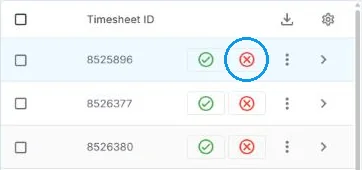
In Operation › Timesheet, the red X on each row declines the timesheet. Write the correct times in the reason.
If this doesn't work
| What you see | What to do | Who fixes it |
|---|---|---|
| The timesheet is already approved | Once it's approved, you can't change it. Ask your agency. | Your agency |
| You want to change times yourself | Ask your agency to turn it on for you. | Your agency |
Only your agency can
- Let you change clock-in and clock-out times.
- Fix a time for you.
Call or email your contact at your staffing agency.
Other ways people ask this
- Why can't I edit the hours?
- How do I fix a clock-in time?
- The worker forgot to clock out.
- I can only approve or decline.
Related guides
If your agency's site has its own name and logo, it is powered by NextCrew and works the same way.
Was this article helpful?
That’s Great!
Thank you for your feedback
Sorry! We couldn't be helpful
Thank you for your feedback
Feedback sent
We appreciate your effort and will try to fix the article