Everything you need to help a Crew Member with the NextCrew app, ready to share. Keep this page handy: when someone asks how to sign in, update their profile, clock in or add a receipt, send the link, video or message below instead of explaining it on the phone.
In this kit
- One link with everything for your Crew, and a message to share it
- 7 short videos, each matched to the question it answers
- Orienting a group at once with Channels
- The dashboard widgets that show who’s using the app
- What to ask CrewPilot when you’re not sure
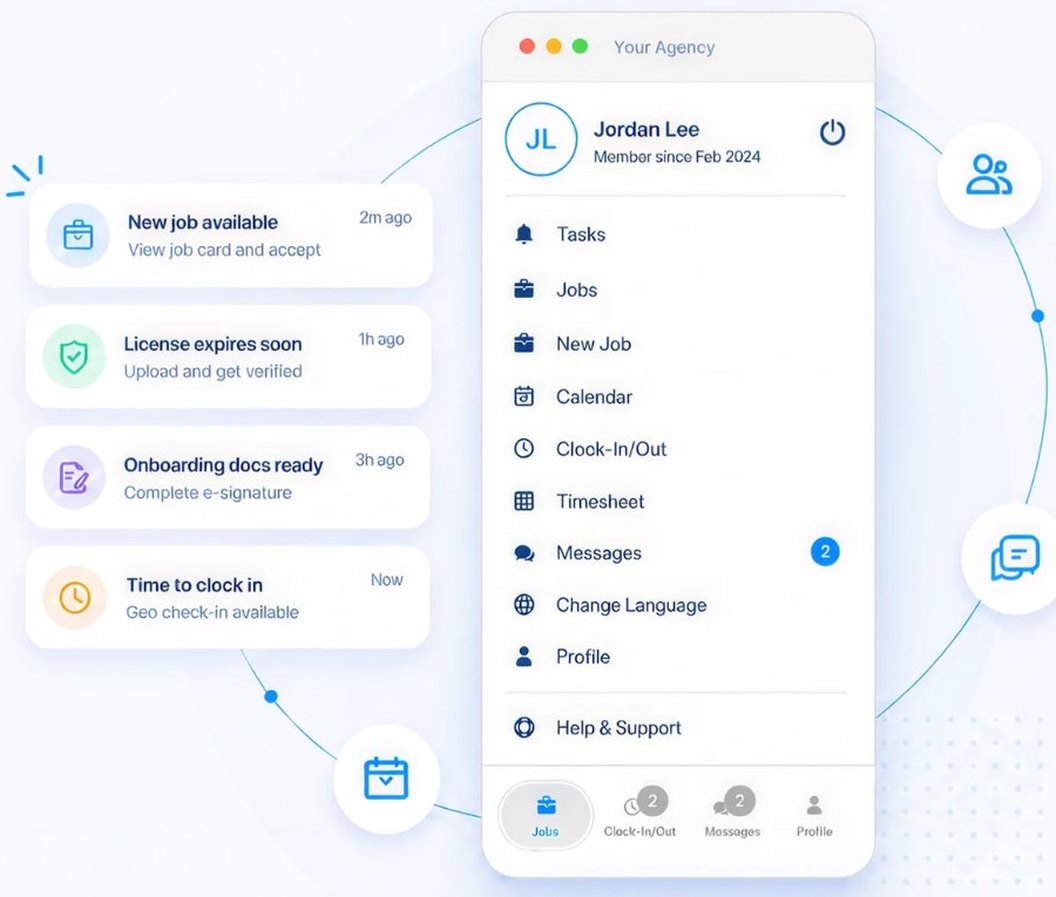
Why it’s worth it
| For your Crew | For your agency |
|---|---|
| They see jobs that fit their skills and where they live, and confirm them on their phone. | Fewer calls about where the job is or how to clock in. |
| They get reminders before every job, with where to go and when. | Complete profiles, so the right Crew hear about the right jobs. |
| Their hours are recorded right, so they’re paid right. | Clean hours from the site, so fewer timesheet fixes before payroll. |
One link to share
The Crew help page has the app download links, the videos and answers to common questions. Share it whenever a Crew Member asks for help:
Copy and share
Hi {Recipient.FirstName}, here’s help with the NextCrew app, with short videos and answers to common questions: https://www.nextcrew.com/resources/support/crew
Questions? Message us in the app or call.
Save it as a shared template in Messages so anyone on your team can send it the same way. See Create and Share Message Templates.
Videos to share
Send the one video that answers the question, not all of them.
| When a Crew Member asks about | Send this video | Length |
|---|---|---|
| New to the app | Getting started with the app | 5 min |
| Hiring paperwork | Complete your hiring documents | 4 min |
| Profile questions | Set up your profile | 1 min, part of the app tour |
| Clock-in questions | Clock in, breaks and timesheets | 3 min |
| Expenses to claim | Add expenses and receipts | 1 min, part of the app tour |
| License due | Add licenses and certifications | 2 min |
| Locked out | Reset your password | 2 min |
Orienting a group?
Starting several new Crew Members together, like a new-hire class or a team for one client? Create a channel for the group and post the start time, where to park, what to bring and the clock-in video once. Everyone sees it in the app, and when one person asks a question, the whole group sees the answer.
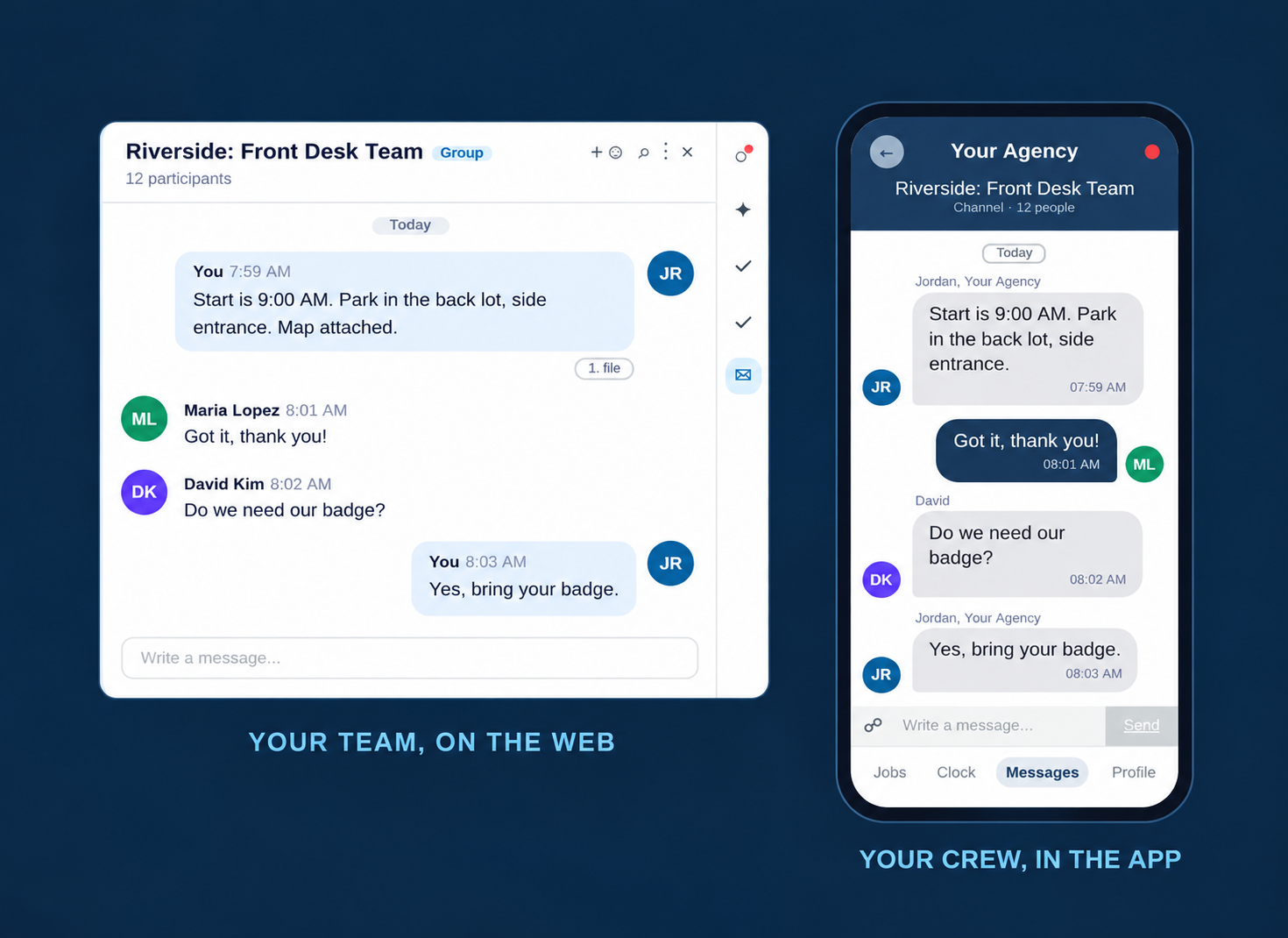
How to set it up: Channels for your team. To send your Crew: How to use Channels in the app.
See who’s using the app
Add these widgets to your dashboard with the ADD button:
| Widget | What it shows you |
|---|---|
| Mobile Adoption Rate | The share of your Crew Members using the NextCrew app. |
| Mobile Adoption by Device | Your Crew by the phone they use. Click a slice to see who’s on it. |
| Mobile Clock-In Rate | The share of clock-ins done in the app. If it’s low, share the clock-in video. |
New to dashboards? See how they work.
Ask CrewPilot
Not sure of an answer? Open CrewPilot in NextCrew and ask in plain words. It points you to the right guide. Try “How do I send a Crew Member a password reset?” or “Which Crew Members are working today?” See Ask CrewPilot.
Go further
- Train and Support Your Crew in the NextCrew App: the full routine, from the welcome message to the first week
- Support Your Crew Members: What They Ask and What to Do: every common Crew question, what to check and which guide to send
- Run Your Agency: The NextCrew University Course: more ways to get the most out of NextCrew
This kit was first shared in the NextCrew University email on October 29, 2026.
Was this article helpful?
That’s Great!
Thank you for your feedback
Sorry! We couldn't be helpful
Thank you for your feedback
Feedback sent
We appreciate your effort and will try to fix the article